1. What's Changed Since This Session
The landscape of Microsoft 365 has evolved significantly since Tracy’s original collaboration session recorded in 2023. The foundational shift involves transitioning from fragmented, static applications into an interconnected, agent-driven architecture powered by artificial intelligence.
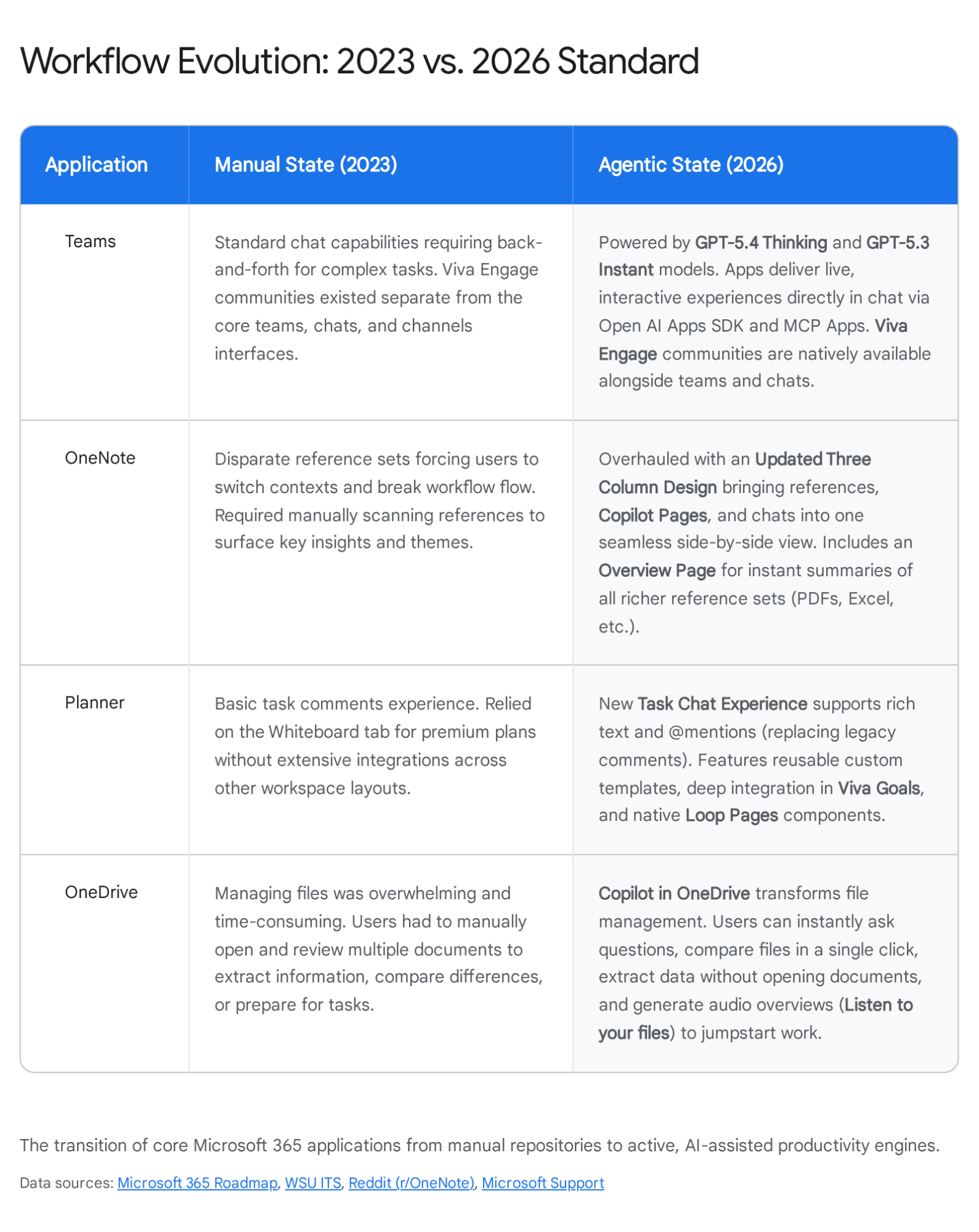
The historical data demonstrates a consistent upward trend in automation capabilities, evolving from the fragmented apps of 2023, through the initial Microsoft 365 Copilot integrations of 2024 and 2025, and arriving at the agentic execution paradigm of 2026. This evolution is now underpinned by the Work IQ intelligence layer, which connects organizational context across all workloads.
The integration of advanced models, specifically GPT-5.4 Thinking and GPT-5.3 Instant, has transformed the ecosystem. These tools now allow systems to work through complex, multistep tasks more deeply while delivering faster, more accurate responses.
The table below provides a factual summary of the core technology shifts as of April 2026.
| Technology | Status in April 2026 | What Replaced It / 2026 Evolution |
|---|---|---|
| Microsoft Planner | Integrated into a new unified Planner application. | The new Microsoft Planner combines To Do, Project, and Planner functionalities. It features the Project Manager Agent and a dedicated Goals view. |
| Microsoft Teams | Upgraded with Copilot Cowork and Agentic AI. | Teams now supports multi-step, background task execution. Town hall features moved to Teams Enterprise; advanced security remains in Teams Premium. |
| Microsoft OneNote | Re-architected for AI processing and context fusion. | Replaced by the Copilot Notebooks overhaul (March 2026). It features a new 3-column design integrating references, content, and Copilot chats seamlessly. |
| Microsoft OneDrive | Upgraded with native AI file interaction and analysis. | Copilot in OneDrive now allows users to extract information, compare files, and generate audio overviews without actively opening documents. |
| Teams Admin Center | Expanded to handle AI trust scoring and external access. | Manual app reviews are replaced by the automated Organization Trust Score. External collaboration is managed via a simplified centralized overview page. |
| App Governance | Transitioned to unified AI control planes for autonomous agents. | Microsoft Agent 365 now serves as the central registry and control plane for managing all autonomous AI agents across the entire enterprise tenant. |
2. How to Build This Today
This section details the modernization of the original session's three core scenarios. The following instructions represent the definitive architectural standards and best practices for April 2026.
Scenario 1: Defining a Team's Collaboration Strategy
The session showed you using the 'Know Before You Go' handout to assess the current state (e.g., fragmented emails, scattered files in OneDrives, tasks in Planner), then outlining a plan assigning Teams for communication/meetings, OneNote for shared knowledge bases/note-taking, Planner for task tracking/ownership, OneDrive for centralized file storage to reduce duplication.
Here's how you'd build that same thing today in April 2026.
Organizations must now leverage the Microsoft Modern Collaboration Architecture (MOCA) alongside the Copilot Scenario Framework (CSF). The manual, survey-based handout approach is entirely obsolete.
Instead, strategy definitions are driven by AI analysis using Microsoft 365 Copilot Chat and the Work IQ intelligence layer. Work IQ ingests signals from across the tenant, linking work with people, projects, and timelines.
This intelligence allows Copilot to proactively understand the team's collaboration habits. It identifies bottlenecks and suggests an optimized architecture without requiring manual employee surveys.
Step 1: Generating the Baseline Analysis
Instead of distributing a handout, administrators or team leads must use Copilot to analyze existing communication fragmentation. Copilot grounds its responses in the Microsoft Graph, securely analyzing emails, chats, and documents that the specific user has permission to access.
To yield precise results, users must employ the Goal, Context, Source, and Expectations (GCSE) prompt framework. This framework ensures the AI engine understands the exact parameters of the collaboration audit.
Menu Path: Open Microsoft Teams > Select Copilot from the primary left-hand navigation bar > Select the Work tab to ensure grounding in enterprise data.
Execution: The user must enter a structured prompt directly into the Microsoft 365 Copilot Chat interface.
The prompt should be structured as follows: “Draft a collaboration strategy analysis for the [Project Name] initiative. Base this on all emails and Teams messages involving from the past 30 days. Highlight areas where file duplication is occurring across personal OneDrives and where task tracking is scattered. The output should be a structured executive summary with clear risks and actionable recommendations.” 16
Quick Win: The fastest method to initiate a strategy review is to ask Copilot in Teams: "Summarize the key points from my emails and Teams messages over the past 48 hours. Highlight urgent actions, risks, and anything requiring my attention." This immediately surfaces collaboration bottlenecks.
Step 2: Outlining the Modern Architecture Plan
Once the baseline is established, the strategy must formally assign workloads to specific applications. In 2026, this mapping is heavily influenced by the introduction of Copilot Cowork.
Copilot Cowork automates multi-step workflows across these applications, changing how strategy is deployed. The modern strategy must dictate the following standard alignments:
- Microsoft Teams: Designated as the hub for real-time communication, agentic workflows, and cross-tenant external collaboration.
- OneNote (Copilot Notebooks): Designated as the centralized, AI-curated knowledge base, utilizing the new 3-column design to fuse source documents and chat contexts.
- Microsoft Planner: Designated as the unified task and goal-tracking system, utilizing the dedicated Goals view to align daily task execution with broader strategic objectives.
- Microsoft OneDrive: Designated as the foundational active file layer, utilizing Copilot for rapid document comparison and insight generation without opening files.
Step 3: Automating the Strategy Deployment
After defining the application roles, the strategy must be communicated and deployed across the team. Copilot Cowork turns this strategic intent into coordinated action.
When a project manager delegates the launch of the new strategy, Cowork interprets the intent into a multi-step execution plan. It runs autonomously in the background, drafting the team charter in Word, setting up the tracking board in the new Planner, and scheduling alignment meetings in Outlook simultaneously.
Cowork execution features clear checkpoints where the user can confirm progress or make changes. Administrators must verify that users possess the correct licensing to utilize these advanced multi-step capabilities. Access to the full Copilot Cowork experience requires a Microsoft 365 Copilot license, acting as an add-on to core enterprise plans.
Scenario 2: Mastering Core App Integration for Efficiency
The session showed you demonstrating optimal uses like Teams for real-time comms, OneNote for notes, Planner for tasks with clear ownership, OneDrive for file management to evolve hybrid teams into productive operations.
Here's how you'd build that same thing today in April 2026.
To build this exact workflow today, organizations must activate the AI-enhanced, agent-driven features of each specific application. The operational focus has shifted from simply storing data in these applications to orchestrating AI interactions seamlessly across the ecosystem.
Integrating Microsoft Teams for Real-Time Efficiency
Microsoft Teams remains the central hub, but its functionality is substantially augmented by Wave 3 of Microsoft 365 Copilot and interactive agents. Efficiency is achieved by minimizing context switching and keeping users in the flow of work.
The multi-tenant, multi-account experience is a critical update introduced in March 2026.20 It consolidates notifications from across all organizational tenants into one feed. This allows users to collaborate with external colleagues and respond to messages without constantly switching accounts.
Furthermore, Copilot Chat inside Teams now supports direct application interaction. Through the Open AI Apps SDK and Model Context Protocol (MCP) Apps, applications deliver live, interactive experiences directly within the chat window.
Menu Path and Execution:
- Navigate to Microsoft Teams > Copilot.
- Use the advanced text selection grounding feature introduced in March 2026. Highlight specific text in a previous Copilot response, and select the Ask Copilot button that appears.
- Instruct the AI to update a record directly based on that text. For example, prompt Copilot to "Update the status of this specific record in the connected Power App to 'In Progress'." 3
Quick Win: Utilize the new AI-powered Workflows app in Teams to automate everyday repetitive tasks using natural language prompts—no coding required. This allows Copilot to act as a localized automation engine for the team.
Integrating OneNote via Copilot Notebooks
OneNote received a comprehensive overhaul in March 2026, transitioning into "Copilot Notebooks." This update transforms the platform from a static note-taking application into an active, AI-curated knowledge environment.
The defining feature for operational efficiency is the updated Three-Column Design. This new interface brings reference materials, generated content in Copilot Pages, and ongoing Copilot chats into a single, side-by-side view. This design prevents users from breaking their workflow to search for context across different windows.
Menu Path and Execution:
- Open the OneNote application (now integrated with Copilot Notebooks).
- Navigate to the new Overview Page. This automated dashboard provides an instant summary of all references in the notebook and surfaces key themes without manual reading.
- Add rich reference sets directly into the notebook context. Users can now natively embed Word, PowerPoint, Excel files, PDFs, and Copilot Pages directly alongside their notes.
- Generate an Audio Overview. Select the Copilot button in the ribbon and instruct the system to generate an audio summary of the notebook content for consumption while commuting or away from the desk.
Integrating the New Microsoft Planner
The historically fragmented landscape of To Do, Project for the web, and the legacy Planner application has been successfully unified into the "new Microsoft Planner".5 This single application provides a scalable experience ranging from simple task lists to complex enterprise project management operations.
Efficiency in 2026 is driven by the integration of the new Goals view and the Project Manager Agent. The Goals view allows teams to set clear organizational objectives and connect individual, daily tasks directly to shared outcomes.
Menu Path and Execution:
- Navigate to Microsoft Teams > Apps > Planner (or access via the Microsoft 365 web portal).
- Create a new plan utilizing the custom templates feature to establish a reusable, pre-designed project layout.
- Navigate to the Goals view. Access to this specific view in basic plans requires either a Planner premium license or a Microsoft 365 Copilot license.
- Engage the Project Manager agent. Open the new AI chat entry point within the plan and instruct the agent to generate a project structure. The agent now supports web search, allowing it to pull external data to flesh out project requirements.
- Utilize the new Task Chat experience. This replaces the legacy task comments section, allowing for real-time collaboration, @mentions, and rich text formatting directly within a specific task card.
Integrating OneDrive for Intelligent File Management
OneDrive is no longer treated merely as a passive storage repository; it is an active participant in file management workflows. Managing numerous files can be overwhelming, but Copilot in OneDrive drastically reduces the preparatory work needed before core tasks can begin.
The 2026 update allows users to interact with files intelligently without opening the native applications (like Word or PowerPoint). The context menu provides immediate access to powerful AI summarization and comparison capabilities.
Menu Path and Execution:
- Navigate to OneDrive on the web or via the native Windows PC client.
- Select multiple documents simultaneously within a folder.
- Right-click to open the context menu and select the Copilot option.
- Choose Compare files to instantly evaluate the key differences between the selected documents in a single click, saving hours of manual review.
- Alternatively, select a lengthy PDF or Word document, access Copilot via the context menu, and choose Listen to your files to generate a natural-sounding audio overview complete with transcripts.
Scenario 3: Implementing Microsoft Teams Governance
The session showed you applying best practices from the governance page to control team creation, naming conventions, and access, preventing sprawl.
Here's how you'd build that same thing today in April 2026.
Administrators must adopt a profoundly different approach to governance today. Governance in 2026 extends far beyond basic teams and channels. The strategy must encompass external collaboration trust, automated lifecycle management, and strict oversight of autonomous AI agents operating within the tenant.
Implementing Naming Conventions and Team Creation Limits
To avoid inappropriate or misleading names, and to provide rigid structure for organizational categorization, administrators must utilize the Microsoft 365 Groups naming policy. This centralized policy applies universally across Outlook, Microsoft Teams, SharePoint, and Planner.
It is important to note that executing the Microsoft 365 Groups Naming Policy requires Microsoft Entra ID P1 licenses for each unique user that is a member of the target groups.
Menu Path and Execution:
- Navigate to the Microsoft Entra admin center.
- In the left navigation menu, under Manage, select Groups.
- Under the Settings section, click on Naming policy.
- Select the Group naming policy tab.
- Configure the Prefix-Suffix naming policy. Administrators must use fixed strings or dynamic user attributes (e.g., ``) that are automatically substituted based on the identity of the user creating the team.
- Configure Custom Blocked Words. Upload a CSV or manually enter a set of blocked words specific to the organization (e.g., "CEO", "Payroll", "Confidential") to prevent unauthorized use in team naming conventions.
Governing External Collaboration and Access
Managing guest access and external collaboration has been significantly streamlined. Administrators no longer need to navigate complex, fragmented PowerShell scripts for baseline external configuration.
On March , 2026, Microsoft introduced simplified controls via a new centralized overview page directly within the Teams Admin Center. This unified interface allows administrators to review and modify the organization's external collaboration settings through a guided, logical flow.
Menu Path and Execution:
- Navigate to the Microsoft Teams admin center at https://admin.teams.microsoft.com.
- In the left navigation panel, locate and expand the external collaboration section.
- Access the new overview page.
- Select a preset configuration mode. Administrators must choose from open preset modes, controlled preset modes, or build a highly customized configuration tailored to specific organizational compliance requirements.
Warning: Administrators must ensure that cross-tenant access settings in Microsoft Entra are properly configured before enabling external shared channels. If these foundational identity settings are blocking access, the Teams-level external collaboration policies will fail to apply.
Advanced Meeting Governance: Enterprise vs. Premium
A major structural shift in governance occurred on April , 2026, regarding meeting policies and platform capabilities. Administrators must understand the critical distinction between Teams Enterprise and Teams Premium to govern meeting spaces correctly.
Several high-capacity webinar and town hall features—such as streaming chat, eCDN bandwidth management, real-time event insights, and 3,000-person concurrent attendee capacity—were moved to the base Teams Enterprise license.
However, the most stringent security and governance controls remain locked behind the Teams Premium add-on license. Administrators must deploy these Premium features to protect highly sensitive communications and intellectual property.
Menu Path and Execution:
- Navigate to the Teams admin center > Meetings > Meeting policies.
- Enforce Watermarking on specific highly sensitive meeting templates to deter unauthorized screen captures and information leaks.
- Apply Microsoft Purview Information Protection Sensitivity Labels to meetings. This feature automatically adjusts meeting sensitivity settings based on the classification of the files being shared during the call. (Note: This requires an overarching Microsoft 365 E5 compliance subscription).
- Configure policies to strictly restrict participants from copying or forwarding meeting chat messages, live captions, or generated transcripts.
Governing Apps and AI Agents (Agent 365)
The most critical governance update in 2026 is the management of autonomous AI agents. The rapid proliferation of custom Copilot agents created via Copilot Studio presents a massive operational risk for shadow AI and unauthorized data exfiltration.
To control this sprawl, manual reviews of applications have been replaced by automated systems, and a dedicated control plane has been introduced: Microsoft Agent 365.11
First, administrators must automate standard application approvals using the new Trust Score system to reduce IT backlog.
Menu Path and Execution for App Trust:
- Navigate to the Teams admin center.
- Define the organization's overarching trust requirements once within the policy settings. The system will then automatically assess every incoming app and agent against these established baselines.
- Review the generated Organization Trust Score and the detailed evaluation report for each app. This scalable process clearly identifies which applications meet security, privacy, and compliance standards automatically.
Second, administrators must gain absolute visibility over the entire autonomous AI fleet using the Agent 365 control plane. Agent 365 delivers unified observability across the entire agent fleet through telemetry, dashboards, and alerts.
Menu Path and Execution for Agent Governance:
- Navigate to the Microsoft 365 admin center.
- From the left navigation bar, select … Show all, and then select Agents to expand the menu structure.
- Under the Agents node, select Overview.
- Use this control plane to view a complete registry of all agents operating within the organization. The dashboard provides a detailed breakdown by publisher, platform, and creation source (e.g., Copilot Studio, Microsoft Foundry, or non-Microsoft platforms).
- Monitor the dashboard for security alerts and governance gaps, and enforce zero-trust access policies across the agent fleet.
Quick Win: Access the Agent 365 registry immediately to identify any "shadow agents" built on non-Microsoft platforms that are operating outside of established compliance boundaries. Administrators can instantly quarantine non-compliant agents directly from this dashboard.
3. Licensing Quick Reference
The Microsoft 365 licensing landscape underwent significant restructuring in early 2026, culminating in the announcement of the Microsoft 365 E7 Frontier Suite. Organizations must carefully align their licensing strategies to ensure access to the advanced agentic features, unified applications, and stringent security controls detailed in this guide.
Below is a consolidated reference table for the licensing tiers required to build the modern 2026 collaboration architecture.
| License / SKU | Old Price | New 2026 Price | Core Value & Included Capabilities |
|---|---|---|---|
| Microsoft 365 E3 | $36.00 | $39.00 / user/mo | Core applications, Teams, basic security, and Windows 11 Enterprise. This forms the baseline requirement for standard enterprise users. |
| Microsoft 365 E5 | $57.00 | $60.00 / user/mo | Advanced identity, Defender XDR, Purview compliance, and Power BI. Required for automated sensitivity labels in Teams meetings. |
| Microsoft 365 Copilot | N/A | $30.00 / user/mo | Add-on license. Unlocks Copilot Cowork, multi-model intelligence (GPT-5.4), Copilot Notebooks, and advanced reasoning scenarios. |
| Teams Premium | N/A | Varies | Add-on license. Unlocks advanced meeting protection (watermarking), the Queues app, and custom meeting branding. (Note: Town hall features moved to Enterprise in April 2026). |
| Microsoft 365 E7 | N/A | $99.00 / user/mo | The Frontier Suite (Available May , 2026). Bundles M365 E5, the Entra Suite, M365 Copilot, and Agent 365 into a single, integrated subscription. |
Strategic Licensing Notes:
The introduction of Microsoft 365 E7 represents the strategic shift from isolated AI experimentation to secure, enterprise-wide execution. Organizations heavily invested in deploying Copilot at scale should consider migrating to the E7 tier. Analysis indicates that E7 provides approximately a 15% incremental cost savings compared to purchasing the E5 suite, the Copilot add-on, the Entra Suite, and standalone Agent 365 licenses separately.
Furthermore, for organizations managing a robust frontline or utilizing legacy enterprise agreements, it is critical to note that the industry anticipates the retirement of older E1, E3, F3, and E5 standalone licensing models by August 2026.38 Proactive planning for migration to the updated Microsoft 365 packaging structure is imperative to prevent service disruption.
For legacy compliance, customers who purchased Teams Premium licenses prior to the April , 2026 structural changes will continue to have access to all previously included Teams Premium features and product experiences until their specific license term expires.
Key Microsoft Documentation Links
For further deep-dive configurations, implementation guidelines, and continuous service updates, administrators should reference the following official Microsoft documentation portals:
- Teams Admin Center Governance & Management: https://admin.teams.microsoft.com 29
- Microsoft 365 Copilot Overview & Architecture: https://learn.microsoft.com/en-us/microsoft-365/copilot/microsoft-365-copilot-overview 39
- Agent 365 Overview & Control Plane Guides: https://learn.microsoft.com/en-us/microsoft-365/admin/manage/agent-365-overview 32
- Teams Premium Licensing Updates (April 2026): https://learn.microsoft.com/en-us/microsoftteams/teams-add-on-licensing/licensing-enhance-teams 7
- Microsoft 365 Groups Naming Policy Configuration: https://learn.microsoft.com/en-us/entra/identity/users/groups-naming-policy 40
Source note
Briefing published by Collab365 Spaces. Cite as "Supercharging Collaboration in 2026: The Microsoft 365 Companion Guide", Collab365 Spaces. 8 sources referenced.