You saw Mark Kashman and Liz Sundet outline the foundational Microsoft Viva deployment patterns back in early 2022. The digital workplace has undergone a massive architectural shift since then.
Today, the employee experience is no longer just about surfacing discrete applications inside Microsoft Teams. It is entirely driven by generative AI, specifically Microsoft 365 Copilot, and the unification of data across your tenant. Standalone knowledge apps have been retired in favor of native AI querying, and developer frameworks have pivoted from building basic tabs to deploying intelligent Copilot agents.
This guide serves as your authoritative April 2026 update. We will walk through the exact scenarios Mark and Liz demoed, showing you how to build those same experiences using current tools, modern administration paths, and AI-first deployment strategies.
1. What's Changed Since This Session
The most profound shift in the Microsoft 365 ecosystem is the consolidation of knowledge management and the deprecation of legacy extensibility frameworks. You must update your deployment blueprints to reflect these core platform changes before touching the admin center.
The table below summarizes the critical technology evolutions since the original session.
| Technology (2022 Session) | Status in April 2026 | What Replaced It (if applicable) |
|---|---|---|
| Viva Connections Feed | Evolved | Replaced by a unified News reader experience across all desktop and mobile devices. |
| Viva Topics | Retired (Feb 2025) | Replaced entirely by Microsoft 365 Copilot and SharePoint Premium content processing. |
| SharePoint Syntex | Rebranded & Expanded | Now operating as SharePoint Premium, featuring deep Teams and Viva integrations. |
| Viva Insights (Teams Org Data) | Migrated | Organizational behavior and leader insights moved to the standalone Viva Insights web app. |
| TeamsFx SDK | Deprecated | Replaced by the Microsoft 365 Agents SDK for building modern Copilot plugins and extensions. |
| Viva Learning Interests | Replaced | Replaced by Manage People Skills, which maps AI-driven role data directly from M365.8 |
| SharePoint Add-ins | Retired (April 2026) | Replaced by modern SharePoint Framework (SPFx) solutions and Microsoft Purview integrations. |
2. How to Build This Today
Scenario 1: Admin Deployment Pattern for Viva Connections
The session showed Mark and Liz outlining admin setup steps for rolling out Viva Connections in SharePoint to create custom employee experiences. Today, this process is significantly more streamlined, supports multiple distinct portals per tenant, and utilizes Entra ID for granular audience targeting.
You no longer need to rely on complex PowerShell scripts to designate home sites. The modern Microsoft 365 admin center provides a dedicated, centralized graphical interface for this exact workflow.
Here's how you'd build that same thing today in April 2026:
First, you must ensure you have global SharePoint admin permissions. Navigate to the Microsoft 365 admin center, and navigate to Setup > Microsoft Viva > Viva Connections.
Select the + Create new button prominently displayed at the top of the experiences list. The system will prompt you with two distinct architectural choices for your deployment.
You can select Create a Connections experience to generate a brand-new, standalone portal. Alternatively, you can select Build from an existing intranet portal to overlay Viva Connections onto a SharePoint communication site you already use.
Quick Win: The fastest start method is choosing "Build from an existing intranet portal." Paste the URL of your current primary SharePoint communication site into the setup wizard. This instantly maps your existing SharePoint news, navigation, and branding directly into the Teams desktop and mobile applications without rebuilding any assets.
Once created, the experience remains invisible to end-users. It must be explicitly enabled, and permissions must be assigned by the experience owners.
From the settings panel, select the Permissions tab. Click Add site owners and search for the specific Microsoft Entra security groups or Microsoft 365 groups you want to manage this portal.
If your organization operates a multi-geo tenant, and your SharePoint home site sits outside the main geographical region, you must manage these permissions directly within the SharePoint Admin Center instead.
Configuring the Modern User Experience
The end-user interface has evolved significantly since the 2022 session. The legacy "Feed" algorithm has been entirely replaced by a modern News reader tab.
This update, fully rolled out as of April 2025, provides a constant stream of news from SharePoint home sites, boosted news articles, and organizational updates across all device form factors.
Your primary focus should be on the Dashboard. This is the digital toolset bringing together interactive Adaptive Card Extensions (ACEs). You can configure out-of-the-box cards for frontline workers to clock into shifts, access paystubs, or book shuttles.
For premium licensed users, you can now utilize the Announcements feature. This allows administrators to push time-sensitive, highly visible notifications across desktop, tablet, and mobile interfaces simultaneously.
Adoption and Change Management
Building the technical portal is only half the battle. Organizations with highly engaged employees show a 23% greater profitability, making adoption strategies critical.
You should leverage the official Viva Connections Adoption guide to plan your rollout. Ensure your high-traffic sites and portals are healthy before pinning the Viva Connections app globally in Microsoft Teams.
Utilize modern storytelling tools like Viva Amplify alongside Connections to manage your internal employee survey campaigns and track engagement metrics.
Link to official Microsoft documentation:(https://learn.microsoft.com/en-us/viva/connections/set-up-admin-center).
Scenario 2: Admin Deployment Pattern for Viva Insights
The session showed the deployment pattern for Viva Insights, discussing the setup for personal and team insights into work patterns, productivity, and wellbeing. Today, Microsoft has physically split these experiences to enhance data privacy and deliver more powerful AI analytics to leadership.
You will notice that broad organizational behavior reports are no longer housed inside the Teams application. Instead, personal and team-level nudges remain in Teams, while advanced analytical tools have moved to a dedicated web portal.
Here's how you'd build that same thing today in April 2026:
Deployment requires strict role segregation to maintain compliance. Navigate to the Microsoft 365 admin center, open the left navigation, and go to Roles > Role assignments.
You must first assign the Insights Administrator role to the IT personnel responsible for configuring organizational data uploads and strict privacy boundaries.
Next, assign the Insights Analyst role to your HR leaders or business analysts. This role is required to make organizational insights visible to the broader leadership team via the standalone Viva Insights web app.
Once roles are active, your Insights Analyst must log into the Viva Insights web app and manually publish collaboration metrics. Using the Publish reports feature is what makes team-level insights visible to managers.
Quick Win: Deploy the Microsoft Copilot Dashboard immediately. This lives inside the Viva Insights web app and requires zero custom data engineering. It provides actionable, out-of-the-box metrics covering your organization's AI readiness, Copilot adoption rates, and behavioral impact across the workforce.
The Modern End-User Experience in Teams
For your standard employees, Viva Insights remains a vital application pinned inside Microsoft Teams. Its primary goal is to prevent burnout and improve meeting culture.
Instruct users to navigate to the Wellbeing tab within the Insights app. Here, they can actively manage their work-life balance through the "Take action to improve your wellbeing" section.
Users can schedule a Virtual commute to mindfully disconnect at the end of the day, or start a Daily focus plan to automatically block out distraction-free work time.
Managers will receive prompts inside the Teams app if the system detects regular after-hours work or severe meeting overload within their reporting lines. These nudges offer specific recommendations to help teams balance productivity and wellbeing.
Link to official Microsoft documentation: Introduction to Microsoft Viva Insights.
Scenario 3: Admin Deployment and End-User Use of Viva Learning
The session showed the admin setup for Viva Learning and the popular end-user feature of scheduling learning modules directly to an Outlook calendar. Today, this workflow is highly automated, relying on Microsoft 365's Graph data rather than manual user input.
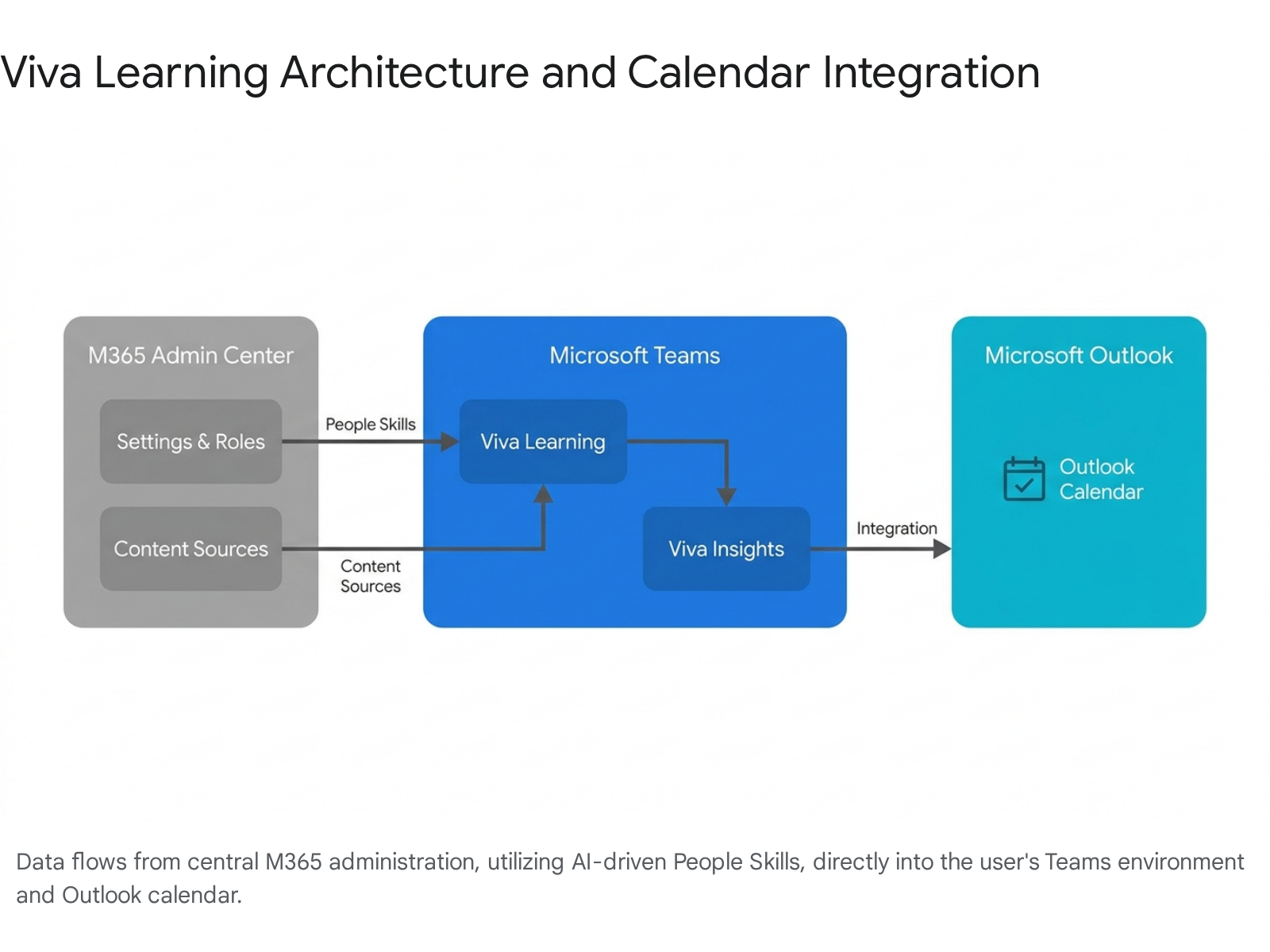
You no longer ask employees to manually select their "Interests." As of mid-2025, Microsoft replaced the Interests capability with an AI-driven Manage People Skills framework.
Here's how you'd build that same thing today in April 2026:
First, establish the administrative foundation. Navigate to the Microsoft 365 admin center and assign the Knowledge Administrator role to the personnel managing your course catalogs.
Next, configure the platform settings by navigating to Settings > Viva > Viva Learning. Select Manage additional settings and ensure the box for "Allow users to track their recommended trainings" is checked.
To enable the new AI-driven capabilities, navigate to the Viva Learning Admin tab and select Manage People Skills. Note that this feature currently requires the default language for Viva Learning to be set to English-US (EN-US).
Clicking this redirects you to the M365 admin center to publish your organizational skills taxonomy. Once published, wait a few days for the People Skills to fully sync back to the Viva Learning hub.
Once synced, learners automatically receive personalized skill suggestions based on their daily activities in Microsoft 365 and their specific Entra ID job roles.
Configuring Learning Paths and Calendar Integration
Administrators can curate specific journeys by building Learning Paths. Go to the Admin tab in Viva Learning, select Learning path on the left menu, and click Create new.
You can add titles, upload thumbnails, and drag-and-drop content from Microsoft Learn, LinkedIn Learning, or your internal SharePoint repositories.
For the end-user, scheduling these modules to their calendar is seamless. When a user navigates to a course details page in Teams, they simply click the Add to calendar button.
The system instantly generates an Outlook calendar event containing a direct link to the course, allowing the user to select a suggested focus time slot.
Quick Win: Tell your users to automate this process entirely using Viva Insights. Have them navigate to the Wellbeing tab in the Insights app and locate the "Make time for learning" card. By clicking Set aside time, the AI will automatically scan their Outlook calendar and passively book protected learning blocks every single week.
If users need to adjust their automated learning schedule, they can click the ellipses (...) in the top-right of the Insights app, select Settings, and go to Protect time. Here, they can dictate whether they want 30 minutes, 1 hour, or 2 hours of learning booked, and prefer morning or afternoon slots.
Link to official Microsoft documentation: Overview of Viva Learning.
Scenario 4: Integrating Viva with SharePoint/OneDrive and Syntex
The session explained creating custom knowledge experiences in SharePoint and having Syntex topics surface via "Topic Cards" in Viva and Teams. Today, this entire paradigm has been radically rewritten due to the generational shift in generative AI.
You must stop planning deployments around Viva Topics. Microsoft officially retired Viva Topics on February , 2025.3
The AI-generated Topic pages were deleted, and any manually published Topic pages were permanently converted into standard SharePoint communication pages. Furthermore, the classic hover-over "Topic Cards" no longer appear in Teams, Outlook, or SharePoint.
Here's how you'd build that same thing today in April 2026:
The modern knowledge architecture relies entirely on SharePoint Premium (the evolution of Syntex) to structure your data, which is then natively surfaced and queried by Microsoft 365 Copilot.
First, configure your advanced content processing. Navigate to the Microsoft 365 admin center, then go to Setup > Files and content > Use content AI with SharePoint Premium.
Because SharePoint Premium operates largely on a pay-as-you-go consumption model, you must link it to an active Azure subscription.
Once enabled, you should implement Autofill columns on your high-traffic document libraries. This UI element utilizes AI to automatically process Word, PDF, or TIFF files upon upload, extracting critical metadata and dynamically populating the library columns.
This automated classification is vital because it prepares and structures your content for Microsoft 365 Copilot. Copilot relies heavily on properly tagged SharePoint content as its primary data source for generating accurate answers in Teams chat.
Surfacing Insights in Microsoft Teams
Rather than relying on passive Topic Cards, you now push actionable content insights directly into Teams using the new Business Documents app.
This application provides a unified UI within Teams to aggregate high-value documents like contracts, invoices, and Statements of Work (SOWs). It utilizes an AI-driven clause analyzer to automatically distill high-risk contracts and flag deviations.
When a contract is expiring or requires immediate attention, the Business Documents app pushes a timely, actionable alert directly to the user in Teams.
Furthermore, you can utilize SharePoint eSignature directly within this Teams interface. This digitizes your approval workflows within the Microsoft 365 trust boundary, surfacing live status insights for documents out for signature.
Quick Win: Do not attempt to manually rebuild legacy Topic Centers. Instead, focus entirely on ensuring your critical organizational knowledge is housed in properly permissioned, modern SharePoint communication sites. If the data is accessible and tagged via SharePoint Premium, Microsoft 365 Copilot automatically indexes it and will natively answer end-user questions in the flow of work.
Governance is also surfaced differently today. Administrators utilize Data Access Governance (DAG) reports to view potentially overshared sites, filtered by sensitivity labels and sharing policies. You can even ask Copilot in the SharePoint admin center to hunt for inactive or overshared sites and generate corrective policies.
Link to official Microsoft documentation:(https://learn.microsoft.com/en-us/sharepoint/syntex/syntex-overview).
Scenario 5: Developer Extensions for Viva
The session provided a non-technical overview of customizing the UI and connecting to back-end systems within Microsoft 365. Today, the foundational UI presentation layer remains consistent, but the middle-tier integration has been completely overhauled to support Copilot agents.
You still customize the Viva Connections desktop, tablet, and mobile dashboards using the widely adopted SharePoint Framework (SPFx).
Developers create Adaptive Card Extensions (ACEs) to inject custom business logic into the dashboard. Because ACEs use a declarative JSON schema, the UI natively adapts to the user's device form factor and respects system dark/light modes without extra CSS.
However, the way these extensions connect to back-end systems has changed. Microsoft announced the deprecation of the TeamsFx SDK, which will only receive community support until September 2026.7
Here's how you'd build that same thing today in April 2026:
You must transition your development teams to the Microsoft 365 Agents SDK. This is now the mandatory, Microsoft-supported path for building Copilot extensions, AI agents, and broader M365 extensibility.
To scaffold a new visual extension, instruct developers to create a new project directory and run the Yeoman SharePoint Generator via the console (yo @microsoft/sharepoint).
When prompted by the CLI, select Adaptive Card Extension as the client-side component type, and choose the Generic Card Template.
Developers can test this code immediately by running heft start to serve the ACE locally on the hosted SharePoint workbench (/_layouts/15/workbench.aspx).
Integrating with Copilot and Back-End Data
Using the new SDKs, developers can transform basic message extensions into fully functional plugins for Microsoft 365 Copilot. This allows Copilot to reach into your proprietary back-end databases, retrieve real-time information, and perform custom computations during a user chat.
You can also use Copilot Studio to build declarative agents without heavy coding. Inside Copilot Studio, you can utilize interactive Adaptive Card nodes to ask users for information or validate data retrieved from external systems.
Be aware of schema versioning when designing these cards. Copilot Studio supports Adaptive Cards schema version 1.6 for web chat integrations, but Microsoft Teams applications are strictly limited to schema version 1.5.22
Quick Win: Stop asking developers to write complex Adaptive Card JSON from scratch. Instruct them to use ChatGPT or Copilot in Bing to rapidly generate the specific JSON payloads required for your card structures. Alternatively, use the drag-and-drop visual designers in Power Apps or Power Automate, then export the code to your SPFx project.
For modern multi-user collaborative experiences inside Teams, developers can also leverage the Live Share SDK. This allows you to build co-watching or co-editing features without writing dedicated back-end synchronization code.
Link to official Microsoft documentation:(https://learn.microsoft.com/en-us/sharepoint/dev/spfx/viva/get-started/build-first-sharepoint-adaptive-card-extension).
3. Licensing Quick Reference
Microsoft Viva licensing is frequently cited as a point of confusion for administrators. Because Viva is a modular suite heavily integrated with standard Office tools, understanding what is included in your baseline enterprise agreement versus what requires a premium add-on is critical.
As of April 2026, Microsoft has aggressively bundled security and AI capabilities into higher-tier plans while retiring standalone legacy systems. For example, legacy SharePoint Plan 1 and Plan 2 standalone offerings were announced for retirement in January 2026, forcing organizations to adopt comprehensive M365 Business or Enterprise suites by 2027.24
Additionally, as of April , 2026, Microsoft officially added Security Copilot to the Microsoft 365 E5 license, granting users a monthly pool of Security Compute Units (SCUs) at no additional cost.
The table below provides a quick reference for the licenses required to execute the recommended approaches detailed in this guide.
| Scenario / Feature | Included in Base M365 (E3/E5) | Premium / Add-on License Required |
|---|---|---|
| Viva Connections | Yes. Includes the base app, dashboard cards, news reader, and desktop/mobile access. | Yes (Viva Suite). Required for multi-tenant destinations, premium communities, and Viva Amplify campaign management. |
| Viva Insights | Yes. Includes personal insights, focus time scheduling, and the Wellbeing tab in Teams. | Yes (Viva Suite or Insights). Required for organizational reports, manager insights, and the Copilot Dashboard. |
| Viva Learning | Yes. Includes the Teams app, Microsoft Learn content, and the top 125 LinkedIn Learning courses. | Yes (Viva Suite or Learning). Required for third-party LMS integration, advanced adoption tracking, and custom curation. |
| SharePoint Premium | No. Base enterprise plans only provide standard SharePoint capabilities and standard search. | Yes. Requires Pay-as-you-go Azure billing for Autofill columns, or Per-User licenses for native eSignature assembly. |
| Copilot Integration | No. Standard M365 E3/E5 plans do not include Copilot for M365 generative AI tools. | Yes (Copilot for M365). Required to replace Viva Topics knowledge discovery and utilize the Microsoft 365 Agents SDK. |
Understanding this matrix allows you to confidently map your architectural goals against your procurement reality. Leverage the baseline tools to establish your Viva footprint immediately, and strategically scale into the premium modules when your business requires advanced AI processing or deep LMS integrations.
Source note
Briefing published by Collab365 Spaces. Cite as "Focused 2026 Update: Supercharge and Plan Your Employee Experience with Microsoft Viva", Collab365 Spaces. 8 sources referenced.