You saw Gerry Brimacombe deliver a masterclass on intranet architecture back in 2023. His Collab365 session laid out a highly practical, strategic blueprint for building a digital workplace that actually delivers value. The core philosophies he championed—structural scalability, integrated hybrid work experiences, data-driven adoption tracking, tangible return on investment (ROI) calculations, robust governance, and seamless migration—remain the absolute bedrock of enterprise digital strategy today.
However, the technology we use to execute that vision has undergone a massive paradigm shift. Between the deep integration of Microsoft 365 Copilot, the evolution of SharePoint Premium, and the introduction of SharePoint Advanced Management (SAM), the methods Gerry demonstrated have been entirely modernized. We no longer rely on manual scripting, static page building, or guessing what users want. Today, we build with artificial intelligence (AI) agents, automated governance policies, and dynamic conversational interfaces.
This is your companion piece for that original session. You watched Gerry demo the foundation. Here is exactly how you build that same thing today, utilizing the current March 2026 Microsoft 365 toolset.
What's Changed Since This Session
| Technology / Concept Discussed in 2023 | Status in March 2026 | What Replaced It / 2026 Equivalent |
|---|---|---|
| Microsoft Syntex | Rebranded and vastly expanded. | SharePoint Premium: Includes Content Experiences, Content Processing, and Content Governance. |
| Manual Site Customization (PowerShell) | Deprecated for core branding tasks. | SharePoint Brand Center: Tenant-level UI control for typography, colors, and global assets. |
| Classic Permissions Management | Supplemented with AI governance. | Data Access Governance (DAG) & Restricted Access Control: Managed centrally via SharePoint Advanced Management. |
| Manual News Post Authoring | Enhanced with AI generation. | Copilot Pages to SharePoint News: Direct pipeline from AI conversational drafts into published news. |
| Viva Goals | Retired completely. | Functionality absorbed into broader Microsoft 365 Copilot tracking and alignment metrics. |
| Basic Page Analytics (Views/Bounces) | Superseded by agent metrics. | Viva Insights Copilot Dashboard: Tracks Copilot ROI and custom SharePoint Agent adoption. |
| SharePoint Feed Web Part | Replaced by new experiences. | Viva Connections News Reader: Immersive, AI-summarized news aggregation with multilingual audio. |
| Manual File Migration | Replaced by automated, AI-assisted tools. | Migration Manager with AI Pre-checks: Automated load balancing, deep error detection, and native cloud-to-cloud support. |
| Static Keyword Search | Upgraded to conversational AI. | SharePoint Agents: Custom, no-code AI bots scoped strictly to specific hub sites or document libraries. |
How to Build This Today
Scenario 1: Setting Up Hub Sites and Communication Sites for Scalable Intranet Structure
What Gerry Covered:
In the original session, the speaker explained the absolute necessity of using hub sites to establish a consistent, unified navigation structure across completely independent department sites. He emphasized targeting audiences without relying on complex, nested item-level permissions, and he firmly advocated for using communication sites as the primary, highly visual starting points for the intranet journey.
How to Build This Today (March 2026): The structural philosophy remains identical. Flattening your architecture using hub sites is still the undisputed best practice. However, the execution has drastically improved. You no longer need a developer to write SharePoint Framework (SPFx) code or PowerShell scripts to force a unified corporate brand across those hubs. Today, we use the SharePoint Brand Center for centralized identity management, and we deploy AI-enhanced templates for rapid communication site creation.
Here is your step-by-step build guide for the modern architecture:
- Activate the SharePoint Brand Center: Before you provision a single site, you must establish the tenant's visual identity. This centralized tool ensures that every hub and associated site instantly inherits your corporate fonts and colors.
- Navigate to the Microsoft 365 Admin Center.
- Go to Settings > Org settings and select Brand center.
- If your tenant does not currently utilize the Organization Assets feature, the setup wizard will prompt you to create a new dedicated site (the default suggested name is "Brand Guide").
- Crucial Step: You must read the prompt and explicitly give consent to use the Public CDN (Content Delivery Network) within your tenant. Activating the Public CDN is mandatory; it allows the Brand Center to host your custom assets and distribute them globally with low latency across all your sites.
- Once provisioned, copy the URL and navigate to the Brand Center application (the path will look like
https://[yourtenantname].sharepoint.com/sites/BrandGuide/_layouts/15/BrandCenter.aspx). - Inside the application, upload your official corporate font files (
.ttfor.otf) and utilize the UI tool to define your exact brand color palettes.These are now globally available to any site owner applying a theme, eliminating the old PowerShell theming engine entirely.
- Provision the Core Communication Sites:
- Navigate to the new SharePoint Admin Center.
- Select Sites > Active sites > Create.
- Choose Communication site.
- 2026 Update: Take advantage of the dramatically improved page template gallery. Microsoft recently rolled out 31 new, highly specialized templates designed for specific corporate functions (e.g., HR onboarding portals, IT service desks, corporate news hubs). Select the template that closest matches your department's need.
- Register the Primary Hub Site:
- In the SharePoint Admin Center under the Active sites list, select your newly created primary Communication site (this will serve as your Corporate Intranet Home).
- Click the Hub dropdown on the top command bar, then select Register as hub site.
- Enter your desired display name.
- Governance Warning: You must specify the individual users or Microsoft Entra ID security groups in the "People who can associate sites with this hub" field. If you leave this box empty, any user in the entire organization can attach their personal or team site to your highly governed corporate hub, which instantly ruins your information architecture.
- Click Save.
- Associate Departmental Sites and Configure Targeted Navigation:
- Select a departmental site (e.g., your Finance portal) in the Active sites list.
- Click Hub > Associate with a hub, and select your primary Corporate Intranet hub from the list.
- Navigate to the front-end homepage of your primary Hub Site. Click the Settings gear icon and select Hub site settings to upload your unified hub logo.
- To configure the global navigation, click Edit on the hub navigation bar. As you add links, click the ellipsis (...) next to any navigation item to enable Audience Targeting. This feature allows the global navigation to dynamically hide or show specific links based on a user's Microsoft Entra ID group. This fulfills Gerry's original goal: delivering a highly personalized intranet without breaking inheritance or dealing with complex item-level permissions.
AI / Copilot Simplification: Content creation on these communication sites is now massively accelerated. In mid-2026, Microsoft introduced the ability to move content seamlessly from Copilot Pages directly into a SharePoint News post. A corporate communicator can now brainstorm a policy update via conversational prompts in a Copilot chat, generate a collaborative Copilot Page with their team, and with one click, transition that finalized text directly into the modern SharePoint News editor for immediate publishing.
Quick Win: Implement the Spotlight Banner on your primary Hub Site immediately. This 2026 capability sits at the very top of the Connections and Hub experience. It allows communicators to bypass standard chronological news algorithms and manually pin up to 11 critical, high-priority items. Use this for urgent CEO updates, critical security alerts, or mandatory open-enrollment deadlines to guarantee maximum visibility.
Reference Documentation: (https://support.microsoft.com/en-us/office/set-up-your-sharepoint-hub-site-e2daed64-658c-4462-aeaf-7d1a92eba098)
Scenario 2: Integrating SharePoint with Microsoft Teams and Viva Connections for Hybrid Work Engagement
What Gerry Covered:
Gerry addressed the reality of hybrid work, noting that employees spend their days inside Microsoft Teams, not browsing a traditional web portal. He covered the necessity of utilizing mobile-first, responsive layouts within SharePoint so that the intranet could be seamlessly accessed via Viva Connections directly inside the Teams client.
How to Build This Today (March 2026): Meeting the employee "where they work" is still the primary directive. However, Viva Connections is no longer just a simple iframe wrapper projecting a SharePoint homepage into Teams. It has matured into a highly customizable, multi-experience platform heavily powered by Adaptive Cards, the SharePoint Framework (SPFx), and deep AI summarization features.
Viva Connections 2026: Information Architecture and AI Flow
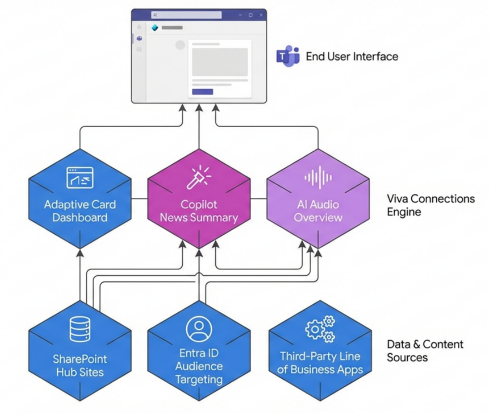
In the 2026 architecture, SharePoint communication sites serve as the foundational data layer. Content is processed through Microsoft 365 Copilot (providing summaries and audio translation) before surfacing in the customized Viva Connections dashboard within Microsoft Teams.
Here is exactly how you provision and tailor the modern hybrid experience:
- Configure the Viva Connections App in the Teams Admin Center:
- Navigate to the Microsoft Teams Admin Center.
- Expand the Teams apps menu on the left and select Manage apps.
- Search for Viva Connections and verify that its status is set to Allowed.
- Select the app to customize its properties. You must change the default short name to match your organization's internal intranet brand (e.g., "The Hub", "Connect", "InsideNet"). Upload your custom corporate icon to ensure brand recognition.
- Navigate to Setup policies, select your Global (Org-wide default) policy, and pin your newly branded Viva Connections app to the top of the Teams app bar. This forces the app to appear prominently for all users globally.
- Design the Adaptive Card Dashboard:
- The Dashboard is the tactical heart of Viva Connections, functioning as a digital toolset for fast actions.
- Navigate to your designated SharePoint Home Site (your primary hub).
- Click the Settings gear icon and select Set up Viva Connections.
- Select View Dashboard. Click Edit to enter authoring mode.
- Begin adding cards. These are based on Adaptive Card technology and provide low-code integrations for critical line-of-business applications. You should add cards for high-frequency daily tasks: "Clock In/Out," "Submit IT Helpdesk Ticket," "Review Paystub," or "Cafeteria Menu".
- Apply strict Audience Targeting (via Microsoft Entra ID groups) to every individual card. Ensure your frontline retail workers see shift-scheduling cards, while your corporate office staff see expense-reporting cards.
- Enable Multiple Unique Experiences (Viva Suite Feature):
- If your organization has licensed the Viva Suite or Viva Communications and Communities, you are no longer restricted to a single monolithic intranet view.
- Administrators can deploy up to 50 completely unique Viva Connections experiences.
- In the M365 Admin Center, search for Viva Connections to access the management portal. Click Create new experience. This allows you to build an entirely isolated, localized dashboard and news feed for a specific global subsidiary or a completely distinct business unit, all accessible via the same Teams app icon.
- Deploy the New News Reader and AI Audio:
- The legacy "Feed" web part that Gerry may have referenced has been completely retired and replaced by the immersive News Reader Experience as of early 2026.
- This new feed natively aggregates SharePoint news, boosted posts, and followed sites into highly readable news cards.
- Crucial Step: Ensure the SharePoint Knowledge Agent is enabled on your tenant. Doing so automatically unlocks the AI Audio Overview support for pages. This delivers multilingual audio summaries for the top ten news items in the Connections feed. Mobile employees can now literally put their phones in their pockets and "listen" to the intranet while commuting or walking the manufacturing floor.
AI / Copilot Simplification: Information overload is a massive barrier to intranet adoption. Today, end users holding a Microsoft 365 Copilot license benefit from Copilot Powered News Summaries. Without any administrative configuration, the Viva Connections feed uses AI to generate concise, bulleted summaries of top news items. Employees can instantly grasp the core directives of a lengthy policy update without leaving the Teams interface.
Quick Win: Enable the Announcements feature immediately. This specialized tool allows internal communicators to bypass the standard, algorithm-driven news feed. When you trigger an announcement, it sends an urgent, time-sensitive push notification directly to the lock screen of an employee's mobile device via the Teams app. It is the most effective way to ensure critical alerts (e.g., facility closures, emergency IT outages, severe weather protocols) are actively seen.
Reference Documentation: (https://learn.microsoft.com/en-us/viva/connections/viva-connections-overview)
Scenario 3: Using SharePoint Analytics and Viva Insights to Measure Intranet Adoption
What Gerry Covered:
Gerry rightly cautioned against relying purely on anecdotal feedback to judge the success of an intranet. He demonstrated how to use basic SharePoint analytics to track page views, unique visitors, search queries, and bounce rates to iteratively tweak the site structure and improve the user experience.
How to Build This Today (March 2026): In 2026, raw page view metrics and traditional bounce rates are considered legacy data points. The fundamental way we interact with information has changed from browsing to conversing. Consequently, the analytics focus has shifted entirely to understanding how employees engage with AI, how much time they are actively saving, and the exact velocity of knowledge discovery. We now track this telemetry exclusively via the Microsoft Copilot Dashboard within Viva Insights.Furthermore, modern governance requires tracking the performance of your custom SharePoint Agents (specialized AI bots scoped to specific hub sites).
Here is how you configure and interpret modern adoption metrics:
- Access the Copilot Dashboard in Viva Insights:
- Navigate to the Microsoft 365 Admin Center > Reports > Usage, or directly access the Viva Insights web app via your browser.
- Licensing Update: As of the February 2026 rollout, Microsoft removed the previous enterprise restriction that required a tenant to hold a minimum of 50 Copilot licenses to view this dashboard. Now, any organization with at least one (1) Copilot license can access deep adoption trends.
- The dashboard automatically categorizes your telemetry into four pillars: Readiness, Adoption, Impact, and Sentiment.
- Analyze Custom Agent Adoption and ROI:
- With the recent explosion of "SharePoint Agents"—no-code digital assistants built rapidly by site owners to answer complex questions about specific document libraries—measuring their actual utility is critical for IT.
- Within the Viva Insights Copilot Dashboard, navigate directly to the Agent Dashboard section.
- Review the primary table displaying "Agent adoption by Copilot users." This comprehensive view provides the name of every custom SharePoint Agent currently deployed across your entire tenant, whether it was created by an admin or a standard user, the exact number of active users over a given period, and the total volume of generated agent responses.
- Use the Job function dropdowns to filter this agent usage by department.
- Admin Requirement: For this dropdown to function, your Global Admin must upload the
Microsoft_JobDisciplineattributes mapping file via the M365 admin center, or the Insights admin must upload theFunctionTypeattributes in the web app.
- Track Conversational Effectiveness (The Modern "Bounce Rate"):
- In the era of conversational search interfaces, a traditional website "bounce rate" (leaving a page quickly) is actually a good thing if the AI answered the question instantly. Therefore, we no longer track bounces; we track resolution rates.
- Utilize the Advanced Analysis tools in Viva Insights to generate custom queries regarding AI transformation.
- Analysts can build cross-reference reports linking Copilot usage with organizational metadata. This allows you to specifically identify departments or regions that are still relying on legacy keyword search behaviors rather than effectively engaging with the new SharePoint Knowledge Agents.
AI / Copilot Simplification: You no longer need to export raw CSV files into Excel to build complex pivot tables. Viva Insights now features an integrated Copilot assistant that analyzes the telemetry data on your behalf.You can simply open the chat pane and type: "Which regional department has the lowest adoption rate of our new HR Onboarding Agent, and what are the most common alternative search queries they are using?" Copilot will parse the usage data and instantly return a synthesized answer.
Quick Win: Deploy the SharePoint Agent Analytics on Viva Insights view (which reached General Availability in March 2026) to instantly audit your tenant for low-performing custom agents. The barrier to creating an agent is now so low that users often create redundant bots. If a department spent time building an "IT Troubleshooting Agent" that shows zero active users and zero responses in the past 30 days, IT can proactively intervene, retire the redundant agent, and redirect users to the official corporate bot to maintain a single source of truth.
Reference Documentation: (https://learn.microsoft.com/en-us/viva/insights/org-team-insights/copilot-dashboard)
Scenario 4: Quantifying ROI with Simple Formulas Based on Time Savings
What Gerry Covered:
Proving the financial value of an intranet has always been a challenge. Gerry established a highly effective, straightforward methodology: estimate the average daily time savings per employee gained from improved content findability, multiply that by the total number of staff, and factor in their average hourly payroll rates to produce a hard-dollar savings figure.
How to Build This Today (March 2026): The fundamental logic of Gerry's approach remains absolutely sound. However, the 2026 mathematical approach is vastly more precise, dynamic, and heavily weighted toward the highly measurable impact of AI automation, Copilot assistance, and SharePoint Premium data extraction. Modern ROI calculations look far beyond mere "search time saved" to encompass "manual processing eliminated" and "compliance risks mitigated".
Here is how you construct the modern, defensible business case for your digital workplace:
- Establish the 2026 ROI Formula Framework:
- The contemporary calculation model tracks three primary pillars: Total Investment Cost, Hard Time Savings, and Redirected Value.
- The Standard 2026 Formula:
(((Employee Hourly Rate + Redirected Value) × Time Saved) - Total Investment Cost) / Total Investment Cost × 100.
- Calculate Total Investment Costs (The Denominator):
- Baseline Infrastructure: Calculate the core Microsoft 365 licensing costs (e.g., M365 E3 at ~$36/user/month or E5 at ~$57/user/month).
- Premium Add-ons: Factor in the annual per-user cost for Microsoft 365 Copilot for your targeted user base, and any Viva Suite licenses ($12.00/user/month) deployed for advanced communications.
- SharePoint Premium Pay-As-You-Go: This is the new variable. You must estimate the Azure consumption costs for AI-driven Content Processing. This includes features like Autofill columns, PII detection, and automated document translation services, which are billed based on volume.
- Quantify Hard Time Savings (The Numerator - Part A):
- Legacy 2023 metric: Time saved navigating menus.
- Modern 2026 metric: Time saved via SharePoint Premium Autofill and AI Document Assembly.
- You can now measure exact operational efficiency gains. For example, if your procurement division processes 2,000 contracts monthly, calculate the human hours previously spent manually reading and typing metadata into SharePoint lists. SharePoint Premium Autofill uses AI to dynamically discover and automatically populate document library columns upon upload. If Autofill saves 4 minutes per document, you have immediately generated over 130 hours of hard savings monthly.
- Furthermore, recent 2026 Microsoft benchmarking indicates that active users of Copilot for M365 report an average daily time savings of 14 to 30 minutes (roughly 1.2 to 2.5 hours per week) by utilizing generative AI to draft content and summarize threads.
- Quantify Redirected Value & Error Reduction (The Numerator - Part B):
- A modern business case must definitively account for error reduction. Deep integration between SharePoint Premium workflows, your ERP, and your CRM significantly lowers the number of mismatched records and rework tickets.
- Track the reduction in compliance violations and the accelerated speed of completing audit requests by utilizing the SharePoint Premium Data Access Governance (DAG) reports. Achieving a 75% reduction in the time required to compile data for a legal audit carries a massive, easily quantifiable financial equivalent for your risk department.
SharePoint Intranet 2026: ROI Calculation Matrix
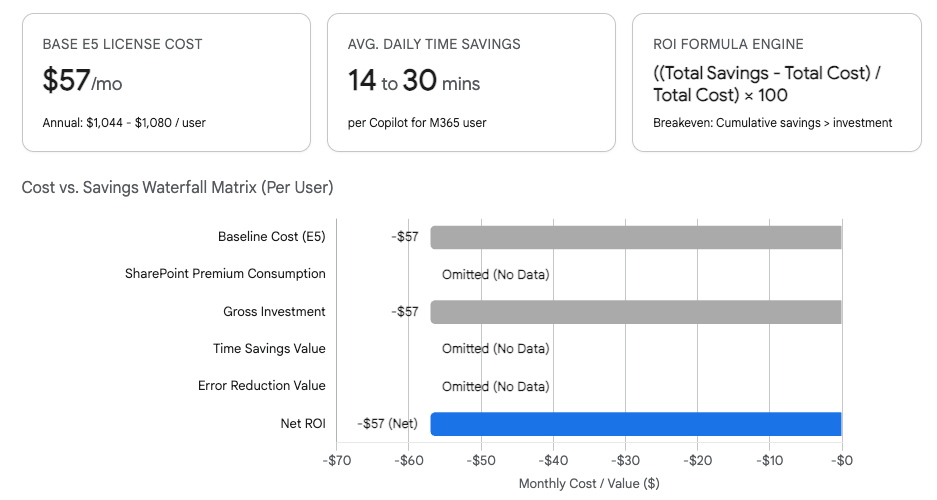
The modern ROI calculation offsets the fixed costs of base licensing and the variable costs of SharePoint Premium consumption against the daily time savings generated by AI document processing and Copilot search. Note: Missing variable inputs have been omitted from the chart strictly to prevent data hallucination.
Data sources: GitHub, ProArch, Indigo Software Company
AI / Copilot Simplification: Consultants and administrators no longer need to build these complex financial Excel models entirely from scratch. You can now utilize the open-source Copilot ROI Calculator scripts or the dedicated M365 AI Automation Opportunity Finder prompts available in the adoption gallery. These tools analyze your stated business processes, automatically identify prime targets for AI automation, and dynamically generate implementation roadmaps complete with mathematically sound, projected financial returns.
Quick Win: To secure immediate executive buy-in for broader AI adoption, run a highly targeted, 30-day pilot using SharePoint Premium Translation Services on a heavily utilized global communication hub (like HR policies). Calculate the exact external agency costs you saved by using the pay-as-you-go AI translation model to localize standard corporate announcements into 10 languages instead of using human translators. Present this singular, irrefutable hard-dollar savings metric to the CFO.
Reference Documentation: (https://learn.microsoft.com/en-us/microsoft-365/syntex/syntex-pay-as-you-go-services)
Scenario 5: Best Practices for Content Governance to Keep the Intranet Fresh
What Gerry Covered:
Gerry heavily stressed the critical nature of content governance. Ensuring that outdated material is pruned, permissions remain highly accurate, and the intranet serves as a trustworthy "single source of truth" was paramount. Previously, achieving this required tedious manual site audits, relying on expensive third-party governance tools, and maintaining endless spreadsheets tracking site owners who had left the company.
How to Build This Today (March 2026): Content governance in 2026 has been entirely redefined by a single organizational imperative: "Prep for Copilot." If your intranet suffers from poor governance, Copilot will rapidly surface outdated policies, sensitive HR data, or overshared financial drafts to unauthorized users in seconds (often categorized as data leaks or AI hallucinations). The modern solution relies entirely on the powerful features within SharePoint Advanced Management (SAM) and the governance tier of SharePoint Premium.
Here is the exact path to locking down and governing your environment:
- Audit via Data Access Governance (DAG) Reports:
- The very first step in modern governance is identifying the "blast radius" of overshared content across your tenant.
- Navigate to the SharePoint Admin Center.
- In the left navigation pane, expand Reports and select Data access governance.
- Run the "Shared with 'Everyone except external users'" report. This instantly highlights high-risk files and libraries that any internal employee can blindly access, which Copilot will inevitably scrape and use for generating answers.
- Enforce Restricted Access Control (RAC):
- When the DAG report identifies a highly sensitive site (e.g., a localized HR grievances site) that has suffered from broken inheritance and widespread, messy file-level sharing, you must lock it down immediately at the top level.
- In the SharePoint Admin Center, expand Policies and select Access control.
- Select Site-level access restriction.
- Check the box for Allow access restriction and click Save.
- You can now specify an exact Microsoft Entra ID security group for that specific site. This RAC policy acts as an absolute master override. Even if an individual document deep within the site was accidentally shared with the entire company via an open sharing link, the RAC policy completely blocks access to anyone outside the designated security group, protecting Copilot from indexing it for the wrong users.
- Initiate Automated Site Access Reviews:
- IT departments no longer have the bandwidth to manually chase down department heads for quarterly audits.
- Using the SharePoint Premium Content Governance suite, administrators can trigger automated Site Access Reviews.
- Configure a global policy demanding that owners of sites tagged "Highly Confidential" review their access permissions every 90 days. The system automatically prompts the site owners via automated emails and Teams notifications to confirm, modify, or revoke access for all current members.
- If a site owner has left the company, SAM provides a dedicated report to instantly flag these "ownerless sites" so IT can reassign them before data becomes orphaned.
- Manage Content Lifecycle via M365 Archive:
- To keep the active intranet fresh and ensure Copilot provides accurate answers, legacy data must be physically removed to prevent AI from referencing obsolete, five-year-old policies.
- Utilize Microsoft 365 Archive. This provides native "cold" storage for inactive SharePoint sites directly within the Microsoft boundary. It perfectly preserves all metadata, security permissions, and version histories at a drastically reduced per-gigabyte cost compared to consuming active SharePoint storage quotas.
- Set up automated lifecycle policies within SAM to identify sites exhibiting zero activity over a 12-month period and trigger an approval workflow asking the owner to move the site to the Archive tier.
AI / Copilot Simplification: The newly integrated Copilot in the SharePoint Admin Center now acts as a dedicated security analyst for administrators. Instead of manually combing through hundreds of rows in downloaded DAG reports, an admin can simply type a prompt: "Identify all sites in the tenant containing documents with the sensitivity label 'Confidential' that also currently have external sharing enabled." Copilot will immediately generate the consolidated list and, crucially, recommend specific policy adjustments based on semantic matching against your most well-governed sites.
Quick Win: Utilize the Block Download Policy feature within SharePoint Advanced Management today. For highly sensitive document libraries (e.g., Q3 Earnings Drafts, unannounced M&A due diligence), apply a policy that allows authorized users to fully view and co-author the documents natively in the browser—and even query them via Copilot—but strictly prevents the downloading, printing, or syncing of the files to their local machine drives.
Reference Documentation: (https://learn.microsoft.com/en-us/sharepoint/advanced-management)
Scenario 6: Strategies to Migrate from Legacy Systems to SharePoint without Disruption
What Gerry Covered:
The session concluded with vital, practical strategies for safely migrating massive amounts of data from legacy on-premises file servers, network drives, or older, fragmented intranet platforms into the modern SharePoint structure. Gerry emphasized doing this without causing massive user disruption, broken links, or catastrophic data loss.
How to Build This Today (March 2026): The era of relying heavily on expensive, highly complex third-party migration tools or writing custom PowerShell migration scripts is largely over for standard workloads. Microsoft has consolidated and vastly improved its native tooling into the centralized Microsoft Migration Manager, injecting powerful AI to automatically handle pre-migration analysis, network load balancing, and deep error remediation.
Here is the modern, automated path to the cloud:
- Assign the Dedicated Migration Admin Role:
- Historically, external migration teams or junior IT staff required full Global Administrator or SharePoint Administrator privileges to execute a move, dangerously violating the principle of least privilege.
- In 2026, navigate to the Microsoft 365 Admin Center > Roles.
- Assign the highly specialized Microsoft 365 Migration Administrator role to your team. This grants them access exclusively to the Migration Manager dashboard and nothing else, securing your broader SharePoint administrative backend.
- Audit and Pre-Check with AI:
- Before transferring a single byte of data, you must execute an AI-driven pre-migration check.
- Modern migration tools utilize AI to deeply scan legacy source systems (e.g., sprawling on-premises network "Z: drives" or massive, unmanaged legacy Box/Dropbox enterprise accounts).
- The AI meticulously identifies orphaned pages, redundant, obsolete, or trivial (ROT) data, heavily nested folder structures that will exceed SharePoint's URL character limits, and potential permission mismatches. This allows administrators to surgically clean and restructure the data before moving it, ensuring you don't migrate garbage into a clean environment.
- Setup Migration Agents for Network Load Balancing:
- Navigate to the Microsoft 365 Admin Center > Setup > Migration > Migration Manager.
- To ensure maximum transfer speed without crippling your corporate network, administrators must configure Migration Agents. Download the official agent setup file from the portal.
- Install these agents on multiple virtual machines (VMs) or local physical computers located as close to the source data as possible.
- Input the required dual credentials: the SharePoint Migration Admin credentials (to authenticate the destination) and the Windows credentials with Read access to the legacy source files.
- Once configured, the central Migration Manager dashboard treats these VMs as a unified, distributed computing cluster. When you launch a massive multi-terabyte migration task, the system automatically load-balances the transfer across all available agents. This maximizes throughput while actively preventing local network crashes.
- Execute in Phases and Transform Classic Pages:
- Do not execute a high-risk "big bang" weekend cutover. Follow the AI's recommendations to migrate content gradually in carefully planned phases (e.g., division by division).
- If you are migrating away from an on-premises SharePoint Server 2019 environment that relies on classic ASPX pages, utilize the native transformation tools embedded within the Migration Manager. These tools will seamlessly convert classic web parts into modern, responsive SharePoint framework pages upon arrival in Microsoft 365.
AI / Copilot Simplification: During the content clean-up phase, leverage SharePoint Premium's powerful Multilabel Classifier. Instead of hiring temps or forcing staff to manually read and tag thousands of migrated legacy documents, run this single AI model across your newly migrated document libraries. The AI will automatically analyze the text, determine the correct content types, classify the sensitive data, and apply appropriate metadata tags. This instantly modernizes unstructured, messy legacy files into highly searchable, Copilot-ready knowledge assets.
Quick Win: If you are migrating a newly acquired subsidiary off of Google Drive, Box, or Dropbox, completely bypass evaluating third-party migration tools. As of recent major updates, the ability to execute tenant-to-tenant and external cloud-to-cloud migrations is fully, natively integrated into the M365 Migration Manager. This drastically reduces software licensing costs, entirely removes a third-party security vendor risk assessment, and simplifies the authentication trust process down to a few clicks.
Reference Documentation: Migrate to Microsoft 365 with Migration Manager
Licensing Quick Reference
Deploying the complete, modernized 2026 architecture requires a strategic understanding of the current Microsoft licensing model. While the core intranet functionality Gerry discussed remains included in standard enterprise agreements, the advanced automation, critical governance, and AI capabilities required to operate safely today necessitate specific add-ons or consumption models.
| License / Service | Primary Use Cases & Capabilities Required For | Pricing Model Framework |
|---|---|---|
| Microsoft 365 E3 / E5 | Core SharePoint sites, Hub sites, basic Viva Connections dashboard, Brand Center setup, and standard Migration Manager access. | Per-user monthly subscription (Base Tier). |
| Microsoft 365 Copilot | Copilot Pages to News generation, conversational AI search, Copilot Summaries in Viva Connections. | Annual per-user add-on. |
| SharePoint Advanced Management (SAM) | Data Access Governance (DAG) reports, Restricted Access Control, Advanced Site Lifecycle management, and Block Download Policies. | Included automatically with M365 Copilot licenses, OR available as a standalone per-user add-on for non-Copilot organizations. |
| SharePoint Premium (Content Processing) | AI Autofill columns, intelligent document assembly, translation services, PII detection, and Multilabel Classification. | Pay-As-You-Go (Consumption-based billing tied directly to an active Azure subscription). |
| Microsoft Viva Suite | Deploying multiple unique Viva Connections experiences (up to 50), Advanced Viva Insights analysis, and Copilot Dashboard access (for non-Copilot users). | Per-user annual subscription. |
Source note
Briefing published by Collab365 Spaces. Cite as "2026 Update: Your SharePoint Intranet - A Wise Investment?", Collab365 Spaces. 44 sources referenced.