The original session, Introduction To Reduce Teams Message Overwhelm, established critical foundational habits for managing digital communication volume. The core premise remains unchanged today: professionals must systematically filter out noise to protect deep-focus work hours. However, the technological execution of this premise has evolved entirely.
In 2023, managing communication required reactive, manual configurations. Users were forced to build intricate inbox rules, manually program Power Automate nodes, and constantly context-switch between chat windows and calendar applications. Today, in April 2026, the Microsoft 365 ecosystem operates on a paradigm of autonomous, intent-driven execution.
This transformation is driven by three architectural pillars. First is Microsoft 365 Copilot, which has matured from a simple drafting assistant into an execution engine. Second is Work IQ, an underlying intelligence layer that provides AI with deep semantic understanding of your organizational chart, project files, and collaboration habits. Third is the Agent 365 control plane, which allows these automated workflows to operate securely across the enterprise.
This exhaustive companion guide translates the original session’s six manual scenarios into their modern, AI-automated equivalents. It is designed as a practical, step-by-step manual for professionals seeking to implement the 2026 enterprise-grade solutions for communication triage.
What's Changed Since This Session
The transition from manual rules to agentic AI has rendered many of the session's original tools obsolete or integrated them into unified features. The following table summarizes the technological shifts for the six core scenarios.
| Technology Referenced in Session | Status in April 2026 | What Replaced It |
|---|---|---|
| Manual Outlook Rules & Focused Inbox | Legacy / Maintained | Copilot 'Prioritize my inbox' (Dynamic AI sorting grounded in Work IQ). |
| Power Automate within Teams | Deprecated / Integrated | Teams Workflows App v2 (Natural language AI templates and Copilot Cowork). |
| Manual Chat-to-Meeting Escalation | Legacy / Maintained | 1-Click 'Meet Now' (Integrated directly into group chats and threaded channels). |
| Manual Calendar Availability Checks | Legacy / Maintained | 'Schedule with Copilot' (AI autonomously finds times, books rooms, and drafts agendas). |
| Third-Party Delay Delivery Tools | Obsolete | Native 'Schedule Send' & Viva Insights (Built directly into Teams Desktop and Mobile). |
| Third-Party Bookmarking Plugins | Obsolete | Native 'Save this message' (Returned to the core Teams UI globally). |
| Basic Canned Responses | Obsolete | AI 'Suggested Replies' & 'Personal Quick Replies' (Context-aware automated drafting). |
How to Achieve This Today
The following sections provide exhaustive, step-by-step implementation guides for the original session's six core scenarios. Each section translates the legacy approach into the April 2026 architecture, utilizing current product names, exact menu paths, and native AI integrations.
Scenario 1: Inbox Guardian (Get Notified Only for Important Emails)
The original session introduced the "Inbox Guardian" concept. This strategy relied heavily on creating manual Outlook Rules to route emails and utilizing the binary "Focused/Other" inbox toggle to avoid constant checking. While functional, this legacy approach required constant manual updating whenever reporting lines or project priorities shifted.
Today, manual rules are often too rigid for dynamic enterprise workflows. The modern solution utilizes Copilot 'Prioritize my inbox'. This intelligent agent actively reviews incoming messages in real-time, assigns a priority level (High, Normal, Low), and generates a concise summary explaining precisely why the message matters.
This feature represents a shift from static rules to adaptive learning. It is powered by Work IQ, Microsoft's intelligence layer that understands organizational context, reporting structures, and your historical collaborative patterns. Because Work IQ inherently understands your corporate hierarchy and ongoing project files, it requires far less manual configuration than legacy rules.
Execution: Desktop and Web Interface
To configure the modern Inbox Guardian, users must deploy Copilot's prioritization framework within the New Outlook for Windows or Outlook on the Web.
- Navigate to Settings: Open the New Outlook application. Click the Settings (gear icon) in the top right corner of the application window.
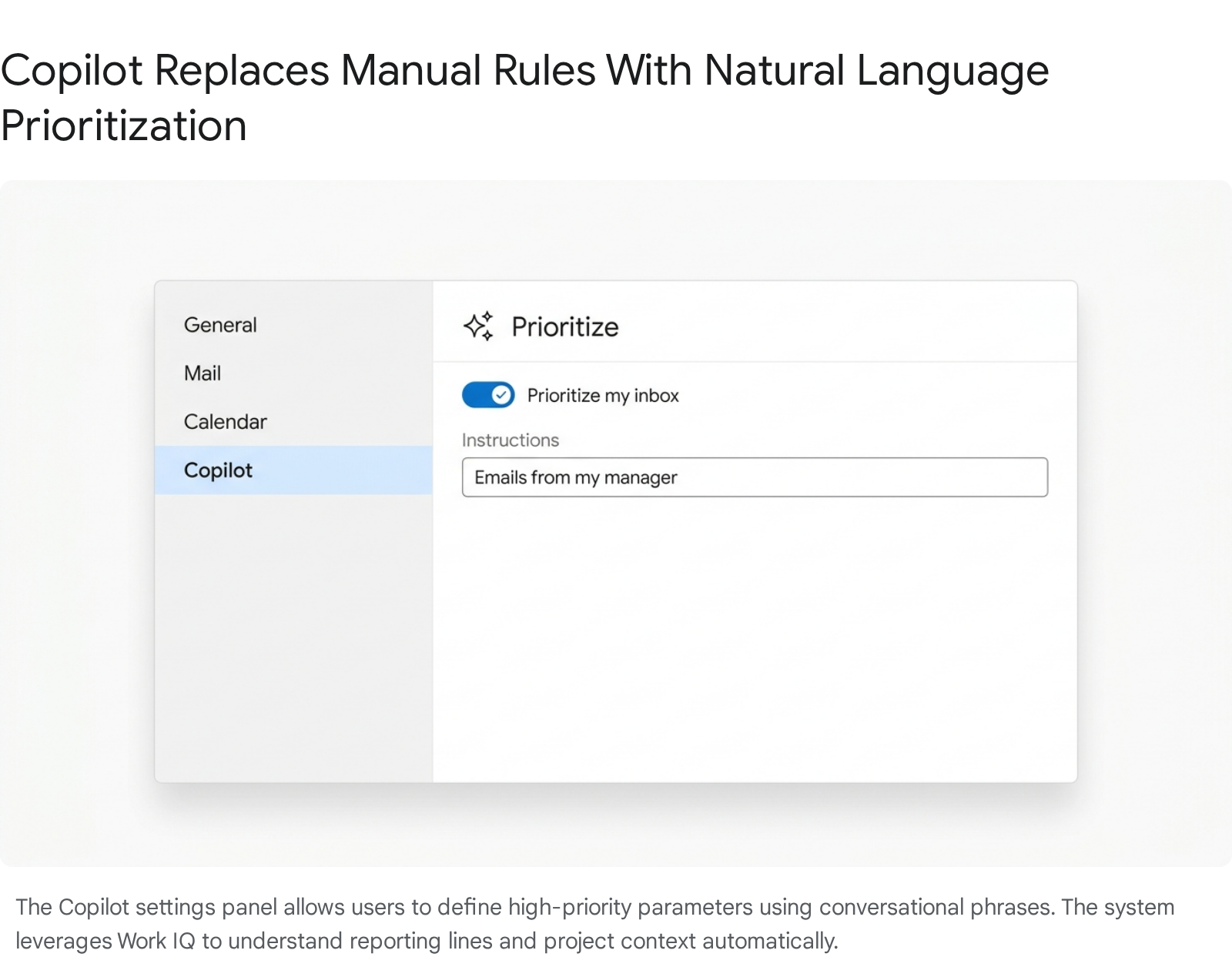
- Access Copilot Preferences: In the Settings menu, navigate through the path Copilot > Prioritize. Alternatively, users can select the arrow next to the Copilot button on the main Outlook ribbon and choose Prioritize from the dropdown menu.
- Enable AI Triage: Locate the toggle switch labeled Let Copilot prioritize my emails and switch it to the 'On' position.
- Define Custom Instructions: In the customization section, input natural language parameters. Copilot performs optimally with conversational phrases rather than isolated keywords.
- Input Parameters: Enter distinct directives such as: "Emails from my direct manager," "Messages containing financial Q3 projections," or "Communications from external domains related to the Alpha Project".5
- Configure Output Summaries: Select whether the inbox should display full AI-generated summaries or default to the standard first two lines of the email body for high-priority items.
- Filter the View: Return to the main inbox view. High-priority messages will now feature a distinct "up arrow" icon. Click the Filter or Sort controls at the top of the message list to group the inbox strictly by priority. This hides all low and normal priority items until a dedicated review time.
Execution: Mobile App Interface
The prioritization engine synchronizes seamlessly across devices. However, configuring the feature on an iOS or Android device requires a slightly different UI path.
- Access Mobile Settings: Open the Outlook mobile app. Tap your profile picture or the Home icon in the top-left corner to open the side menu.
- Navigate to Copilot: Tap the Settings (gear icon) at the bottom of the menu. Scroll down and select Copilot.
- Initialize Setup: Tap Set up Prioritize by Copilot.
- Provide Baseline Context: The app will walk you through a setup wizard. You must provide at least one high-priority instruction to initialize the learning model, such as "It's about a customer complaint".5
AI and Copilot Integration Mechanics
The intelligence of this system lies in its ability to parse intent rather than just text matching. Copilot assigns priority based on a complex matrix of factors: the people on the thread, their organizational job titles, the sentiment of the email content, and your historical responsiveness to similar threads.
It is crucial to note certain governance and compliance limitations. Copilot processes messages in parallel with mail delivery, ensuring no delay in receiving emails. However, for security reasons, the AI does not process or summarize manually encrypted messages or MIP (Microsoft Information Protection) labeled emails with strict access controls. It also intelligently ignores system-generated notifications like Out of Office (OOF) replies to prevent unnecessary processing.
Quick Win
Immediately navigate to Settings > Copilot > Prioritize and add the exact phrase: "It is about a customer escalation." This ensures external client issues bypass standard filters and surface at the top of your inbox, regardless of who forwarded them.
Official Documentation:(https://support.microsoft.com/en-us/topic/prioritize-my-inbox-65e37040-2c90-4ee3-86d9-e95d5ba0e3cb)
Scenario 2: Set Up and Manage Workflows in Teams for Timesaving
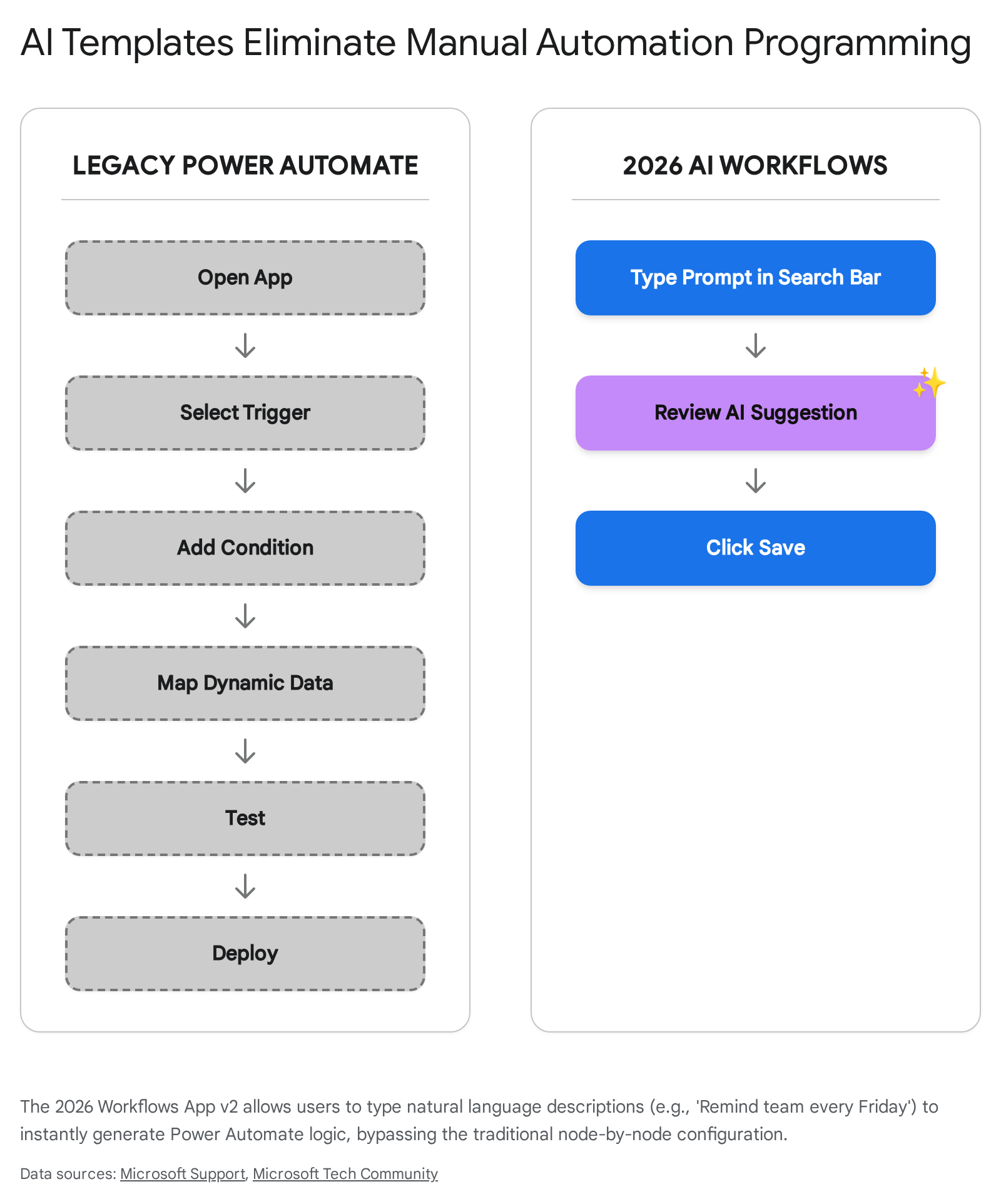
The original session advised setting up and managing workflows to save time on repetitive organizational actions. Previously, this required users to navigate away from Teams into the standalone Power Automate portal. It demanded a basic understanding of visual programming, requiring users to manually link triggers and actions through a complex node-based interface.
In 2026, automation lives natively exactly where work happens. Microsoft introduced a completely redesigned Workflows app within Teams. This update features AI-powered templates that require absolutely no coding experience. Users simply describe what they want to happen in plain text, and the AI constructs the automation.
These workflows operate seamlessly across Teams, SharePoint, and Copilot. They utilize Model Context Protocol (MCP) servers, which allow automated agents to securely fetch data, route approvals, and update external systems directly from a chat window without compromising enterprise security.
Execution: Building AI Workflows
Professionals can deploy powerful automations from multiple native access points within the Teams client, eliminating context switching entirely.
- Access the Workflows App: Navigate to the left-hand app bar in Teams. Select View more apps (the ellipsis icon ...). Search for Workflows and select it. Right-click the app icon to Pin it for permanent access.
- Utilize AI Templates: On the Workflows home page, browse the carousel or select All templates. The 2026 redesign includes robust natural language-to-flow capabilities.
- Generate from Description: Locate the search bar at the top of the Templates page. Type a conversational description of your desired outcome. For example, type: "Send a weekly reminder at 9AM to my team to submit status reports.".14
- Customize and Deploy: The system will automatically suggest a pre-built workflow matching your intent. Fill out any dynamic fields (like selecting the specific channel) and click Save.
- Contextual Creation (From a Message): To automate actions based on specific communications, hover over any chat message. Select More options (...) > More actions > Create new action. This opens the Workflows interface directly tied to that specific message's context.
- Build from Scratch: For highly customized processes, select Build from scratch in the top-right corner of the app. Choose a Trigger (the event that initiates the process) and an Action (the resulting behavior), complete the fields, and click Save.
AI and Copilot Integration Mechanics
With the introduction of the Frontier Suite and Agent 365, Workflows in Teams are no longer limited to simple, single-step notifications. Users with a Microsoft 365 Copilot license can leverage Copilot Cowork. This feature brings long-running, multi-step execution into everyday workflows.
By defining an end goal, Copilot Cowork acts as a persistent agent. It can execute complex workflows over time—such as gathering asynchronous updates from teammates, autonomously routing documents for approval when modified, and compiling the results into a Planner board—all without manual oversight. These automated actions are strictly governed by the Agent 365 control plane, ensuring that workflows never bypass enterprise data security boundaries or conditional access policies.
Quick Win
Open your team's primary channel, click the + (Actions and apps) icon next to the compose box, and select Workflows. Type "Automatically summarize long messages" into the prompt bar. Save the AI-suggested template to instantly compress future overwhelming channel posts into actionable bullet points.
Official Documentation:(https://support.microsoft.com/en-us/office/get-started-with-the-workflows-app-in-microsoft-teams-b7023604-c62a-44d3-a097-fddb68e41ff3)
Scenario 3: Stop Long Chat Threads (Turn Chats into Quick 1-Click Meetings)
The original session highlighted the severe inefficiency of endless back-and-forth typing, strongly recommending a pivot to quick voice meetings when text fails to resolve an issue. In the past, this escalation required checking individual calendars, manually creating a meeting link, and pasting it back into the chat window.
The 2026 architecture introduces a frictionless 1-click 'Meet Now' feature directly embedded into the chat and channel user interfaces. Furthermore, these impromptu meetings are now fully supported by the Facilitator agent and Microsoft Loop meeting notes. This ensures that transitioning rapidly from text to voice does not result in lost context, unrecorded decisions, or untracked action items.
Execution: Escalating from Chat to Voice
Professionals can instantly elevate a text conversation into an audio/video space without disrupting team momentum or leaving the context of the issue.
- From a 1:1 or Group Chat: Open the specific chat thread that is experiencing the prolonged back-and-forth discussion.
- Initiate Meet Now: Locate the top-right corner of the chat window. Click the Meet now (Video camera) icon.
- Bypass Scheduling: This action immediately launches the meeting pre-join screen. All members of the chat receive an instant ring notification to join with a single tap, bypassing the standard Outlook scheduling process entirely.
- From a Channel Post: Navigate to the relevant Teams channel. In the top-right corner of the general Posts layout, select the Meet now icon and click Join now.
- Maintain Thread Context: To keep the impromptu meeting context tied directly to a specific post rather than polluting the general channel feed, click Reply below the problematic post. In the compose box, click the + (Actions and apps) icon and select Meet now. The resulting meeting and its subsequent recording will remain neatly nested under that specific conversation thread.
AI and Copilot Integration Mechanics
The true transformative power of the 2026 update lies in the post-meeting phase. Instant meetings initiated via "Meet Now" instantly deploy collaborative Loop meeting notes, allowing participants to capture decisions in real-time.
More importantly, the Copilot experience in Teams meetings is now fully unified. Once the impromptu call concludes, Copilot analyzes the preceding chat history, the live meeting transcript, and the post-meeting chat to generate a holistic, smart recap. This intelligent recap is now available for ad-hoc meetings, featuring AI-generated tasks and speaker identification. As of March 2026, this includes a Video Recap feature, which transforms the summary into a narrated highlight reel with short, relevant clips of important moments. Users do not need to manually brief latecomers; the AI synthesizes the entire escalation seamlessly.
Quick Win
When a text thread exceeds five replies without a clear resolution, immediately click the Meet now icon at the top of the group chat. Upon joining, state clearly: "Copilot, summarize the chat history so far so we can align." The AI will generate a brief for all attendees instantly in the meeting chat.
Official Documentation:(https://support.microsoft.com/en-us/office/start-an-instant-meeting-in-microsoft-teams-ff95e53f-8231-4739-87fa-00b9723f4ef5)
Scenario 4: Schedule Meetings Fast from Any Chat or Channel
While "Meet Now" is perfect for immediate issue resolution, the session also addressed the need to rapidly schedule future meetings directly from active conversations. This practice avoids the cognitive load of context switching. Previously, users had to toggle over to Outlook, manually cross-reference attendee availability, and copy-paste chat context into the invite body.
In 2026, Microsoft has completely overhauled this process through the "Schedule with Copilot" capability. This feature transforms natural language chat and lengthy email threads into fully populated, conflict-free calendar invites in a single click. It entirely eliminates the manual burden of checking cross-organizational availability and drafting agendas.
Execution: Contextual Scheduling
Professionals can utilize this capability seamlessly across both the Teams client and the New Outlook for Windows.
- Scheduling from Teams Chat (Standard): In any active chat thread, click More chat options (the ellipsis ...) at the top right of the screen. Select Schedule a meeting. The system automatically pulls the current chat participants into the attendee list.
- Scheduling via Copilot Chat (Advanced): Open the Copilot Chat side panel within Teams. Type a natural language prompt such as: "Schedule a 30-minute meeting with [Name] next week to decide on the launch plan." Copilot will autonomously find overlapping available times, book a meeting room, draft an agenda based on the chat's context, and send the invitations.
- Scheduling from Outlook Emails: Open an ongoing email thread that requires a synchronous discussion. In the top toolbar ribbon, click the Copilot icon and select Schedule with Copilot from the dropdown.
- Review the AI Generation: Copilot analyzes the entire email thread. It suggests a highly relevant meeting title, drafts a bulleted agenda summarizing the key points, adds all thread participants to the invite, and attaches the original email thread to the calendar item for context.
- Finalize and Send: Click Keep it to accept the AI's generated draft. Make any minor manual adjustments to the suggested time slot if desired, and click Send.
AI and Copilot Integration Mechanics
This rapid scheduling capability is deeply reliant on the Work IQ Calendar and Work IQ Mail MCP (Model Context Protocol) servers. Because the Work IQ layer understands the schedules, project priorities, and hierarchical relationships of all participants, its availability recommendations are highly accurate.
It proactively avoids scheduling over "office hours" blocks and respects organizational boundaries without requiring user intervention. Copilot can also suggest optimal days for hybrid teams to schedule in-person meetings based on overlapping team attendance data.
Quick Win
Never manually type an agenda again. In any lengthy Outlook thread filled with competing opinions, click Schedule with Copilot. The AI will extract the unresolved questions from the email chain and automatically format them as the calendar invite's agenda items.
Official Documentation:(https://support.microsoft.com/en-au/office/create-a-meeting-agenda-with-copilot-in-outlook-31a44dfa-62bb-4751-82c4-14327a26759f)
Scenario 5: Manage Messages Smarter (Save & Schedule Send)
The original session heavily focused on strategies to avoid real-time distractions. It advocated saving messages for batch processing later and scheduling replies to respect colleagues' working hours. Previously, users relied on third-party bookmarking tools or cumbersome workarounds like leaving messages unread to achieve this.
In the April 2026 ecosystem, both "Save this message" and "Schedule Send" are deeply integrated, native features across all desktop, web, and mobile platforms. Furthermore, these features are enhanced by Viva Insights, which proactively intervenes to protect employee well-being by suggesting schedule delays for off-hours communications.
Execution: Bookmarking and Delayed Delivery
These tools allow professionals to compartmentalize their communication, processing inputs and outputs on their own terms.
1. Using the 'Save this message' Feature After briefly being removed in earlier iterations of the "New Teams" client, the highly requested bookmarking feature has returned natively to the core UI.
- To Save: Hover the cursor over any chat message, channel post, or reply to reveal the Reaction toolbar. Click the More options ellipsis (...) and select Save this message.
- To Retrieve: Click your profile picture in the top-right corner of Teams and select Saved from the dropdown menu. Alternatively, select the Saved view directly from the left-hand navigation pane under Quick views.
- Contextual Review: Clicking a saved message instantly opens the full conversation thread in the right pane, providing immediate context for review or direct reply without losing your place.
2. Native 'Schedule Send' in Teams Scheduling messages ensures communication flows without triggering out-of-hours notifications that cause burnout. Scheduled messages can be held in a queue for up to seven days.
- Desktop Execution: Compose a message in the text box. Right-click the Send icon (the paper airplane). A pop-up scheduling menu will appear. Select the precise date and time for delivery, then click Send at scheduled time.
- Mobile Execution: Type the message in the mobile app. Long-press (press and hold) the Send button. Select the date and time from the pop-up "Schedule send" box, and tap Send at scheduled time.
- Channel Execution: In a channel post, compose the message, click the + (Actions and apps) icon, and select Schedule message. Choose the delivery parameters and click Send.
- To Modify: Navigate to the chat where the message is pending. Hover over the scheduled message, click the ellipsis (...), and select Edit to alter the content, or Reschedule to alter the delivery time.
AI and Copilot Integration Mechanics
The system now features Schedule Send Suggestions powered by Viva Insights. The AI monitors the presence and configured time zones of your colleagues. If a user attempts to send a 1:1 message outside the recipient's configured working hours, the Teams UI will automatically surface a prompt above the compose box suggesting: "Send a message when their work hours start on [date/time]".35 Users can simply click the suggestion to automatically schedule the delivery, actively protecting organizational work-life balance without manual calculation.
Quick Win
Process your inbox asynchronously on Friday evenings without disturbing your team's weekend. Draft all your replies, right-click the Send button, and schedule them for 8:30 AM on Monday morning.
Official Documentation:(https://support.microsoft.com/en-gb/office/schedule-chat-messages-in-microsoft-teams-2fc5ea77-7bb4-4511-8f59-e62bac1c0f6a)
Scenario 6: Speed Up Responses with Quick Reply Shortcuts
To mitigate the sheer volume of daily communications, the original session advised finding ways to reply quickly without retyping standard responses. The 2026 iteration of Microsoft Teams solves this through advanced AI Suggested Replies and an overhauled set of customizable keyboard shortcuts. This allows professionals to triage communication at a fraction of traditional speeds.
Unlike the basic, canned responses of the past (e.g., "Sounds good"), modern suggested replies are context-aware, full-sentence drafts generated instantly by Copilot LLMs analyzing the specific nuance of the conversation thread.
Execution: AI Drafting and Keyboard Navigation
1. AI Suggested Replies
- Execution: When a message requires a routine response, look directly above the compose box in the Teams chat. The system will present up to three contextually relevant, AI-generated response chips. Tap or click the desired chip to send it immediately. Emojis are now automatically included in some suggested replies to match organizational tone.
- Configuration: If the feature is hidden, ensure it is activated. Navigate to Settings and more (...) > Settings > Chats and channels. Scroll down and toggle Suggested replies to the 'On' position.
- Advanced Drafting: For more complex emails, use the "Draft with Copilot" feature. Copilot will suggest a reply, and users can click Make it longer, Make it shorter, or customize the tone before accepting the draft.
2. Modern Keyboard Shortcuts (The "No Mouse" Triage) The 2026 Teams client heavily emphasizes keyboard navigation to reduce the mechanical friction of moving between a mouse and keyboard. Professionals should memorize the following core triage shortcuts:
- Mark All as Read: Press Shift + Esc to instantly mark all chat and channel messages as read. This is a newly introduced shortcut critical for clearing activity feed clutter after returning to the desk.
- Reply to Latest Message: Press Alt + Shift + R (Windows) or Option + Shift + R (Mac) to instantly drop the cursor into the reply box for the most recent message.
- React to Message: Press Ctrl + Alt + R to quickly open the emoji reaction menu for the latest message without reaching for the mouse.
- Expand Compose Box: Press Ctrl + Shift + X to expand the text box, preventing accidental sends when drafting long, multi-paragraph updates.
- New Line (No Send): Press Shift + Enter to drop to a new line without triggering the send command. Note that the default Enter key behavior can now be fully customized in the Chat settings menu.
AI and Copilot Integration Mechanics
For organizations utilizing Dynamics 365 or Contact Center integrations, Agent 365 allows the creation of Personal Quick Replies. Users can navigate to the Personalization menu and create custom templates tagged with keywords.
In a live chat, users simply type a slash command (e.g., /q #pricing) to instantly inject highly detailed, pre-approved multi-paragraph responses into the chat window. This maps directly to enterprise data stored in the Dataverse, ensuring responses are both rapid and strictly compliant with organizational messaging standards.
Quick Win
To immediately clear overwhelming notification anxiety, click into your Activity Feed (or press Ctrl + 1) and press Shift + Esc. This marks all notifications as read instantly, allowing you to start with a clean slate and proactively check only the channels you deem genuinely important.
Official Documentation:(https://support.microsoft.com/en-us/office/use-suggested-replies-to-respond-to-messages-without-typing-in-microsoft-teams-010c54e1-a613-4771-94ed-76d7fb77cba5)
Licensing Quick Reference
Executing the advanced 2026 strategies outlined in this report requires specific licensing configurations. Microsoft has recently consolidated several legacy licenses into the new Microsoft 365 E7 Frontier Suite, which became generally available on May , 2026.43
The Frontier Suite bundles Microsoft 365 E5, Microsoft 365 Copilot, the Microsoft Entra Suite, and the new Agent 365 control plane into a single, unified enterprise tier. The following table outlines the minimum required licenses to activate the specific features discussed above.
| Strategy / Feature | Minimum Required License (April 2026) | Technical Dependencies |
|---|---|---|
| Copilot 'Prioritize my inbox' | Microsoft 365 Copilot (Add-on) OR M365 E7 | Requires an eligible base plan (e.g., M365 E3, E5, Business Premium). |
| Teams Workflows App (Standard) | Microsoft 365 E3 or E5 | Standard triggers/actions. Requires Power Automate per-user licensing for premium API connectors. |
| Teams Workflows App (AI Templates) | Microsoft 365 Copilot (Add-on) OR M365 E7 | Required to access natural language-to-flow and Copilot Cowork capabilities. |
| 1-Click 'Meet Now' | Microsoft 365 E3 or E5 | Core functionality included in standard enterprise tiers. |
| 'Schedule with Copilot' | Microsoft 365 Copilot (Add-on) OR M365 E7 | Essential for AI-driven availability checking, agenda drafting, and Work IQ Calendar access. |
| Save Messages & Native Schedule Send | Microsoft 365 E3 or E5 | Core functionality. Viva Insights license required for proactive "out-of-hours" scheduling prompts. |
| Agent 365 Governance & Work IQ | Microsoft 365 E7 (Frontier Suite) | The E7 suite bundles E5, Copilot, Entra Suite, and Agent 365 into a single control plane for managing autonomous workflows. |
Source note
Briefing published by Collab365 Spaces. Cite as "2026 Update: Reducing Teams & Outlook Message Overwhelm", Collab365 Spaces. 5 sources referenced.