The architectural paradigm for enterprise intranets has fundamentally shifted. When the original session demonstrated the mechanical process of integrating a modern SharePoint page as a tab within a Microsoft Teams channel to facilitate structured onboarding experiences (specifically, the "Who is Mark Kashman?" profile), the primary objective was centralizing user access. However, as of April 2026, the underlying strategy has evolved far beyond basic accessibility. The deployment of structured, native SharePoint pages over static document formats (such as Microsoft Word or PDF) is now a mandatory prerequisite for optimizing enterprise artificial intelligence.
This evolution is driven by the introduction of Microsoft Work IQ, the foundational intelligence layer that powers Microsoft 365 Copilot and the broader ecosystem of Agent 365 deployments. Work IQ relies on high-fidelity signal extraction to understand organizational relationships, context, and intent. A static Word document provides a monolithic, relatively flat semantic footprint. In contrast, a modern SharePoint page—equipped with distinct text web parts, authenticated People web parts, and AI-curated FAQs—acts as a highly structured knowledge node.
These discrete web parts furnish Work IQ with granular metadata, explicit permission boundaries, and dynamic graph signals. Consequently, content housed within a structured SharePoint page is significantly more discoverable and accurately ingested by Copilot compared to legacy file formats. As an architect or intranet manager, your goal is no longer just building a page; your goal is building a structured data node that trains your organizational AI.
This comprehensive companion guide serves as an authoritative technical update for architects and administrators tasked with executing this strategy using the current April 2026 Microsoft 365 toolset.
1. What's Changed Since This Session
The transition from the late-2025 methodology to the current April 2026 framework is characterized by the replacement of manual authoring workflows with agentic AI capabilities. The introduction of "AI in SharePoint" (formerly the Knowledge Agent), the general availability of the SharePoint Brand Center, and the integration of Copilot directly into page web parts have automated the most time-consuming aspects of intranet sustainability.
Furthermore, April 2026 marks a hard cutoff for several legacy SharePoint components, forcing modernization. Domain-isolated SPFx web parts and legacy information management features are being retired, meaning the "New SharePoint Experience" is no longer optional—it is the operational baseline.
| Architectural Component | Late-2025 Session Demonstration | April 2026 Deployment Standard |
|---|---|---|
| Page Provisioning | Manual creation from blank templates; manual text entry. | Driven by AI in SharePoint. Pages are provisioned and drafted via natural language prompts and Copilot intent recognition. |
| Data Ingestion & Grounding | Reliance on standard Microsoft Search indexing for discoverability. | Grounded heavily by Work IQ. Pages provide granular, multi-part contextual signals for superior Copilot reasoning. |
| FAQ Web Part | Manual entry of questions and answers; static collapsible accordions. | AI-Powered FAQ Web Part. Copilot automatically generates, categorizes, and formats FAQs by reading selected organizational files. |
| Header Configuration | Basic out-of-the-box banner images with limited text overlay options. | Managed via SharePoint Brand Center. Supports custom fonts, dynamic background imagery, and centralized corporate color overlays. |
| Biographical Sections | Standard text web parts combined with basic contact cards. | People Web Part enhanced with custom SharePoint profile properties, directly searchable via Microsoft 365 Copilot Search. |
| Teams Tab Integration | Standard URL linking with occasional authentication friction. | Enhanced channel tab integration with proactive announcements. Addresses the specific /:u:/r/SitePages/... Loop link conflict. |
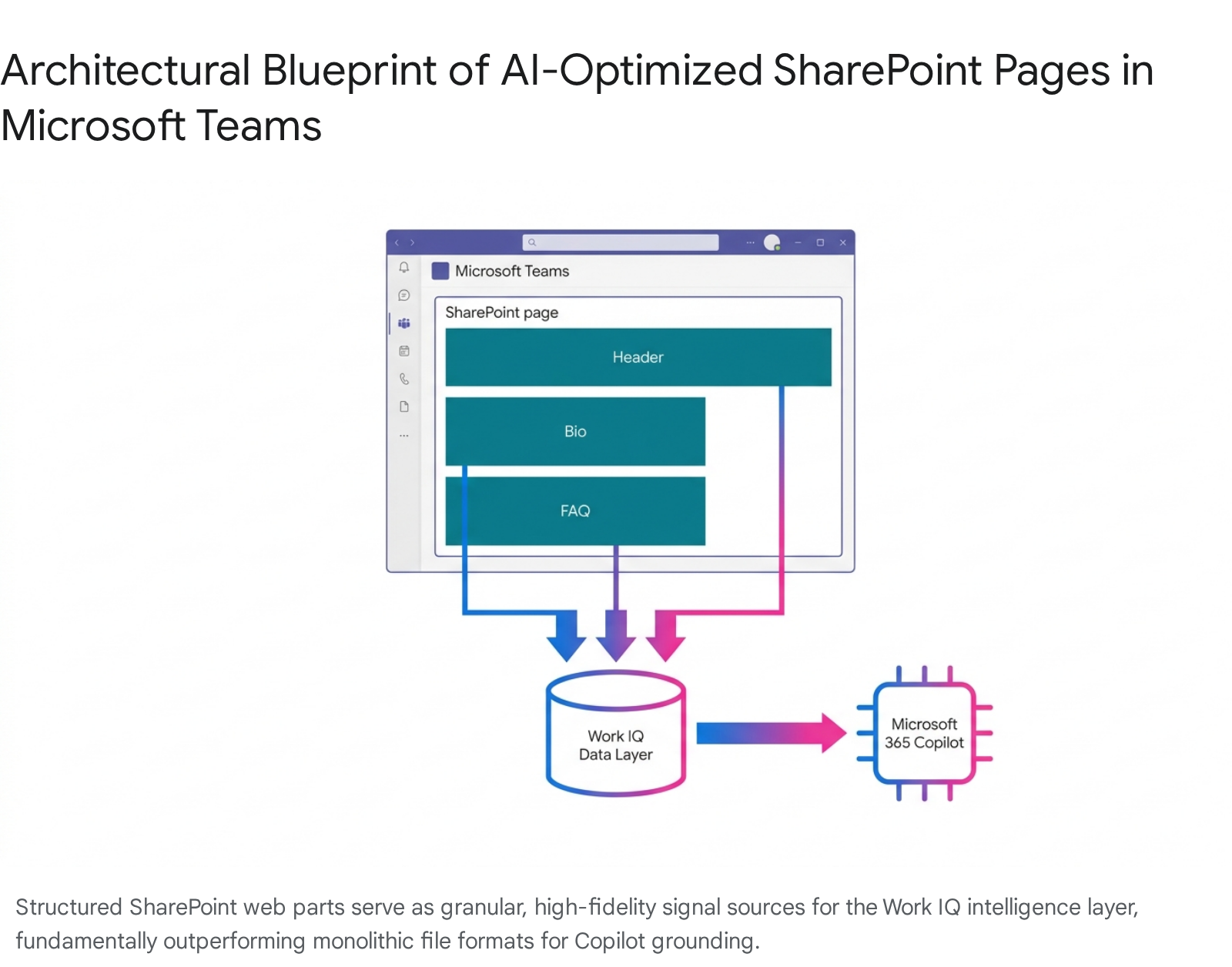
The Ascent of Work IQ and Semantic Structuring The most critical change since the original session is not a visible user interface update, but the invisible data processing engine operating beneath the SharePoint tenant. Work IQ is the intelligence layer that personalizes Microsoft 365 Copilot, comprising data, context, and skills. When Copilot attempts to answer an employee's question about an onboarding profile, it queries this Work IQ data layer.
If onboarding information is buried in a Word document, the LLM must parse the entire text block, increasing the risk of hallucinations or context loss. By utilizing modern SharePoint pages, the data is pre-segmented. The People web part explicitly defines the human entity; the FAQ web part explicitly defines the Q&A relationship; the Header explicitly defines the topical scope. This rigorous semantic structure ensures that Microsoft 365 Copilot and declarative agents deliver precise, grounded answers.
The Evolution of the SharePoint Interface The platform hosting these pages has also undergone a systemic visual and navigational refresh. The "New SharePoint Experience," which entered general availability in April 2026, fundamentally alters the interaction paradigm. The legacy SharePoint Start page has been replaced by a redesigned app bar featuring Discover, Publish, and Build nodes. The Build node now serves as the primary conduit for makers to deploy sites, pages, and agents using AI-assisted planning. This shift ensures that the creation of onboarding pages is deeply integrated with AI-guided workflows.
2. How to Build This Today
The mechanical process of building a modern onboarding page and integrating it into Microsoft Teams has been streamlined by agentic AI capabilities. The following step-by-step guide provides the exact administrative pathways and configuration settings required to deploy this architecture using the April 2026 toolset.
> Quick Win: Draft with Copilot on the Canvas
If you are migrating an older, text-heavy onboarding document into a modern page format, the fastest path to deployment bypasses manual drafting entirely. Instead of building the biographical page from a blank canvas, utilize the Draft with Copilot functionality directly within the SharePoint text web part.
- Menu Path: Go to Site > New > Page > Add a Text Web Part > Select the Copilot Icon in the toolbar > Choose Draft with Copilot.
- AI Simplification: Type the forward slash / character in the prompt box to directly reference an existing resume, LinkedIn PDF, or raw text file stored in OneDrive or SharePoint.
- Execution Prompt: "Draft a professional onboarding biography based on [File]. Segment the content into 'Professional Background', 'Current Role', and 'Personal Interests'."
- Result: Copilot will instantly generate structured text on the canvas, bypassing the manual drafting phase while ensuring the content remains securely grounded within the Microsoft 365 trust boundary.
- Microsoft Learn Link: https://support.microsoft.com/en-us/office/draft-and-add-content-with-copilot-in-word-069c91f0-9e42-4c9a-bbce-fddf5d581541 (Note: Core Draft with Copilot canvas logic shares MS Learn documentation paths with Word web integrations).
Step 1: Enabling the New SharePoint Experience and AI Provisioning
To utilize the agentic building capabilities for your intranet, administrators must first ensure the tenant is opted into the New SharePoint Experience and that AI provisioning is activated.
- Prerequisites: Your tenant must have an active Microsoft 365 Copilot license. Furthermore, to access the full multi-step reasoning capabilities of the preview, the Global Administrator must enable Anthropic as an AI sub-processor within the Microsoft Admin Center. AI in SharePoint is disabled by default and requires a PowerShell opt-in for preview features.
- Menu Path (Enable Experience): Go to SharePoint Admin Center > Settings > select New SharePoint experience > check the box and select Save.
- Menu Path (Create Page): On the redesigned SharePoint App Bar, click the Build node > select Create with AI.
- AI Simplification: In the natural language interface, describe the objective: "Create an onboarding profile page for Mark Kashman. Include a prominent header, a section for a biographical overview, an FAQ section regarding his department, and a contact directory.".7 The AI will propose a structured plan, which you can interactively adjust before it provisions the page architecture and inserts placeholder data.
- Microsoft Learn Link (New Experience): https://learn.microsoft.com/en-us/sharepoint/enable-new-sharepoint-experience 22
- Microsoft Learn Link (Create with AI): https://learn.microsoft.com/en-us/sharepoint/create-sites-with-ai 23
Step 2: Associating the Site to a Hub (Intranet Sustainability)
Sustaining an intranet means ensuring pages do not exist as isolated silos. In 2026, the architectural mantra is "Hub, don't Sub." Relying on legacy subsites breaks URL structures and complicates permission governance. Your onboarding page must live within a site collection that is logically associated with a primary Hub Site (e.g., an "HR Onboarding Hub").
- Menu Path: Navigate to your specific site > Click the Settings (gear) icon > Select Site information > Under Hub site association, select the parent Hub site > Click Save.
- Governance Simplification: Associating the site automatically applies the Hub's shared navigation, unified search scope, and overarching branding to your new onboarding page, ensuring it remains discoverable and aligned with corporate standards without manual updates.
- Microsoft Learn Link: https://support.microsoft.com/en-gb/office/associate-a-sharepoint-site-with-a-hub-site-ae0009fd-af04-4d3d-917d-88edb43efc05 26
Step 3: Configuring Modern Headers via the Brand Center
The original session demonstrated basic header imagery. The 2026 standard dictates the use of the SharePoint Brand Center to ensure the page aligns perfectly with corporate design governance. This is critical when deploying high-visibility onboarding tabs in Teams. The Brand Center utilizes the Organization Asset Library (OAL) and a Public CDN to enforce global styling.
- Prerequisite: The Global Administrator must activate the Brand Center application within the Microsoft 365 admin center.
- Menu Path: Navigate to the onboarding page > Click the Settings (gear) icon > Select Change the look > Select the Header design tab.
- Design Configuration: The new interface supports setting a custom image as the background of the header across all layout types (Compact, Standard, Extended).
- AI/Brand Simplification: Select a customizable overlay color directly from the Brand Center palette to ensure text readability against the background image. Choose from predefined, organization-approved custom font families to style the site title and page headers, completely removing rogue formatting.
- Microsoft Learn Link: https://learn.microsoft.com/en-us/sharepoint/brand-center-overview 9
Step 4: Deploying the AI-Powered FAQ Web Part
The FAQ web part is central to the onboarding concept. Rather than manually typing questions into a static accordion framework, the 2026 iteration is a dynamic, Copilot-powered engine. This web part utilizes multi-source grounding to extract knowledge autonomously.
- Prerequisite: The user creating or editing the FAQ web part must possess a Microsoft 365 Copilot license. However, standard viewers consuming the page in Teams do not require a Copilot license.
- Menu Path: Click Edit at the top right of the SharePoint page > Hover over a section boundary to reveal the + icon > Select the FAQ web part from the gallery.
- AI Simplification (Multi-Source Grounding): In the property pane, select AI-assisted generation. A file picker will appear. Select relevant onboarding materials. You can simultaneously select a Word document outlining departmental policies, a PowerPoint on team structure, and a transcript from a recorded Teams Meeting.
- Execution: Copilot will process the files and automatically generate categories, questions, and answers. The interface allows for human-in-the-loop manual refinement before publishing. Configure the display layout to either a standard Chevron expansion or a Plus/Minus toggle.
- Microsoft Learn Link: https://support.microsoft.com/en-us/office/use-a-faq-web-part-in-sharepoint-fd499cde-5db8-419d-a00a-bf87a43c79fb 8
Step 5: Constructing the Biographical Section via People Web Part
The biographical section must leverage the native People web part rather than static text. This ensures the data is dynamically linked to the Microsoft Entra ID directory. In 2026, this integration is further enhanced by custom profile properties.
- Menu Path: On the authoring canvas in Edit mode, click the + icon > Insert the People web part.
- AI Simplification (Custom Property Indexing): Type the name of the individual to link their Entra ID profile to the card. Ensure your SharePoint Online environment has configured custom profile properties. As of the December 2026 roadmap acceleration (available in preview early 2026), Microsoft 365 Copilot Search actively supports and indexes these custom SharePoint properties.
- Value: By utilizing the official People web part instead of plain text, any custom metadata associated with the user (such as specific project codes, unique skills, or internal certifications) becomes immediately discoverable when other employees query Copilot in Teams.
- Microsoft Learn Link: https://www.microsoft.com/en-us/microsoft-365/roadmap (Reference Roadmap ID 508526 for Custom Properties Search).
Step 6: Integrating the SharePoint Page as a Microsoft Teams Tab
The final step is embedding the highly structured, AI-grounded SharePoint page into the target Microsoft Teams channel. This process has been refined to ensure seamless authentication and proactive notification.
- Menu Path: Open Microsoft Teams > Navigate to the specific channel > To the right of the channel name in the upper navigation bar, click the + (Add a tab) icon.
- App Selection: Choose the SharePoint or SharePoint Pages application from the gallery. Do not use the generic "Website" tab, as it severely limits authentication passthrough, breaks read-write access, and causes mobile responsiveness issues.
- Content Selection: If the page resides on a different, centralized Hub site, select the Any SharePoint site radio button.
- Crucial Troubleshooting (URL Mitigation): When pasting a URL from a different site, administrators frequently encounter the error: "The link must go to a Loop page".16 This occurs because the user pasted a shared link (formatted as /:u:/r/SitePages/...). Microsoft Teams does not accept shared links for tab integration. You must open the published page directly in a web browser, copy the clean, absolute URL from the address bar (e.g., https://contoso.sharepoint.com/sites/HR/SitePages/Mark-Kashman.aspx), and paste that exact string into the configuration field.
- Notification Automation: Select the Post to the channel about this tab checkbox. This commands Teams to automatically generate an announcement in the channel's conversation feed, proactively alerting the team.
- Microsoft Learn Link: https://support.microsoft.com/en-us/office/add-a-sharepoint-page-list-or-document-library-as-a-tab-in-teams-131edef1-455f-4c67-a8ce-efa2ebf25f0b 15
3. Licensing Quick Reference
The deployment of these advanced SharePoint and AI capabilities is governed by a modernized licensing structure. The introduction of the Microsoft 365 E7 (Frontier Suite) in May 2026 fundamentally restructures how enterprises procure and manage AI agents, security, and productivity tools. The E7 suite unifies the security stack of E5, the intelligence of Microsoft 365 Copilot, the identity management of the Entra Suite, and the governance controls of Agent 365 into a single SKU priced at approximately $99 per user per month.
For organizations not adopting the full E7 Frontier Suite, components like Agent 365 and Microsoft 365 Copilot remain available as standalone add-ons. Understanding the precise licensing requirements for both the creators of these intranet pages and the end-users consuming them is critical for maintaining compliance and optimizing expenditures.
| Feature / Capability | Required License for Creators & Administrators | Required License for Viewers & Consumers |
|---|---|---|
| SharePoint Modern Pages (Core) | Microsoft 365 Basic / E3 / E5 | Microsoft 365 Basic / E3 / E5 |
| AI in SharePoint (Page Creation) | Microsoft 365 Copilot 11 | Microsoft 365 Basic / E3 / E5 (No Copilot required) |
| AI-Powered FAQ Web Part | Microsoft 365 Copilot 8 | Microsoft 365 Basic / E3 / E5 (No Copilot required) 8 |
| Microsoft 365 Copilot Chat & Search | Microsoft 365 Copilot | Microsoft 365 Copilot |
| Agent Builder (Lite Agents) | Microsoft 365 Copilot 36 | Microsoft 365 Copilot 36 |
| Agent 365 (Governance & Registry) | Agent 365 ($15/mo) or M365 E7 34 | Covered by tenant infrastructure (Agents operate on behalf of licensed users) 35 |
| Copilot Studio (Complex Workflows) | Copilot Studio Capacity Pack / Premium 36 | Varies by deployment model |
Nuances of the 2026 Licensing Model
- Creator vs. Consumer Disparities: The most vital distinction in the 2026 model is the separation of creation rights from consumption rights. Deploying the AI-powered FAQ web part or utilizing natural language to provision pages via "AI in SharePoint" strictly requires the author to hold a Microsoft 365 Copilot license. However, once the page is published and embedded as a tab in Microsoft Teams, any standard user with basic SharePoint read permissions can view the page and interact with the collapsible FAQ chevron layout without needing their own Copilot license. This allows organizations to centralize Copilot licensing among content authors while broadly distributing the generated assets to frontline workers.
- The Role of Agent 365: While Copilot facilitates content generation, Agent 365 acts as the centralized control plane. Available standalone or bundled within the M365 E7 Frontier Suite, Agent 365 provides IT administrators with a tenant-wide registry to discover, govern, and secure all AI agents. It integrates deeply with Microsoft Purview and Defender to apply risk-based conditional access policies to the agents themselves. Agents do not require their own individual licenses; they operate under the license of the user they are acting on behalf of. To access the Agent 365 control plane features, the tenant must have at least one active license of Microsoft 365 Copilot.
- Agent Builder vs. Copilot Studio: The Agent Builder feature, which allows users to rapidly construct lightweight agents grounded exclusively on specific SharePoint files or sites, is included at no additional charge within the standard Microsoft 365 Copilot user license. Conversely, if an organization requires an agent to execute complex, multi-step workflows, trigger external API actions, or integrate with third-party databases, developers must utilize Microsoft Copilot Studio, which necessitates separate capacity packs and data usage considerations.
- Microsoft Learn Link (Copilot Licensing): https://learn.microsoft.com/en-us/microsoft-365/copilot/microsoft-365-copilot-licensing 41
- Microsoft Learn Link (Agent 365): https://learn.microsoft.com/en-us/microsoft-agent-365/overview 35
Source note
Briefing published by Collab365 Spaces. Cite as "2026 Update Companion Guide: Sustain your Intranet: From Start to Never Finished", Collab365 Spaces. 10 sources referenced.