
What's Changed Since This Session
The transition from the manual configuration paradigms of 2022 to the more AI-assisted architecture of April 2026 has meaningfully changed how solutions are built within Microsoft Teams. Readers should be aware that the original session relied on manual drag-and-drop mechanics and classic tools that have since been supplemented or replaced. The platform has shifted toward generative AI, natural language processing, and improved observability.
Data indicates significant evolution across the Power Platform suite. For application development, the manual canvas app creation demonstrated in 2022 has been joined by natural language generation via Vibe Apps and Copilot. Automation has shifted toward the New Designer in Power Automate. Data modeling can now be accelerated with Copilot-assisted table generation. Conversational interfaces have evolved: Power Virtual Agents was converged into Microsoft Copilot Studio (the brand was not simply retired but rebranded and expanded with new capabilities). Common Data Service was renamed Microsoft Dataverse in November 2020. Project Oakdale became Dataverse for Teams at the same time.
| Technology in Original Session | Status in April 2026 | What Replaced It |
|---|---|---|
| Power Virtual Agents | Converged into Copilot Studio | Microsoft Copilot Studio (rebranded, not retired) |
| Common Data Service | Renamed November 2020 | Microsoft Dataverse |
| Project Oakdale | Renamed November 2020 | Microsoft Dataverse for Teams |
| Manual Canvas App Creation | Augmented / Legacy | Copilot "Describe a page" and Vibe Apps |
| Classic Flow Designer | Legacy Mode | Power Automate New Designer |
| Manual Table Generation | Augmented | Copilot Natural Language Table Creation |
| Drag-and-Drop Form Controls | Classic (still supported) | Modern Controls / Modern Theming (recommended, not mandatory for canvas apps) |
| App Activity Monitoring | Basic | Code App Alerts and Data Metrics |
Evidence note: The PVA-to-Copilot-Studio transition is a rebrand and product consolidation, not a simple retirement. Classic Power Virtual Agents bots can be migrated or cloned to Copilot Studio agents. Source: https://learn.microsoft.com/en-us/microsoft-copilot-studio/unified-authoring-conversion
How to Build This Today
1. Importing a Pre-Built Solution
The session showed Paul importing a complete pre-built solution into a Teams environment via download and step-by-step import process. Today you would do it like this in April 2026, using the modernized Dataverse for Teams application interface. The platform now enforces stricter Application Lifecycle Management (ALM) controls, altering the dependency validation engine. The fundamental mechanics of moving compressed solution files (.zip) remain intact, but the user interface has evolved significantly.
To begin the import process, you must first access the correct environment. Navigate to the Microsoft Teams client and open the Power Apps personal app pinned to the left sidebar. If the application is not visible, you can install it directly from the Teams app catalog. Within the Power Apps interface, select the Build tab located at the top of the screen. This tab acts as the central hub for all environments associated with your Teams memberships.
Quick Win: If the import command is entirely missing in a newly created environment, create and save a blank application first. This action forces the environment to initialize fully, revealing the hidden commands and the "See all" link.
Select the specific team where your customizations will be imported. Click the See all link at the bottom of the environment summary to open the comprehensive solution view. On the top command bar, locate and select the Import button. A side panel titled Import a solution will slide out.
Click the Browse button to locate the target .zip file on your local machine. It is critical to ensure the file size does not exceed the platform import limit. Select Open, and then select Next to proceed to the validation phase. The platform will now initiate an automated dependency check.
If your solution contains managed components that rely on objects not present in the target environment, the import will halt to prevent system corruption. Review the summary of items slated for import. It is strongly recommended to import all items simultaneously to guarantee architectural integrity. During the final stage of the import wizard, the system may prompt for configuration specifics.
If your solution contains Connection References, you must map these references to existing connections within the target environment or authenticate new ones. Similarly, if the solution relies on Environment Variables without pre-defined values, the wizard will require manual data entry for these fields. Note that there is no option to overwrite customizations if unmanaged layers exist over the managed layer for flows.
Once all configurations are mapped, select the Import button. The import process executes asynchronously in the background. A notification banner will appear on the Build tab indicating the job's progress.
Upon completion, your components will appear under the Installed apps section if imported as a managed solution. If imported as an unmanaged solution, they will appear under the Built by this team section. Managed solutions are always intended for production use, while unmanaged solutions should be restricted to development environments.
Callout: Always verify the target environment's storage capacity before importing large solutions. Each Dataverse for Teams environment is capped at 2 GB of combined database and file storage, which typically supports approximately 1 million rows of relational data. Source: https://learn.microsoft.com/en-us/power-platform/admin/about-teams-environment
If the import fails, select Download Log File from the notification banner. This provides an XML file containing detailed error and warning messages necessary for debugging. After importing, you must manually bring in any required data using the MS Configuration Migration Tool. Official documentation for this procedure is available at https://learn.microsoft.com/en-us/power-apps/teams/import-solution-in-teams
2. Creating Custom Dataverse Tables
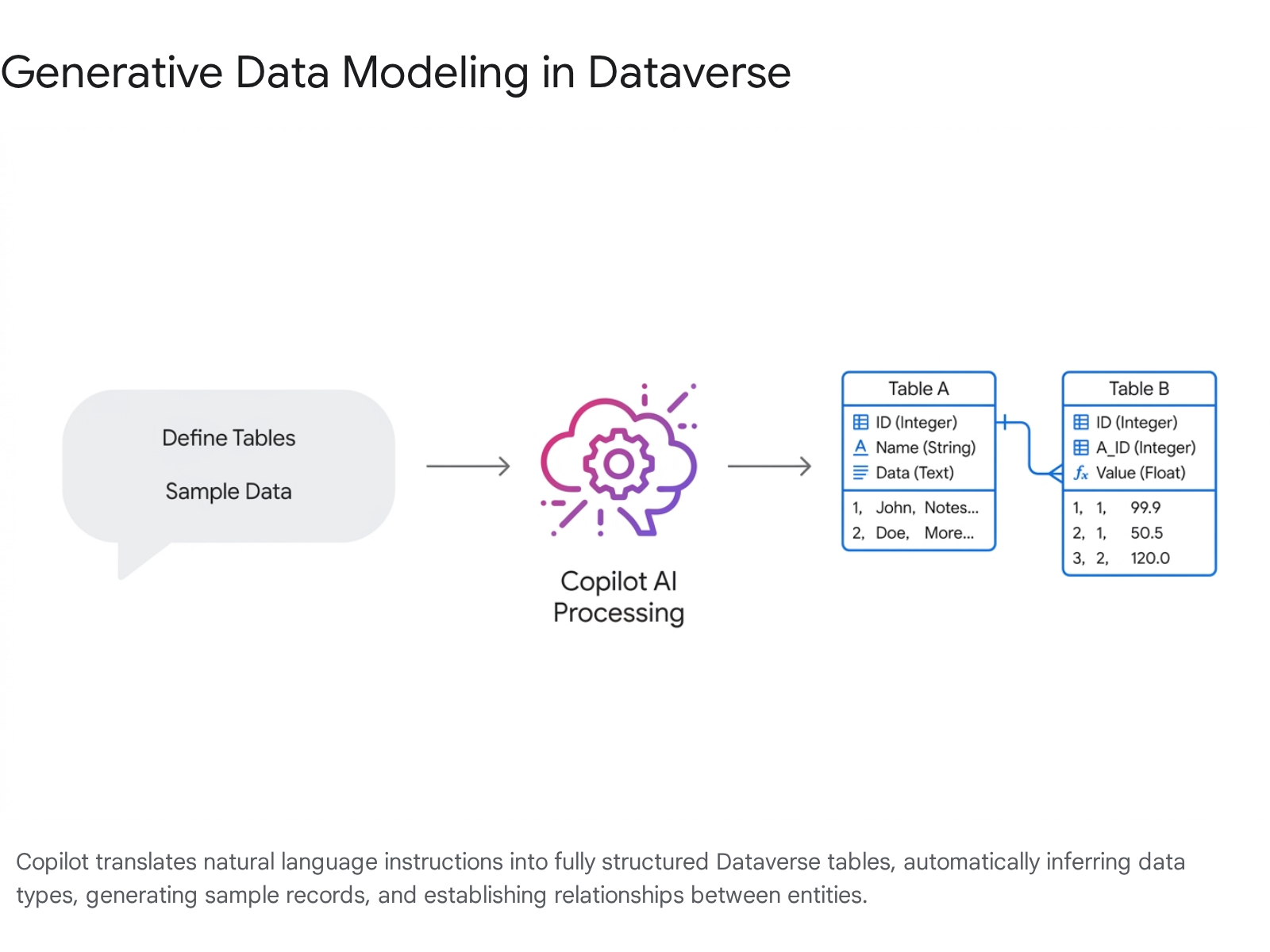
The session showed Paul creating two custom Dataverse for Teams tables tailored to a business scenario, using entity-relationship modeling. Today you would do it like this in April 2026, utilizing generative AI and natural language prompts. Microsoft Dataverse now features deep integration with Copilot for table generation. This capability can accelerate the modeling phase, turning hours of database administration into a conversational process.
To initiate table creation, sign into the Power Apps interface within Teams. From the left navigation pane, select the Tables option. Click the New table button and select Create New Tables from the dropdown menu.
The system will present several creation pathways. Select the Start with Copilot option. This launches the Copilot conversation panel. You input a natural language prompt describing the business scenario in detail.
For example, your prompt might read: "Create a table for tracking IT Support Tickets, including columns for issue description, priority, submission date, and resolution status, and create a second related table for IT Technicians." Click the Generate button. Copilot parses the request and proposes a multi-table data model.
The AI engine assigns appropriate column types based on context and generates sample data to populate the tables. You can interact with Copilot to refine the schema. Once the data model is accurate, select Save and exit to commit the architecture to the Dataverse database.
Callout: While Copilot speeds up schema creation, always manually verify the Primary Name Column designation before saving. AI occasionally selects a highly descriptive column rather than a strict unique identifier, which can complicate system lookups later.
With the Data Hub and Storage Advisor capabilities introduced in 2026, administrators can get insights and recommendations to manage data consumption. Official guidance on this generative data modeling process can be found at https://learn.microsoft.com/en-us/training/modules/get-started-dataverse-teams/
3. Building a Connected Power App
The session showed Paul building a Power App inside Teams connected to the Dataverse tables for data entry and visualization using a blank canvas and drag-and-drop controls. Today you would do it like this in April 2026, utilizing the "Describe a page" feature or by leveraging Copilot to generate starting screens. This shifts development away from manual interface composition.
To build a modern application, access the Power Apps app within Teams and navigate to the Build tab. Select your target environment and click the Create an app button. In the modern app designer, navigate to the top command bar and select + Add page.
From the resulting dropdown menu, select the Describe a page (Preview) option. This opens the Copilot generation panel on the right side of the screen. You enter a detailed natural language prompt defining your desired user interface.
An effective prompt might be: "Create a clean, responsive IT directory using a modern look and feel, displaying support tickets in a gallery on the left and a detailed entry form on the right." The AI agent analyzes the request, binds your previously created Dataverse tables to the new controls, and generates the interface natively.
Quick Win: Consider including "use modern controls and modern theming" in your prompt. This encourages the application to use the latest layout-aware components. Note that modern controls are recommended for new apps but classic controls remain available and supported for canvas apps.
For scenarios requiring more advanced capabilities, 2026 introduces "Vibe apps" generated using natural language at vibe.powerapps.com. Vibe apps are useful for rapid prototyping. However, Vibe apps currently face integration limitations; they cannot be edited in the classic Canvas app studio. There is also a strict 4,000-character limit for prompts in Vibe, and document uploading is not yet supported. For standard Dataverse for Teams deployments, utilizing Copilot within the standard canvas app designer remains the recommended and most stable practice.
The modern designer also features the Card control, which allows makers to present structured information without composing multiple classic elements. Cards automatically adapt to vertical or horizontal layouts.
Callout: When migrating older apps or manually tweaking modern ones, ensure all static lookups are moved from the App.OnStart property to App.Formulas. This centralizes logic and can improve initial load times.
Detailed guides on modern AI-assisted interface creation can be found at https://learn.microsoft.com/en-us/power-apps/maker/canvas-apps/ai-overview
4. Developing Power Automate Flows
The session showed Paul developing two Power Automate flows inside Teams, including manually configuring triggers, actions, and logic to automate processes across Teams and Dataverse tables. Today you would do it like this in April 2026, using the New Designer interface. This designer defaults to a Copilot-assisted experience for creating and managing workflows across all systems.
To build a workflow, open the Power Automate application within Teams or navigate to flow.microsoft.com. From the left navigation pane, select My flows and click New flow. The system will prompt you to describe the desired automation in a text box.
You can enter, "When a new IT Support Ticket is created in Dataverse, send an adaptive card to the IT Teams channel and notify the assigned technician." Copilot interprets this request and generates the skeleton of the flow.
The primary trigger for interacting with your new tables is the When a row is added, modified or deleted card. In the New Designer, click this trigger card to open the dedicated configuration pane. You configure three critical parameters: Change type, Table name, and Scope.
Note that this trigger does not support triggering flows on relationships of type 1:N or N:N.
The New Designer introduces usability upgrades including dedicated Undo and Redo buttons. A platform feature now automatically saves a copy of your flow to local browser storage to prevent data loss in the event of a network outage. Official documentation on the trigger framework is available at https://learn.microsoft.com/en-us/power-automate/dataverse/create-update-delete-trigger
5. Designing a Copilot Studio Agent
The session showed Paul designing a Power Virtual Agents bot inside Teams integrated with Dataverse tables for conversational interactions and data handling. Today you would do it like this in April 2026, utilizing Microsoft Copilot Studio. Power Virtual Agents has been converged into Copilot Studio, which is an expanded platform for building AI agents through a guided, no-code graphical experience augmented by generative AI.
To begin, open your Teams client, navigate to the Teams app store, and search for Microsoft Copilot Studio. Select Add or Open to launch the studio directly within the Teams interface.
From the Home page, click the Start now button. The system will prompt you to select the managing team, define the agent's language, and provide a name. Click Create to initialize the agent setup.
The fundamental building blocks of an agent are Topics, which dictate how the bot responds to specific user intents. Copilot Studio utilizes Natural Language Processing so that providing natural examples allows the agent to recognize semantic variations automatically.
A notable integration capability is the ability to configure Dataverse as a knowledge source, allowing the agent to retrieve organizational data securely. You can select up to 15 Dataverse tables to ground the agent's responses. Provide detailed descriptions of the tables; the generative orchestration engine uses this metadata to determine when to autonomously query the table.
For complex tasks, you can build logical escalation paths by creating Power Automate flows from within Copilot Studio. Comprehensive guidance on this process is at https://learn.microsoft.com/en-us/microsoft-copilot-studio/fundamentals-get-started-teams
6. Publishing and Sharing
The session showed Paul publishing the apps, flows, and bot in Teams, and sharing them with team members via basic permission screens. Today you would do it like this in April 2026, managing deployment utilizing a more robust, tiered sharing model designed to enforce organizational governance.
To deploy a Copilot Studio agent, it must be published at least once before any users can interact with it in Teams. In Copilot Studio, select Publish from the navigation menu and confirm the action.
For immediate internal team access, select Add to [Team]. To share the agent across the entire enterprise, you must select Submit for admin approval. Upon administrative approval, the agent appears in the Built for your org section of the Teams app store.
To share the underlying Power App, grant access permissions to user groups via the Share dialog box. Using a Microsoft Entra ID security group rather than individual users ensures scalable access management as personnel changes occur.
Power Automate flows require a distinct sharing protocol. Cloud flows utilize connections that belong strictly to the creator by default. To allow others to trigger the flow without granting edit access, navigate to the flow details page and select Edit in the Run only users section. Official documentation on deployment is available at https://learn.microsoft.com/en-us/microsoft-copilot-studio/publication-add-bot-to-microsoft-teams
Licensing Quick Reference
Organizations must review their Microsoft 365 licensing, as Dataverse for Teams remains bundled within select Microsoft 365 subscriptions. The following table summarizes the licensing requirements and capabilities for the development approaches described here. Prices shown are indicative and should be verified at https://www.microsoft.com/en-us/power-platform/products/power-apps/pricing before purchase decisions.
| License Type | Capability and Entitlements | Notes |
|---|---|---|
| Microsoft 365 Business Basic / Standard | Basic M365 apps. Includes Dataverse for Teams. | Check current pricing at Microsoft |
| Microsoft 365 Business Premium | Advanced security. Includes Dataverse for Teams. | Check current pricing at Microsoft |
| Microsoft 365 E3 / E5 | Enterprise suite. Includes Dataverse for Teams. | Check current pricing at Microsoft |
| Dataverse for Teams Capacity Limit | 2 GB combined database and file storage per environment, approximately 1 million rows. | Included with eligible M365 SKU. Cannot purchase additional capacity. |
| Power Apps Premium | Unlimited standalone apps. Premium connectors. | $20/user/month (verify current pricing) |
| Power Apps per app | Pay only per app per user monthly. | End of sale on public price list January 2, 2026; still available in CSP channel as of April 2026. Existing customers can continue to renew. |
| Power Apps pay-as-you-go | Pay for active users accessing an app monthly. | Billed via Azure subscription |
Organizations planning deployments must monitor their environment storage. Each Dataverse for Teams environment is capped at 2 GB of combined database and file storage, and this capacity is not transferable between environments. Additional capacity cannot be purchased; if more is required, the environment must be upgraded to full Dataverse. If you require enterprise-scale capacity or the ability to embed standalone applications outside of the Teams client, the Power Apps Premium license is necessary.
Evidence Notes
Microsoft Learn documentation confirms the 2 GB / approximately 1 million rows capacity for Dataverse for Teams environments. Source: https://learn.microsoft.com/en-us/power-platform/admin/about-teams-environment
Power Virtual Agents converged into Copilot Studio (rebrand, not retirement). Classic bots can be migrated. Source: https://learn.microsoft.com/en-us/microsoft-copilot-studio/unified-authoring-conversion
Common Data Service renamed to Microsoft Dataverse in November 2020. Source: Microsoft official announcement and Dynamics 365 Human Resources documentation.
Power Apps per app end of sale on public price list: January 2, 2026. Available in CSP channel as of April 2026 following a temporary operational fix. Source: https://learn.microsoft.com/en-us/partner-center/announcements/2026-march and Microsoft licensing news page.
Modern controls for canvas apps are recommended but not mandatory; classic controls remain available. The modern ("New Look") is mandatory for model-driven apps from 2026 Wave 1 but this does not apply to canvas apps. Source: https://learn.microsoft.com/en-us/power-apps/maker/canvas-apps/controls/modern-controls/overview-modern-controls
Conclusion
The 2026 landscape for Dataverse for Teams represents a meaningful shift from manual configuration toward AI-assisted generation. By leveraging Microsoft Copilot Studio, the New Designer in Power Automate, and natural language table generation, organizations can accelerate their development cycles. Teams deploying these solutions must remain mindful of the 2 GB Dataverse for Teams storage limits per environment and the updated Application Lifecycle Management protocols enforced by the modern Power Platform. The integration of observability tools and explicit security group sharing ensures that these applications remain secure and performant.
Source note
Briefing published by Collab365 Spaces, reviewed by Mark Jones on . Cite as "Dataverse for Teams: 2026 Update Companion Guide", Collab365 Spaces. 40 sources referenced.