1. What's Changed Since The Original Session
The foundational principles of application development demonstrated in 2021 by Ahmad Najjar remain relevant, but the underlying architecture has evolved. The Microsoft Power Platform in March 2026 is an AI-first, agent-assisted ecosystem.
The following table summarizes the definitive technological shifts from the original masterclass to the current production environment.
| Technology (2021 Session) | Status in March 2026 | What Replaced It |
|---|---|---|
| Classic Controls (Manual Styling) | Legacy / Progressively Deprecated | Modern Controls (Fluent 2 Design System) |
| App.OnStart / Set() / UpdateContext() | Legacy / Discouraged for Initialization | Named Formulas (App.Formulas) |
| Repeated If() Logic on Buttons | Inefficient / Difficult to Maintain | User Defined Functions (UDFs) |
| Local App Components | Maintained but Discouraged for Enterprise | Component Libraries with Enhanced Properties |
| Manual UI Layout Construction | Maintained | Generative Pages / Vibe Coding |
| SharePoint 500-Item Hard Delegation | Improved for Specific Functions | Simulated Delegation (Up to 2,000 items) |
| UntypedObject Data Type | Renamed (Effective mid-2025) | Dynamic Data Type / User Defined Types |
| Power Apps Per App License | End of Sale (Effective Jan 2, 2026) | Power Apps Premium / Pay-As-You-Go |
2. How to Build This Today
The core functionality demonstrated in the 2021 session remains the foundation of business applications. However, the implementation methods have been streamlined for performance, maintainability, and scale.
Build Your First App with Controls (Like Ahmed Showed)
The session showed the viewer navigating the Power Apps Studio editor, inserting, and configuring common controls like buttons, galleries, labels, and text inputs to build a first simple canvas app. Here is how one would build that same thing today in March 2026.
Makers no longer begin by dragging and dropping individual classic controls onto a blank canvas. The traditional left-hand control pane has been superseded by conversational agents capable of generating complete Fluent 2 layouts from natural language prompts. The modern approach leverages Generative Pages and Vibe Coding to scaffold the application instantly using natural language.
Developers simply describe the required interface, and a team of AI agents generates a fully functional, React-based layout. This layout is automatically populated with Modern Controls based on the prompt. Modern Controls represent a complete architectural rewrite based on the Microsoft Fluent 2 design system, which powers Microsoft Teams and Office 365.
These modern controls use pixels instead of points for font sizing, ensuring cross-device consistency. They incorporate built-in WCAG 2.1 accessibility compliance by default, making the older classic accessibility properties largely redundant. Furthermore, they respond seamlessly to the new central theming engine, allowing global style updates without touching individual controls.
Legacy control behaviors have also been completely updated for better performance. For example, the classic DelayOutput property on text inputs is replaced by a more robust TriggerOutput property. This new property offers granular options like FocusOut, Delayed, and Keypress. The classic checkbox relied on a Default property to show its state, whereas the modern checkbox utilizes a Checked boolean property.
To utilize the modern generative approach for model-driven apps:
- Open the model-driven app and click Edit to access the app designer.
- Navigate to the command bar and select + Add page.
- Select Describe a page (Preview) from the dropdown menu.
- Enter a natural language prompt defining the UI in the Copilot panel. An example prompt is: "Create a clean, responsive contact directory using a modern look and feel, displaying full names and a circular tag".
- The AI agent analyzes the request, binds the necessary Dataverse tables, and generates the complete interface.
- For detailed documentation on this process, visit Create apps through conversation.
For enterprise-scale rapid prototyping of canvas apps, developers now utilize the Vibe Coding environment at vibe.powerapps.com. This platform allows developers to collaborate with specialized coding agents to generate full-stack React applications. These applications connect directly to the Power Platform backend in minutes, bypassing the manual configuration entirely.
If manually building a canvas app, developers must explicitly enable the new control set. Legacy classic controls are still present but are relegated to secondary menus. The modern controls offer advanced features like the fully responsive Table control, which provides Model-Driven app sorting experiences within a canvas app context.
To manually enable and use Modern Controls in a Canvas App:
- Open the canvas app in Power Apps Studio.
- On the command bar, navigate to Settings > Updates.
- Select the New tab and toggle on Modern controls and themes.
- Close the settings panel. The app authoring menu will refresh, placing modern controls in the primary insertion categories.
- Insert a Header control, which is a new out-of-the-box modern control that eliminates the need to manually build application headers.
- Navigate to the Themes pane on the authoring menu to select one of the six default Fluent 2 themes.
- For a comprehensive list of modern control properties, consult the (https://learn.microsoft.com/en-us/power-apps/maker/canvas-apps/controls/modern-controls/modern-controls-reference).
Quick Win: When migrating older apps, immediately toggle on the modern theming system. Setting a central primary color palette applies instantly to all modern buttons, checkboxes, and headers. This completely eliminates the tedious process of adjusting individual control Fill and Color properties.
Using Variable Types Across Screens (Like Ahmed Showed)
The session showed the viewer using variable types including text, number, and table variables, explaining how to set, update, and use them across screens. Here is how one would build that same thing today in March 2026.
The traditional reliance on Set() for global variables and UpdateContext() for local variables is now considered a legacy anti-pattern for initialization. In the past, developers heavily relied on placing these imperative variable functions inside the App.OnStart property. This approach forces the application to load sequentially, significantly degrading app launch performance as it waits for all variables to compute before rendering the first screen.
Today, developers rely on Named Formulas defined in the App.Formulas property. Named formulas act as immutable, globally accessible constants or computed expressions. They fundamentally change how data state is managed in the application.
Because Named Formulas are declarative, the Power Fx engine determines exactly when to calculate them based on their dependencies. This allows the app to load concurrently and instantly. The system recalculates these formulas automatically only when underlying data changes, much like a spreadsheet cell.
To define a modern variable or table using Named Formulas:
- Select the App object in the Tree View pane on the left side of the Studio.
- Open the Formulas property from the top-left property dropdown menu.
- Enter the declarative logic using the standard syntax. For example, to store the current user profile, enter:
CurrentUser = User();. - To store a globally accessible theme color, enter:
PrimaryBrandColor = ColorValue("#000000");. - To create a filtered table view that automatically stays in sync, enter:
ActiveProjects = Filter('Project Data', Status = "Active");. - For further details on implementing this syntax, refer to the (https://learn.microsoft.com/en-us/power-apps/maker/canvas-apps/working-with-formulas) documentation.
A major structural shift occurred regarding complex variable payloads, specifically JSON responses from APIs. Previously, developers utilized the UntypedObject data type to handle dynamic schemas. In mid-2025, Microsoft officially renamed UntypedObject to the Dynamic data type to better align with C# and connector terminology.
More importantly, to handle complex records or tables passed between screens and functions, developers now utilize User Defined Types (UDTs). UDTs reached General Availability in 2026 and replace the unpredictable nature of untyped variables. They allow makers to strictly define the schema of tables passed throughout the application, preventing runtime errors.
To utilize User Defined Types for strict variable typing:
- Navigate to Settings > Updates > Experimental (or Preview, depending on specific tenant rollout) and toggle on User Defined Types.
- Use the new
Typefunction to explicitly declare the schema of your data objects. - Utilize the
RecordOffunction to cast variables into these strictly defined structures, ensuring that screens expecting specific columns always receive them. - This approach enables bulk conversion of JSON
Dynamicobjects into typed objects, which is critical when working with web APIs.
Quick Win: Move all static lookups—such as fetching the current user's profile, role, or department—from App.OnStart to App.Formulas. The logic becomes centralized, and the performance boost on mobile devices is immediate because the app no longer blocks the initial screen load.
Power Fx Functions and Expressions for Logic (Like Ahmed Showed)
The session showed the viewer covering Power Fx functions and expressions (e.g., If, Filter, Concat) for logic, replacing older formula syntax. Here is how one would build that same thing today in March 2026.
Historically, complex logic required duplicating lengthy If(), Filter(), or Patch() statements across multiple button OnSelect properties. This redundancy made enterprise applications incredibly difficult to maintain and debug. The modern solution to this architectural flaw is User Defined Functions (UDFs), which reached General Availability in early 2026.
UDFs allow developers to write reusable, parameterized Power Fx code once and invoke it anywhere in the application. This represents a shift toward traditional software engineering practices within the low-code environment. Instead of repeating a complex tax calculation on five different screens, the developer creates a single UDF in the App.Formulas bar.
A major breakthrough accompanying the GA release is the introduction of Behavior UDFs. Previously, UDFs had to be purely declarative, meaning they could only return a calculated value. They could not execute actions. Now, by wrapping the formula in curly braces { }, Behavior UDFs can execute side effects.
These side effects include critical imperative functions like Set(), Collect(), Reset(), and Notify(). This allows entire business processes—such as writing to a database and navigating to a success screen—to be encapsulated in a single callable function.
Logic Consolidation with User Defined Functions
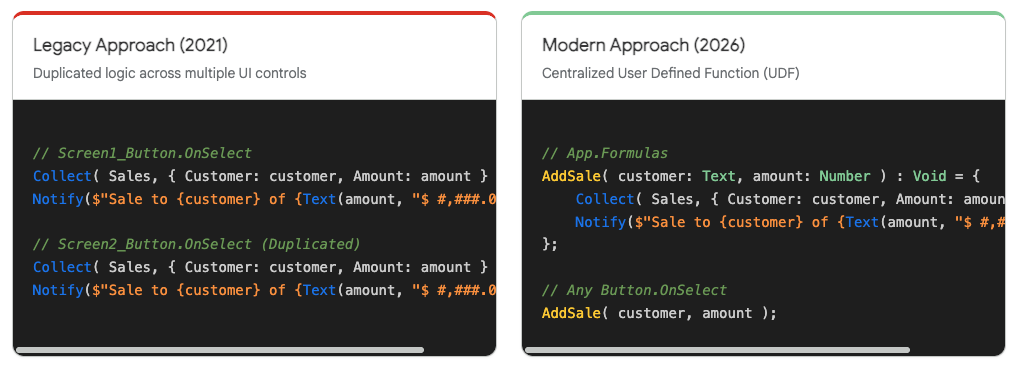
Behavior UDFs utilize curly braces { } to permit side effects like Collect() and Notify(), eliminating the need to duplicate complex logic across multiple UI controls.
Data sources: Microsoft Power Platform Blog, Matthew Devaney, Microsoft Power Apps Blog
To create and use a standard declarative UDF:
- Select the App object and open the Formulas property.
- Define the function using the strict syntax:
FunctionName(Parameter1: DataType1): ReturnType = Formula;. - For example, a simple multiplication function is written as:
MultiplyNumbers(Number1: Number, Number2: Number): Number = Number1 * Number2;. - Call this function from any text label using
MultiplyNumbers(5, 10)to display50.
To create and use a Behavior UDF for database actions:
- In the
App.Formulasproperty, define the function using curly braces{ }to permit side effects. - Use the chaining operator
;to string multiple actions together. - For example, to create a reusable sales logging function:
AddSale(customer: Text, amount: Number): Void = { Collect(Sales, {Customer: customer, Amount: amount}); Notify($"Sale Added for {customer}"); };. - Navigate to a modern button control. In its
OnSelectproperty, simply typeAddSale("Contoso", 500). - For comprehensive examples, review the official blog announcement on (https://www.microsoft.com/en-us/power-platform/blog/power-apps/power-apps-user-defined-functions-ga/).
The introduction of UDFs is powered by a new analysis engine that makes the Power Apps Studio faster to load and save. This engine parses the encapsulated logic far more efficiently than the legacy method of crawling hundreds of distinct control properties.
Quick Win: Reserve behavior UDFs explicitly for actions that require side effects like database updates or notifications. For pure mathematical calculations or text formatting, strictly use standard declarative UDFs without curly braces. This ensures the Power Fx engine maintains maximum rendering speed and memory efficiency.
Creating Components and Grouping Controls (Like Ahmed Showed)
The session showed the viewer creating components and grouping controls for reusable UI elements, including when and how to use them. Here is how one would build that same thing today in March 2026.
While building local components within a single app is technically still possible, it is no longer the architectural standard for enterprise deployment. Modern developers rely entirely on Component Libraries. Component libraries act as centralized containers, enabling the distribution and updating of reusable UI assets across an entire tenant.
When a component is built locally inside an app, its scope is restricted to that app. If corporate branding changes, every individual app must be manually opened and updated. Component libraries solve this by maintaining a dependency link. When a library is updated and published, all consuming apps receive a notification prompting the maker to accept the latest version.
Furthermore, the introduction of Enhanced Component Properties (ECPs) has fundamentally upgraded what components can achieve. ECPs recently reached General Availability and are fully ready for production workloads. Previously, components were largely isolated; they could accept input data and format it, but interacting with the host app's logic was clunky.
ECPs allow components to trigger complex behavior actions directly in the host app. They also enable passing complex table structures via the newly implemented User Defined Types, and support advanced focus management using SetFocus() and Select() within the component boundary. This makes it possible to build truly independent, intelligent UI elements.
To build and deploy a modern component using a library:
- Navigate to the Power Apps home screen. Go to More > Discover all > Component libraries (located in the App enhancements section).
- Create a new library. The interface is identical to the standard Studio, but screens are solely intended for testing component behavior.
- Construct the reusable UI. A common enterprise scenario is building a responsive 2-level navigation menu using the new Modern Tab List control.
- Ensure you configure Enhanced Component Properties to accept tables or trigger behavior events back to the host app.
- Save the library and include a detailed version note. This note is visible to app makers when they are prompted to upgrade, explaining what changed.
- Publish the library.
- For deeper details on library management, review the Component Library documentation.
To consume and update a library component in an app:
- Open the target canvas app.
- In the Insert pane, select the + icon (Get more components) at the bottom.
- Select the desired component from the library. It will appear under the Library components category.
- When the library owner publishes an update, makers are automatically notified upon opening their app in Studio and can choose to Review and Update.
- Alternatively, makers can manually check for updates by selecting the ellipsis (
...) next to the search button in the Insert panel and clicking Check for updates.
Quick Win: Never copy-paste navigation menus across screens. Build a single modern expandable navigation component in a central library utilizing the Fluent 2 UI. Ensure the "Allow customization" setting is turned Off so makers cannot break the link. When corporate branding changes, updating the central library instantly cascades the new design across every connected app in the environment.
Connecting to SharePoint and Handling Delegation (Like Ahmed Showed)
The session showed the viewer connecting the canvas app to a SharePoint list data source, viewing records, and handling basics like data delegation. Here is how one would build that same thing today in March 2026.
Data delegation remains a critical concept for application performance and data integrity, but the architectural guardrails have been significantly expanded since 2021. Delegation is the process where Power Apps pushes the data processing (like filtering or sorting) to the backend data source, rather than downloading all records to the local device.
In 2021, performing bulk updates or complex filters on SharePoint lists frequently resulted in a hard stop after 500 records. This limit restricted enterprise viability for large lists. As of recent major updates, functions like UpdateIf and RemoveIf now simulate delegation.
These functions can safely operate on up to 2,000 cached records in large data sets without failing. They simulate delegation by bringing down records in succession beyond the initial limit to evaluate the "If" condition locally. While still not true server-side delegation, it massively expands the operational threshold for SharePoint connections.
However, SharePoint's underlying API still possesses strict limitations regarding specific operators and data types. Knowing these limitations is critical for modern app architecture.
- Expressions joined with
AndorOrare delegable, but theNotoperator will not delegate. - The "not equal" operator (
<>) remains strictly non-delegable for Choice columns. - Most SharePoint system fields, including
Identifier,IsFolder,ContentType, andVersionNumber, do not support delegation. - For the complex
Persondata type, only theEmailandDisplayNamesubfields are delegable. - The
StartsWithfunction works perfectly for standard Text fields, but SharePoint will not delegate it when used on subfields of Choice or Lookup columns.
To connect and manage SharePoint data safely today:
- Navigate to the left-hand menu in Studio, select the Data icon, and click Add Data > SharePoint.
- Utilize Copilot within the Studio to assist with query construction. You can ask Copilot to generate the optimal
Filter()logic based on natural language, which helps avoid manual syntax errors that break delegation. - When writing filters to check for empty values, do not use
Filter(Table, IsBlank(Column)). This will trigger a delegation warning. Instead, use the semantically similarFilter(Table, Column = Blank()), which will successfully delegate to SharePoint. - Note that the SharePoint
IDfield, despite appearing as a number, is processed as text underneath. Therefore, only the equals (=) operation delegates. Relational operators like<or>on an ID field will fail delegation. - Review the comprehensive list of supported operators in the (https://learn.microsoft.com/en-us/power-apps/maker/canvas-apps/connections/connection-sharepoint-online).
For applications requiring complex relational data, heavy transactional volume, or operations consistently exceeding the 2,000-record threshold, standard practice dictates migrating from SharePoint to Microsoft Dataverse. Dataverse supports native Copilot chat, advanced form fill assistance, and vastly superior server-side delegation capabilities without the quirks of the SharePoint API.
Quick Win: If a blue double-underline delegation warning appears because of a "not equal" (<>) operator on a Choice status column, rewrite the logic immediately. Instead of writing Status <> "Closed", use multiple "equals" operators tied together with an Or (||) condition, such as `Status = "Open" |
| Status = "Pending"`. This simple rewrite restores full delegation capability and ensures the app can scale beyond 500 records.
3. Licensing Quick Reference
The licensing structure for the Microsoft Power Platform experienced a major rationalization in early 2026. Understanding these changes is critical for deploying modern applications, especially those leveraging AI and Dataverse.
The most significant change is the retirement of the Power Apps Per App plan. Effective January 2, 2026, this SKU reached its official End of Sale and is no longer available for purchase by new customers. Microsoft cited the complexity of administering this license as the primary reason for its removal. Existing enterprise customers may continue renewing their current Per App allocations through their standard annual true-up process until their agreement expires, but new architecture must rely on alternative billing structures.
Organizations now primarily choose between Power Apps Premium (a predictable per-user monthly cost) and the Pay-As-You-Go plan. The Pay-As-You-Go model is linked directly to an Azure subscription. This allows organizations to build and share apps without upfront license commitments, billing solely based on active consumption meters.
Furthermore, the basic rights included with Microsoft 365 subscriptions have been officially formalized under the name Power Apps Basic. This clarifies what users can achieve without purchasing standalone premium licenses.
The following table outlines the current licensing requirements for key features utilized in modern 2026 application development.
| Feature / App Requirement | Required License Status in March 2026 |
|---|---|
| Standard Connectors (SharePoint, M365) | Power Apps Basic (Included with Office 365 / M365) |
| Canvas Apps (Standard Data) | Power Apps Basic (Included with Office 365 / M365) |
| Premium Connectors (SQL, Salesforce) | Power Apps Premium (or Pay-as-you-go via Azure) |
| Dataverse (Custom Tables) | Power Apps Premium (Requires $12-$20/user/month) |
| Model-Driven Apps | Power Apps Premium |
| Copilot Chat in Model-Driven Apps | Power Apps Premium (or specific Dynamics 365 licenses) |
| Vibe Coding / Generative AI Builder | Power Apps Premium (Requires AI Builder / Copilot Credits) |
| Managed Environments / MCP Server | Power Apps Premium (Tenant-level activation required) |
Administrators can actively monitor license assignments and track which users are operating within Managed Environments by running a usage report from the Power Platform Admin Center. As the platform continues to embed Copilot and agentic capabilities deeply into the development lifecycle, organizations must secure Premium licensing to fully unlock the 2026 feature set.
Source note
Briefing published by Collab365 Spaces. Cite as "Power Apps 2026 Masterclass Update", Collab365 Spaces. 45 sources referenced.