You saw Ahmad Najjar deliver a masterclass on data manipulation in Power Apps during his May 2021 Collab365 session. He demonstrated foundational strategies for handling collections, binding galleries, and performing complex CRUD operations. The platform has evolved significantly since that recording.
The introduction of Power Apps Vibe, native AI agents, and a complete overhaul of the user interface with Fluent-based modern controls dictate an entirely new approach to application architecture today. You saw Ahmad build solutions using the best tools available at the time. Today, you would do it differently.
This report serves as your definitive March 2026 update. It maps directly to the exact scenarios demonstrated in the original session, providing step-by-step guidance on how to architect those same data patterns using current official Microsoft best practices, optimized Power Fx functions, and generative AI.
1. What's Changed Since This Session
The landscape of Power Apps development has shifted from manual, classic control configurations to AI-assisted, modern UI development. The table below provides a factual summary of the technological shifts from the 2021 session to the current March 2026 platform capabilities.
| Technology (2021) | Status in 2026 | What Replaced It |
|---|---|---|
| Classic UI Controls | Legacy/Superseded | Modern Controls (Fluent UI based, GA with major Feb 2026 updates). |
| Manual App Scaffolding | Legacy | Power Apps Vibe / Copilot "Start with data" experience. |
| Power Automate for SQL Stored Procedures | Superseded | Native Power Fx direct stored procedure calls. |
| Manual Collections for Temp Data | Active, but less required | Vibe Draft Tables (in-memory data modeling). |
| Nested Galleries for Master-Detail | Active, but inefficient | "Table and form" Modern Screen Template. |
| Power Apps Per App License | End of Sale (Jan 2026) | Power Apps Premium / Pay-As-You-Go. |
| ForAll(Sequence()) for Bulk Patch | Legacy workaround | Patch(DataSource, Collection) direct bulk operations. |
| Manual Formula Generation | Active | Copilot natural language formula generation. |
| Unrestricted External API Calls | Blocked by default | Content Security Policy (CSP) explicit allow-listing. |
2. How to Build This Today
This is the core of your companion guide. We will walk through the nine specific demonstrations featured in the original session. For each scenario, we will recap what was built in 2021, and then outline the exact step-by-step methodology for building it in March 2026.
Demo 1: Creating and Managing Collections for Temporary Data
The 2021 Approach:
You saw Ahmad demonstrate manually writing Collect() and ClearCollect() statements on the App.OnStart property. He used this to load offline data, such as population metrics or pizza menus, into local collections. This approach required manual schema definition and heavy Power Fx syntax upfront to establish the temporary data structure. It was highly manual and prone to typographical errors during setup.
The March 2026 Build: Today, temporary data modeling is handled through the Power Apps Vibe experience or the Copilot Start with data module. Instead of manually typing schemas into collections, makers use AI agents to generate in-memory data structures known as Draft Tables.
These Draft Tables allow you to rapidly iterate on your data model without committing anything to a backend database until the app is fully published.
- Navigate to the Power Apps home screen and select Start with data, or navigate directly to
vibe.powerapps.com. - You will be presented with a central prompt box. Use natural language to define your temporary data requirements.
- Type a prompt such as: "Create an app with a table for a pizza menu including item name, ingredients, price, and dietary tags."
- Press Enter. The integrated AI agents will immediately generate the application plan, the relational data model, and a functional preview of the app.
- Review the generated schema by navigating to the Data tab in the Vibe workspace. At this stage, the data resides entirely in in-memory Draft Tables, behaving exactly like the manual collections from 2021, but with zero code.
- Select Save in the upper-right corner. The tables, plan, and app are packaged into your selected solution.
- Be aware of current Application Lifecycle Management (ALM) behaviors. While tables and plans export correctly, Vibe app UIs currently remain environment-bound and do not fully migrate through solutions as draft states.
- When your prototype is finalized and you are ready for production, select Publish. The system will prompt you to automatically promote your in-memory Draft Tables to persistent Microsoft Dataverse tables.
Quick Win: For the fastest start, do not type your schema. Use the Start dictation microphone icon located in the Vibe workspace prompt box. Speak your exact collection requirements aloud, and the AI agent will convert your speech to text and instantly generate the Draft Tables.
If your architecture strictly requires programmatic temporary data without the Vibe interface, the classic Collect() function remains fully supported. However, you should leverage Copilot's form-fill assistance to generate the boilerplate code.
(https://learn.microsoft.com/en-us/power-apps/vibe/create-app-data-plan)
Demo 2: Binding Galleries to SharePoint Lists and Dataverse Tables
The 2021 Approach:
You saw Ahmad add a classic Gallery control to a blank screen. He then manually bound the Items property to a SharePoint list or a Dataverse table. Finally, he individually mapped internal fields like Title and Subtitle to the data source columns. This often resulted in rigid, non-responsive designs and required tedious manual container configuration to look presentable on mobile devices.
The March 2026 Build: Modern application development relies exclusively on Modern Screen Templates that utilize Fluent UI-based Modern Controls. These templates are responsive by default, accessible, and drastically reduce the manual data binding burden.
- Open your app in Power Apps Studio.
- Ensure modern controls are active. Navigate to Settings > Upcoming Features > Preview and toggle Try out the modern controls to On.
- On the top command bar, navigate to Insert > New Screen and select the Header and gallery template.
- The studio will automatically provision a fully responsive layout complete with a screen container, a header container, and a main gallery container.
- Select the newly inserted Gallery from the left-hand Tree View.
- Look to the inline action bar above the canvas and select Data. Choose your desired Dataverse table or SharePoint list from the flyout menu.
- Select specific modern controls within the gallery template, such as the Title text label.
- In the formula bar, use the standard syntax
ThisItem.'Column Name'to map your data dynamically. - Style your controls using the updated 2026 enum patterns. The February 2026 update standardized property names across the board.
When updating legacy apps, you must be aware of critical property renames introduced to modern controls. These changes enforce strict typing and improve IntelliSense support.
| Classic Property (2021) | Modern Property (2026) | Syntax Change Detail |
|---|---|---|
| FontColor | Color | Consolidated naming convention. |
| FontSize | Size | Consolidated naming convention. |
| FontWeight (String) | FontWeight (Enum) | Must use FontWeight.Bold, FontWeight.Semibold, or FontWeight.Normal. String values like "Bold" will fail. |
| BorderRadius | Four separate properties | Split into RadiusTopLeft, RadiusTopRight, RadiusBottomLeft, RadiusBottomRight for granular design. |
| DisplayMode | Removed (for Text) | "View mode" is now truly read-only natively. |
Warning: Do not attempt to use FontWeight.Medium in modern controls. This specific weight has been removed from the platform. Any existing instances in your legacy code will automatically map down to FontWeight.Normal.
(https://learn.microsoft.com/en-us/power-apps/maker/canvas-apps/add-screen-context-variables)
Demo 3: Connecting to SQL Server and Other Connectors for On-Prem/Cloud Data
The 2021 Approach:
To connect to SQL Server or complex on-premises data, Ahmad demonstrated adding a data connection via the legacy sidebar. However, for more complex operations—such as returning multiple datasets from a SQL Stored Procedure—he had to rely on a complex workaround. He built a separate Power Automate flow to process the SQL query, parse the output into a JSON string, and return it to the Power App.
The March 2026 Build: Data connections are now managed more seamlessly through the modern interface. More importantly, Power Fx natively supports direct, synchronous calls to SQL Server stored procedures. This completely eliminates the need for intermediary Power Automate flows, reducing latency and simplifying maintenance.
- To initiate a connection to SQL Server, select Start with data from the Power Apps home screen.
- Select Connect external data, and then choose the From SQL option under the dataset list.
- Enter your Server name and Database name, then select Connect.
- To execute a stored procedure directly from the app, navigate to the Data pane in the Studio and verify your SQL Server connection is active.
- Insert a modern button via Insert > Button.
- Set the
OnSelectproperty of the button to call the stored procedure using the environment's connection object directly. - The modern syntax is:
Set(varData, ConnectionName.dboStoredProcedureName({Param1: Value})). - The returned data is stored in your variable as a native Power Apps record containing tables.
- This native execution circumvents the legacy 2,000-row delegation limit for standard queries, allowing you to handle massive datasets efficiently directly in memory.
SQL Server Integration:2021 vs. 2026 Architecture
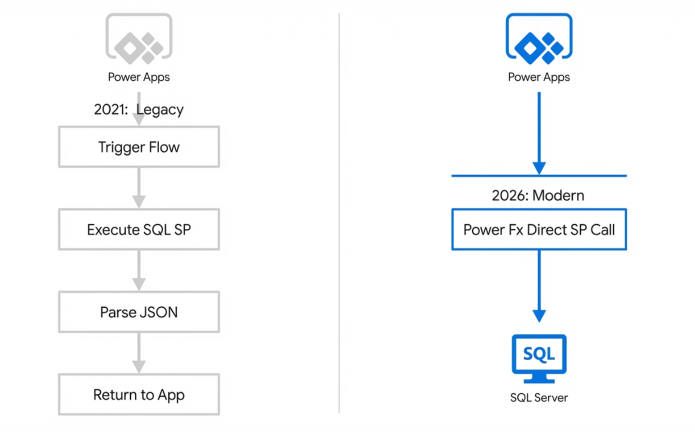
Native Power Fx stored procedure cells remove the need for intermediary Power Automate flows, reducing latency and avoiding data row limits.
You must also consider modern authentication standards. When configuring your SQL connection in 2026, rely on Microsoft Entra ID authentication.
Quick Win: When setting up Azure SQL connections, utilize Microsoft Entra ID (managed identity) authentication. This avoids hardcoding SQL credentials within the app's connection references and aligns perfectly with modern zero-trust security standards.
(https://learn.microsoft.com/en-us/power-apps/maker/canvas-apps/connections/sql-connection-overview)
Demo 4: Slicing Data with Filter, Search, LookUp, Sort, Distinct
The 2021 Approach:
You saw Ahmad manually nest complex string functions into the Items property of his galleries. He layered Filter(), Search(), and Sort() functions, carefully managing parentheses. He referenced classic text input controls to slice the data dynamically, relying on the default keystroke behavior to refresh the gallery as the user typed.
The March 2026 Build: While the core Power Fx mathematical functions remain identical, your implementation methodology changes completely. Today, you rely heavily on Copilot for formula generation and must understand how Modern Controls have altered data refresh triggers.
- Insert a modern text input control above your gallery by navigating to Insert > Text Input.
- You must account for the February 2026 performance optimizations. The
OnChangeevent for modern Text Inputs now fires exclusively on "focus out" (blur), rather than triggering on every single keystroke. This provides a massive performance boost for heavy apps. - If your architecture demands immediate, real-time filtering as the user types, you must utilize the newly updated
TriggerOutputproperty. The default for this property is now set to Keypress. - Select your gallery and highlight the
Itemsproperty in the formula bar. - Do not write the complex nested formula manually. Instead, click the Copilot icon located adjacent to the formula bar.
- Type a natural language prompt directly into the interface: "Filter this gallery to show only items where the status is active and the title matches the Text Input control".
- Copilot will automatically parse your request, analyze your schema, and generate the mathematically optimized
Filter(Search(...))Power Fx code. - Validate the performance of your new query. Navigate to Monitor and launch Application Insights. Review the telemetry traces to ensure your filtered queries are not generating unexpected network latency.
Warning: If you are migrating older legacy apps to modern controls, note that the TriggerOutput property has been removed entirely from the modern Number Input control. You must restructure any filtering logic that relied on that specific behavior for numeric data.
Demo 5: Performing CRUD Operations (Create, Read, Update, Delete)
The 2021 Approach:
Ahmad utilized the classic Edit Form control for standard CRUD operations. Makers spent considerable time manually mapping fields, unlocking data cards, tweaking individual label widths, and writing custom SubmitForm() logic to push data back to SharePoint or Dataverse. The forms were rigid and rarely scaled well across device form factors.
The March 2026 Build: Basic CRUD operations are now driven by the Modern Form control. This control fully utilizes the Fluent UI design system, providing superior accessibility, touch-friendly hit targets, and responsive scaling out-of-the-box. Furthermore, complex validation logic is no longer housed entirely within the Canvas app.
- Navigate to the top command bar and select Insert > Forms > Form (preview) (or its General Availability equivalent in your tenant).
- In the right-hand properties pane, connect the
DataSourceproperty to your designated Dataverse table or SharePoint list. - Select the form, navigate to the properties pane, and select Edit fields to add your required columns.
- To modify the layout dynamically, set the
Layoutproperty to either Horizontal or Vertical. Define theColumnsproperty to manage the grid automatically, ensuring it reflows cleanly on mobile screens. - Update aesthetic properties using the new 2026 standard naming conventions. For instance, you will set the
Colorproperty instead of the legacyFontColor. - Set the
DefaultModeproperty toFormMode.Newto allow record creation. - Insert a modern button via Insert > Button. Change the text to "Save" and set the
OnSelectproperty toSubmitForm(FormName).
When architecting enterprise CRUD operations today, you should not rely solely on Canvas app validations. You must utilize Dataverse low-code plug-ins. These allow you to write Power Fx validation logic that executes server-side natively within Dataverse. This ensures that whether a record is created via your Power App, a Power Automate flow, or an external API, the business logic remains secure and universally enforced.
Quick Win: Want to bulk update the font size or styling of all labels within a modern form simultaneously? Select the form control, change the Layout property from Vertical to Horizontal, and immediately click the Undo icon in the top left. This forces the studio to multi-select all internal fields, bypassing the standard selection limits and allowing for rapid bulk property updates.
Demo 6: Using Patch, Remove, RemoveIf for Targeted Updates
The 2021 Approach:
Targeted data updates outside the context of a form control were handled using the Patch() function. Ahmad demonstrated patching specific records by looking up the primary key and submitting a JSON-like payload of updated fields. Deletions were handled via standard Remove() or RemoveIf() calls.
The March 2026 Build:
The core syntax of the Patch() function remains fundamentally unchanged. However, 2026 best practices mandate the strict use of Formula-Level Error Management to handle backend failures gracefully, alongside rigorous adherence to new enterprise security compliance rules.
- Open your app settings. Navigate to the advanced settings and ensure Formula-Level Error Management is explicitly turned on.
- Insert a modern button to trigger your targeted update.
- Write your standard patch function, but wrap it within an
IfError()statement. This ensures that if the Dataverse backend rejects the payload due to a plugin failure, the app handles it cleanly without crashing.IfError(Patch(DataSource, LookUp(DataSource, ID = SelectedID), {Status: "Complete"}), Notify("Update Failed: Check Data", NotificationType.Error)). - When referencing modern input controls within your Patch payload, note that property mappings have been standardized. The
Valueproperty is now strictly reserved for modern Number Inputs, whileTextis strictly used for modern Text Inputs.
Security is paramount in 2026. The platform now utilizes the enhanced Power Apps Checker to scan your code for vulnerabilities before deployment.
Warning: If your targeted updates interact with custom JavaScript web resources embedded in Dataverse forms, you must absolutely avoid using the eval or with functions. The 2026 Power Apps Checker enforces strict security compliance and will flag these as critical security vulnerabilities, blocking deployment.
Furthermore, as mentioned in Demo 5, complex RemoveIf() operations that delete large swathes of records should ideally be offloaded to server-side Dataverse low-code plugins. Executing massive delete operations client-side via the Canvas app is inefficient and exposes your architecture to potential network interruption failures.
(https://learn.microsoft.com/en-us/power-apps/maker/data-platform/use-powerapps-checker)
Demo 7: Merging Data from Multiple Sources (Union, In)
The 2021 Approach:
Ahmad showcased a scenario where he merged a SharePoint list and an Excel table. He did this by manually building complex collections, mapping the columns one by one. He then compared them using the In operator to validate data and prevent duplicates before executing a Patch operation.
The March 2026 Build: Merging disparate data sources is now handled seamlessly using the native Power Fx Table() function. This function automatically unions columns from multiple records or tables, drastically reducing the required code.However, the use of the In operator is now heavily scrutinized under the new 2026 Content Security Policy (CSP) guidelines.
- To union two distinct data sources (for example, a SharePoint list and a Dataverse table), you use the
Table()function to create a temporary unified view in memory. - In the
Itemsproperty of a modern gallery, enter the formula:Table(SharePointDataSource, DataverseDataSource). - The platform automatically merges the data. The resulting table columns are the exact union of all columns from both sources. A blank value is safely and automatically assigned to any column where a specific record lacks a matching data point.
- To validate data before performing an update, you can use the
Inoperator to check your local context against this newly unified table. - Critical CSP Compliance Step: As of early 2026, Microsoft strictly enforces Content Security Policy for external requests. If your
Inoperator validation logic attempts to validate data against an external, non-Microsoft API or a non-allowed external data source, the request will be blocked by default. - You must audit your connections and ensure that all external domains required for validation are explicitly allowed in your environment's CSP configuration.
Quick Win: If your architectural goal is simply to remove duplicates from a merged dataset in a backend process, do not build complex Power Fx loops in your Canvas app. Instead, trigger a Power Automate flow and utilize the backend union() expression function. This function inherently removes duplicate items during the array merge, saving client-side processing power.
(https://learn.microsoft.com/en-us/power-platform/power-fx/reference/function-table)
Demo 8: Bulk Patch/Remove on Hundreds of Records
The 2021 Approach:
To circumvent strict delegation limits and server timeouts when updating hundreds of records simultaneously, Ahmad utilized a famous nested loop pattern: ForAll(Sequence(CountRows(Data)), Patch(...)). This processed the records in careful batches of roughly 50. While effective at the time, this workaround was notoriously slow, difficult to read, and prone to silent failures if network latency spiked.
The March 2026 Build: The nested ForAll(Patch()) pattern is now considered a legacy anti-pattern. Power Fx has been significantly upgraded to support highly efficient bulk updates directly using collections. The platform also introduced new disambiguation operators to handle complex relational joins during these bulk operations.
You must categorize your bulk operation into one of two scenarios:
Scenario A: Symmetrical Schemas (Matching Columns)
If the schema of your local collection exactly matches the backend data source (e.g., you downloaded data, modified it, and want to push it back), you execute a direct bulk patch.
- The modern syntax is simply:
Patch(DataSource, LocalCollection). - The Power Fx engine translates this into a single, optimized network request that processes the entire array simultaneously, mitigating timeout risks.
Scenario B: Asymmetrical Schemas (Different Columns) If your local data collection has a different column structure than your destination data source, you cannot do a direct patch. You must use the ForAll function, but you combine it with the disambiguation operator [@Id] to ensure reliable row matching.
- Create your update logic using this exact syntax:
ForAll( LocalCollection, Patch( DataSource, LookUp( DataSource, Id = LocalCollection[@Id] ), { Status: "Updated" } ) ). - The
[@Id]syntax specifically instructs the compiler to compare theIdfrom your temporary collection against theIdin the permanent data source. This prevents the severe naming collisions that caused earlier iterations of this formula to fail silently in production.
Optimizing Bulk Updates: Legacy vs. Modern Power Fx
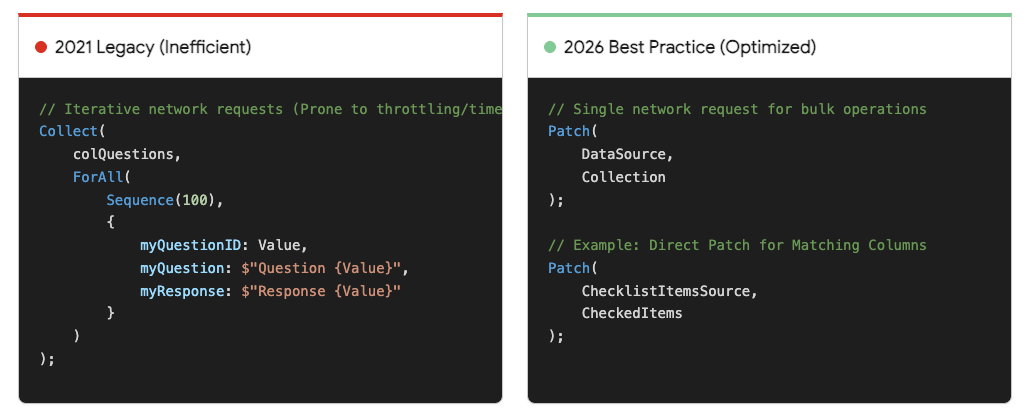
The modern approach processes bulk updates in a single network request, mitigating the timeout risks associated with iterative loops.
Data sources: SharePoint Europe, Microsoft Learn
Warning: Never use the ClearCollect function inside a ForAll loop when executing bulk operations. Doing so destroys and resets the underlying data context mid-flight, guaranteeing execution failures and corrupted datasets.
(https://learn.microsoft.com/en-us/power-apps/maker/canvas-apps/create-update-records-bulk)
Demo 9: Dataverse Master-Detail Views with Nested Galleries
The 2021 Approach:
Building a parent-child (master-detail) relationship view was tedious. Ahmad had to place a gallery control inside of another gallery control. He then manually wrote LookUp formulas referencing primary keys to filter the nested child records based on the currently selected parent item. This approach was heavy on rendering performance and incredibly difficult to maintain.
The March 2026 Build: Manual nested galleries are a drain on client-side memory and are generally discouraged. Today, makers utilize the native Table and form modern screen template. This template automatically wires parent-child relationships for Dataverse tables, providing a clean, enterprise-grade interface.
- On the command bar in Power Apps Studio, navigate to Insert > New Screen and select the Table and form template.
- This template automatically inserts a modern Table control on the left side (acting as the master record list) and a modern Form control on the right side (acting as the detail view). Both are housed within a responsive container layout.
- Select Data in the inline action bar and choose your primary Dataverse table.
- The Studio automatically configures the relational data binding. When a user selects a record in the left-hand table, it instantly and efficiently populates the right-hand form with the associated detail data.
- The prebuilt buttons within this template (New, Edit, Delete, Submit, Cancel) are fully functional immediately. They are already injected with the precise Power Fx code required to manage the state of the master-detail relationship without any manual coding on your part.
- If your requirements dictate a true nested interface (for example, viewing a primary Account and then tabbing through all associated Contacts and Opportunities), you should utilize the new Modern ListTab control placed above a modern form. You bind the TabList to a variable that dynamically updates the context of the displayed relational records below it.
Quick Win: To ensure your new master-detail screen looks perfect on mobile phones, tablets, and desktop monitors, navigate to your app's Display settings and turn off the Scale to fit option. The modern "Table and form" template uses horizontal and vertical layout containers that will automatically flex, reflow, and adapt to the user's screen size natively when this setting is disabled.
(https://learn.microsoft.com/en-us/power-apps/maker/canvas-apps/add-screen-context-variables)
3. Licensing Quick Reference
The licensing architecture for the Power Platform has undergone a major consolidation to simplify enterprise purchasing and deployment. The most critical update is the retirement of the entry-level Power Apps Per App plan, which officially reached its "End of Sale" for new customers on January 2, 2026.
Organizations must now transition their application portfolios to the standardized models detailed below.
| License Model | Target Scenario | Entitlements & Capacity |
|---|---|---|
| Power Apps Premium | The default standard for makers and users requiring broad, unhindered application access across the tenant. | Grants the user the ability to run unlimited custom apps and websites. Crucially, it accrues pooled Dataverse capacity to the tenant (+250 MB Database, +2 GB File capacity per user). |
| Pay-As-You-Go (PAYG) | Best for organizations with fluctuating, unpredictable, or highly seasonal application usage patterns. | Billed directly via an Azure subscription per active user, per app, per month. Requires zero upfront license commitment or forecasting. |
| Power Apps Per App (Legacy) | Applicable only to existing enterprise customers who adopted the SKU prior to 2026. End of Sale triggered Jan 2, 2026. | Existing contracts persist until their scheduled renewal. Organizations must execute transition planning to Premium or PAYG prior to their contract end date. |
| Microsoft 365 E7 / Agent 365 | Designed for enterprise AI acceleration and advanced generative development. Included as of April 2026. | Grants extensive Copilot and Power Accelerate capacities, specifically intended for generating complex data models and applications via AI. |
Source note
Briefing published by Collab365 Spaces. Cite as "Mastering and Working with Data in Power Apps: 2026 Companion Guide", Collab365 Spaces. 28 sources referenced.