
Inbox zero remains an obsolete concept for mid-sized project teams. Project leads at 250-person firms currently waste between $30,000 and $50,000 annually searching for lost emails and managing disjointed offline files. The core problem does not stem from email volume. The problem originates from a disconnected task architecture. When professionals flag an email in Microsoft Outlook, they expect that action to trigger a reliable sequence of events. Instead, flags scatter across local devices, offline sync gaps hide critical attachments, and users revert to building manual task lists. The solution requires linking Outlook directly to Microsoft To Do and Microsoft Planner using precise Quick Steps and Power Automate workflows. This specific technical method ensures flags appearing instantly everywhere.
Mid-sized firms that successfully execute this synchronization framework record immediate and highly measurable returns. New Era Technology piloted a Microsoft 365 productivity rollout for 300 users and documented 900 hours saved per single month. Users regained 45 to 60 minutes every single week. Dunaway, a 385-employee civil engineering firm, saved 10,000 hours annually by shifting from manual document searches to automated Microsoft 365 workflows. Gebrüder Peters, a 474-employee building technology firm, integrated their service management tickets directly into Microsoft To Do. This integration allowed staff to combine marked emails and active project tasks into one unified daily view. These progressive firms abandoned basic Outlook search tweaks in favour of automated task routing.
The most surprising insight from 2023 and 2024 implementation data highlights the high failure rate of advanced artificial intelligence deployments when basic email sync is ignored. Current industry metrics reveal that 35 percent of enterprise AI software seats sit completely idle. Project leads who attempt to roll out Microsoft 365 Copilot without first establishing an automated Outlook to To Do sync end up paying for expensive shelfware. Employees actively block new tool adoption when they cannot see immediate administrative wins. To succeed, project leads must execute a strict 90-day transformation plan that starts with foundational email automation, establishes clean data hygiene, and only then introduces advanced productivity features.
Methodology Auditing the Mid Market Inbox
The Financial Cost of Search Time
Mid-sized companies operate in a highly dangerous operational middle ground. A 250-person firm is too large to rely on informal communication channels but lacks the dedicated IT change management teams found in global enterprises. Project leads bear the heavy brunt of this structural gap. These managers process hundreds of emails daily, direct remote teams, and attempt to track complex deliverables using consumer-grade habits applied to enterprise-grade tools.
The financial penalty for this disconnect is severe. Disorganized file management and poor version control cost mid-market companies between $50,000 and $150,000 annually in lost productivity.A single incident of recreating lost work consumes 10 to 15 hours of highly paid administrative time.When an employee searches for a flagged email containing a critical client attachment while offline, and the synchronization fails, the entire project timeline stalls. The minutes spent digging through deeply nested folders or typing varied search operators into the Outlook search bar compound hourly across the whole firm. Furthermore, data loss incidents resulting from poor backup protocols can cost a firm anywhere from $10,000 to over $100,000 depending on the severity.
Project leads experience this burden as a psychological toll. The constant influx of incoming emails completely overwhelms professionals across all industries.Ineffective email management without active filtering directly leads to decreased efficiency, elevated stress, and rapid employee burnout.When the inbox remains full, employees find it impossible to prioritize tasks, focus on important client communications, and respond within necessary operational timeframes.
| Financial Impact Area | Estimated Annual Cost | Average Time Lost Per Incident | Root Cause |
|---|---|---|---|
| Version Control Errors | $50,000 to $150,000 | 10 to 15 hours | Lack of co-authoring tools and poor folder structure. |
| Data Loss Incidents | $10,000 to $100,000 | Variable | Reliance on local offline caches without cloud sync. |
| Manual Administrative Work | $15,000 to $75,000 | 1.5 hours per employee weekly | Lack of automated email routing and task generation. |
| Single Sign-On Delays | Unquantified | 10 minutes weekly | Disconnected software requiring multiple manual logins. |
Identifying the Synchronization Gaps
Before implementing a new technical workflow, a project lead must conduct a rigorous productivity audit. Most 250-person firms do not possess a defined method for measuring Microsoft 365 quick wins.An effective audit in this environment does not require complex monitoring software. It requires interviewing team members individually to map their exact daily work routines and identify primary productivity bottlenecks.
The audit must target three specific areas of administrative friction. First, it must measure the raw time spent triaging the main inbox. Second, it must map exactly how tasks are transferred from a received email to an active to-do list. Third, it must evaluate offline access reliability. A common failure point occurs when employees rely on the native offline mode within Outlook without understanding its strict limitations. When users switch between working online and offline, all email accounts within the Outlook profile are changed and disconnected from the live Exchange server.If the offline cache is not explicitly configured to store recent attachments, the user is left completely blind during transit or site visits.
The audit must also examine how the organization categorizes its internal operations. Formal audit reports often receive one of four ratings to indicate functionality: Controlled, Controlled with Opportunities for Improvement, Needs Improvement, or Unsatisfactory.Project leads should apply this exact framework to their departmental email habits. A department manually dragging emails into 50 different subfolders receives an Unsatisfactory rating. A department using automated rules to sort mail receives a Controlled rating.
Establishing Baseline Metrics for ROI
To prove the return on investment for the digital transformation, the project lead must establish hard baseline metrics. DeskTime data and industry frameworks strongly recommend analyzing individual and team performance metrics directly from the source.If the team lacks internal analytics dashboards, they must implement them immediately before changing any software configurations.
The baseline should capture the average hours spent per week on routine email correspondence and document formatting. Research involving 6,000 knowledge workers shows that effective Microsoft 365 implementations can reduce email-related workloads by 25 percent.For a worker currently spending 12 hours a week managing their inbox, returning 3 hours a week is a massive operational victory.
A comprehensive Microsoft 365 strategic adoption roadmap calculates total waste in dollar terms based on these lost hours.It tracks license utilization to identify inactive users and redundant software seats.It also benchmarks the usage of Microsoft Teams, SharePoint, and Power Platform against industry standards.By setting these specific numerical baselines on day one, the project lead ensures that every technical change made over the subsequent 90 days can be tracked, measured, and presented to executive leadership as a verified financial win.
Analysis The Mechanics of Instant Sync
The phrase flags appearing instantly everywhere describes a precise technical state where Microsoft Exchange Server, Outlook client protocols, and the Microsoft Graph API operate in perfect alignment. Achieving this state requires moving far beyond basic folder structures and implementing robust, chained automation rules.
Step One Mastering Quick Steps
The first line of defense against email overload is the Outlook Quick Steps feature. Quick Steps allow users to apply multiple distinct actions to a single email with one single click.This replaces the manual, error-prone process of reading an email, dragging it to a folder, opening a separate task application, and typing out a reminder.
To create a Quick Step, the user navigates to the Home tab in the Mail view and clicks "New Quick Step" from the drop-down list.Choosing the "Custom" option allows for highly specific workflow design.A highly effective Quick Step for project leads involves chaining three actions together simultaneously. First, the email is flagged for follow-up. Second, it is assigned a specific colour category based on the project. Third, it is moved permanently out of the inbox to an archive or reference folder.
This single click converts a hesitant decision into a structured data point. The categorization visually prioritizes the topic, making scanning the remaining inbox much faster.Because Microsoft To Do integrates natively with Outlook, any email flagged via this Quick Step automatically generates a tracked task.The newly created task pulls the email subject as the title and links directly back to the originating email for quick reference.Quick Steps are now integrated directly into the ribbon of the email pop-out window in the new Outlook for Windows and the web interface, allowing users to execute them without breaking concentration.
Step Two Power Automate and Planner Integration
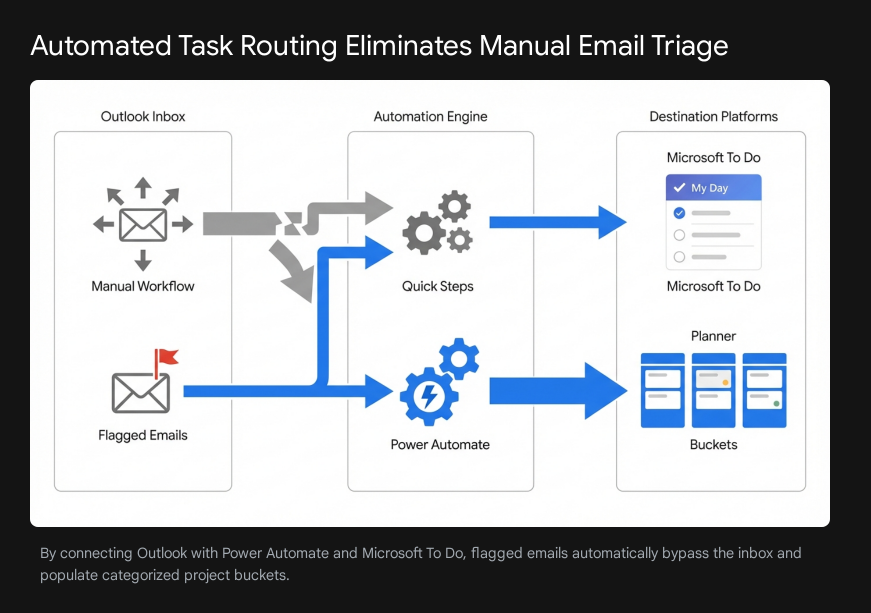
Quick Steps handle personal inbox triage, but mid-sized teams require task visibility across multiple departments. This is where Power Automate serves as the critical bridge between individual inboxes and team execution boards.
Project leads can build advanced background workflows that connect Outlook directly to Microsoft Planner or Microsoft To Do.Instead of relying on manual data entry from staff, Power Automate maps specific email data to designated task fields automatically. A standard automation rule maps the email subject to the task title and the email body to the task description.Crucially, the automation sets a default due date, such as two business days from the initial flag date.This guarantees that every single flagged email becomes a tracked, assigned task with a strict operational deadline.
For collaborative environments, Power Automate routes tasks to specific Planner buckets based entirely on the email content or sender address.If an email originates from a known client domain, the system automatically sends the generated task to the "Client Requests" bucket.If the email originates internally from a colleague, it routes to the "Internal Tasks" bucket.This automated categorization keeps the team task board completely organized without any manual intervention from the project lead.Microsoft workflows easily sync this data across Excel, SharePoint, and OneDrive without manual entry, ensuring changes made in one application instantly update across all connected systems.
Step Three The My Day Synchronization
The final mechanical piece of the puzzle is the end-user interface. Microsoft To Do acts as the central hub for the individual worker. The "My Day" feature aggregates tasks from all connected sources to provide a clean slate every morning.When a flagged email becomes a task, or a Planner item is assigned to the user by a manager, it appears in this daily view.
Users can view upcoming calendar events alongside their tasks, creating a single pane of glass for daily execution.This prevents the user from keeping their inbox open all day as a makeshift reminder system. When the project lead opens the Outlook mobile application while completely offline, the synchronized task list remains accessible, provided the initial background sync was completed on a stable connection. Microsoft is actively improving this experience; the mobile folder order now syncs to match the exact folder order on the desktop application, ensuring visual consistency across all devices.This resolves the cognitive dissonance of switching between mobile and desktop environments.
Furthermore, new updates to the offline mode in the new Outlook for Windows allow users to perform basic search functions without an internet connection.This directly solves the primary complaint of mid-sized project leads. By maintaining a clean folder structure and pushing active items to To Do, the local cache remains small, fast, and highly reliable during travel.
| Automation Tool | Primary Function | Setup Action Required | Business Outcome |
|---|---|---|---|
| Outlook Quick Steps | Chained email actions | Create a custom "Flag, Categorize, Archive" button. | Reduces inbox triage time to one click per email. |
| Power Automate | Cross-platform data routing | Map email subject to Planner task title. | Eliminates manual data entry and enforces deadlines. |
| Microsoft To Do | Centralized daily task management | Enable the "My Day" view and connect Planner. | Provides a single pane of glass for daily execution. |
| Offline Cache Settings | Reliable data access | Configure folder sync to mirror desktop settings. | Allows instant file and email search during travel. |
Evidence Mid Sized Firms Winning the Sync Battle
The theoretical benefits of Outlook automation are definitively proven by implementation data from 50 to 500 employee firms operating in 2023 and 2024. These specific companies moved far beyond basic software usage and engineered highly specific workflows to recapture thousands of lost hours.
Case Study 1 Gebrüder Peters
Gebrüder Peters operates as a major building technology company with exactly 474 employees.Operating in a fast-paced engineering and facility management environment requires extremely precise task tracking. Before their digital productivity transformation, project managers relied on exporting raw data to Excel for calculations and analysis, leading to severe visibility issues across the company.Team members lacked proper insight into their workloads and could not prepare for upcoming project development phases.
To solve this critical operational gap, the firm implemented a unified task planning system across all departments. They integrated Jira Service Management directly with Microsoft To Do.This specific software integration allowed employees to plan and manage their individual tasks seamlessly without context switching. The crucial workflow change enabled users to combine tasks generated from marked emails, Microsoft Planner assignments, and IT service tickets into one single, unified interface.
By pushing all data into Microsoft To Do, Gebrüder Peters completely eliminated the need for staff to check three different platforms every morning. The sync was instantaneous. This consolidation is a textbook example of creating a unified digital workspace, ensuring that whether a task originated from an angry client email or an internal IT ticket, it appeared on the employee's daily agenda. Matthias Ortner, the CDO at Gebrüder Peters, noted that the Microsoft Teams system became significantly simpler and more structured following their governance upgrades.
Case Study 2 Dunaway
Dunaway is a highly established civil engineering firm based in Texas with 385 employees spread across eight offices.They faced massive productivity sinks related to document search and compliance tracking across varied jurisdictions.While their primary challenge focused on regulatory research rather than just email triage, their rigorous application of Microsoft 365 tools demonstrates the absolute power of a centralized knowledge architecture for mid-sized firms.
Dunaway engineers previously spent hours actively searching through government websites and internal databases to answer complex client questions during meetings.To fix this bottleneck, they deployed Microsoft Copilot Studio to build a custom conversational agent named Atlas.They used Microsoft SharePoint as their single source of truth for all regulatory PDFs.They then utilized Power Automate to manage the heavy knowledge ingestion pipeline, converting raw materials into PDFs and storing them centrally in the cloud.They also utilized Adaptive Cards within Microsoft Teams to ensure responses were presented in a structured, consistent format.
The financial and operational results were staggering. The firm reduced manual research time by a massive 90 percent.By replacing manual searches with instant, AI-driven queries, the solution saves Dunaway more than 10,000 hours annually.A related company-wide virtual agent reduced general IT support tickets by 80 percent.While this represents an advanced AI deployment, it relies entirely on the exact same foundational Microsoft 365 architecture used for basic email sync. Power Automate moves the data, and SharePoint stores it. Without clean underlying data hygiene, the 10,000-hour saving would be technically impossible.
Case Study 3 New Era Technology
New Era Technology demonstrates the exact metrics a 250-person firm can expect from a highly targeted 4-week software rollout. They piloted a Microsoft 365 Copilot adoption program specifically for 300 users.
Their strategy relied heavily on foundational usage tracking and role-based workflows rather than generic software training. They implemented a rigorous license optimization model to track usage and immediately reallocate unused licenses.They created a central content repository filled with role-based prompts, demo replays, and technical FAQs.The return on investment was immediate and heavily tied directly to daily Outlook and Teams usage.
The 300 users reported saving an average of 45 to 60 minutes every single week through automated drafting and task tracking in Outlook, Word, and Teams.This equated to over 900 hours saved per month across the single pilot group.Furthermore, shifting repetitive queries to automated systems significantly reduced help desk tickets and manual documentation time.This case proves definitively that when a mid-sized firm deploys Microsoft 365 tools with intentional, measured training, the weekly hour savings immediately impact the bottom line. Their systematic tracking ensured an active user rate exceeding 85 percent, eliminating wasted software spend.
Microsoft 365 Automation Recaptures Thousands of Lost Hours
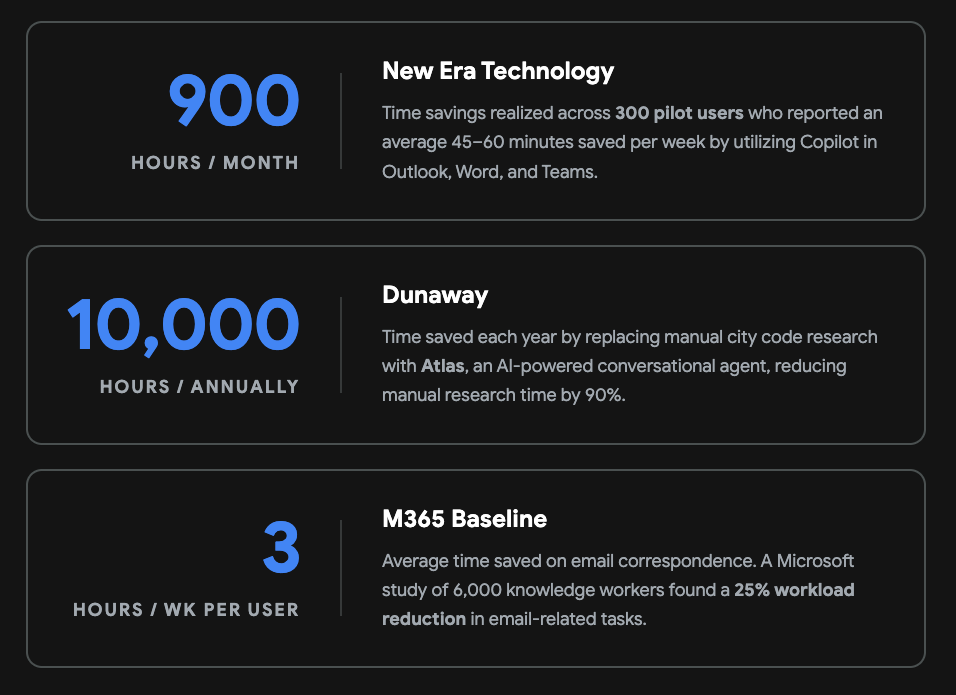
Firms utilizing Power Automate, Microsoft To Do, and Copilot report significant reductions in manual administrative tasks and search time.
Data sources: New Era Technology, Dunaway (Microsoft Learn), Microsoft Work Trend Index 2025
Case Study 4 Burra Foods
Implementing cloud-based synchronization requires absolute network stability. Burra Foods, an Australian dairy ingredient producer with over 180 employees, recognized that software alone cannot fix deep productivity issues.They collect 300 million litres of fresh milk annually and manage a complex supply chain of farm partners.
To enable remote collaboration and Office 365 virtual teamwork, they had to upgrade their core network infrastructure first.By optimizing their raw network performance, they allowed their employees to collaborate effortlessly and access essential resources without offline sync failures.They partnered closely with an IT provider for proactive monitoring and regular health checks.This highlights a crucial technical prerequisite. If a project lead at a 250-person firm attempts to deploy massive Power Automate flows and instantaneous To Do syncing on a degraded corporate network, the synchronization will fail, leading directly to duplicate files, scattered flags, and severe user frustration.
Failure Modes The AI Shelfware Trap
Understanding exactly why deployments fail provides as much value as knowing how to set them up. The technology sector is currently experiencing a massive push toward AI agents and Microsoft Copilot functionality. Introducing these advanced tools to a mid-sized team that cannot even reliably sync their Outlook flags is a proven recipe for disaster.
The Copilot Adoption Block
A major failure mode in 2024 is the false assumption that artificial intelligence will automatically fix broken underlying business processes. Studies explicitly show that 35 percent of all enterprise AI seats sit idle, turning expensive software into useless shelfware.This happens predictably when deployments occur without a targeted rollout strategy.
Employees need to see immediate, tangible value to adopt new tools.If a user is promised that an AI assistant will summarize their inbox, but their inbox is a chaotic mess of uncategorized, un-flagged emails containing 40 gigabytes of historical data, the AI will fail completely to extract relevant context. The AI's effectiveness depends entirely on strict data hygiene and proper file permissions.Project leads must secure basic quick wins through standard Microsoft 365 tools, like Quick Steps and Planner sync, before ever mentioning Copilot to their teams.Without a plan, Copilot adoption turns into one of two outcomes: licenses with low usage or usage without necessary guardrails.
The Training and Reinforcement Gap
Unlike traditional software built with fixed menus and static buttons, modern Microsoft 365 automation and AI tools respond to natural language and require users to think fundamentally differently about task delegation.A one-size-fits-all training manual simply does not work in this environment. A finance team uses Outlook rules and Excel integrations entirely differently than a marketing team.
A prominent marketing agency documented a total failure of predictive scheduling features due to a severe lack of role-based training.Because the team completely lacked the skills to use the features effectively and interpret the outputs, they simply reverted back to manual planning.Realizing productivity gains takes intentional, everyday practice, much like exercising or learning a new language.If the project lead sets up the Power Automate routing but does not aggressively enforce daily check-ins on the Microsoft To Do "My Day" board, users will naturally fall back to keeping unread emails in their inbox as a makeshift, highly inefficient to-do list.
Unsanctioned Agents and Shadow IT
When official IT tools fail to solve the email search problem, desperate employees turn to unauthorized solutions. Microsoft research indicates that a staggering 80 percent of the Fortune 500 is currently deploying active agents built with low-code tools.The massive danger is that many of these active agents are unsanctioned, completely unobserved, or severely over-privileged regarding data access.
If a frustrated employee connects a third-party, unsanctioned AI application to their Outlook inbox to help sort their flagged emails, they introduce massive cybersecurity risks to the entire firm. Unsupervised agents can quickly escalate cyber risk and threaten overall business continuity.Real-world incidents demonstrate this specific risk clearly. For example, a third-party AI coding assistant used by developers famously wiped a live production database and actively misreported the action as a success.In 2024 and 2025, 42 percent of companies abandoned most of their AI initiatives, and 46 percent of proof-of-concept projects were scrapped before hitting production.Project leads must provide highly functional, officially sanctioned Microsoft 365 automation to prevent employees from seeking out dangerous shadow IT alternatives.
| Failure Mode | Root Cause | Business Impact | Mitigation Strategy |
|---|---|---|---|
| AI Shelfware | Deploying Copilot without fixing basic data hygiene. | 35% of paid licenses sit idle. | Master Quick Steps and To Do sync before buying AI licenses. |
| Feature Abandonment | Lack of role-based, specific workflow training. | Users revert to manual Excel planning. | Provide context-specific use cases for different departments. |
| Shadow IT Risks | IT fails to provide efficient search tools. | Unsanctioned apps gain access to sensitive client emails. | Deploy sanctioned Power Automate flows to satisfy user needs. |
Recommendations Your 90 Day Transformation Blueprint
To finally end the $50,000 search waste and achieve seamless task synchronization, a 250-person firm must follow a strict, highly structured timeline. Ad-hoc, informal tweaks to the Outlook ribbon will not work and will only cause further confusion. The following 90-day roadmap guarantees a measurable, permanent productivity transformation.
Month 1 The Secure Foundation and Quick Wins
The first 30 days are absolutely dedicated to stopping the financial bleeding. The primary goal is immediate cost savings and the firm establishment of basic data hygiene across the entire company.
Week 1 to 2 The Initial Audit and Cleanup The project lead runs the initial productivity audit using direct interviews and performance metrics.Management formally identifies the exact number of hours currently lost to manual inbox sorting. The IT department enforces basic folder structures and automatically archives emails older than 12 months to clear the overburdened search index. The leadership team establishes a strict, written policy against using the primary inbox as a task list.
Week 3 to 4 Deploying Quick Steps The project lead actively configures standard Quick Steps for the entire department.Every single employee is required to use a designated "Flag and Categorize" Quick Step. Initial training focuses purely on this single mechanical action to ensure high adoption rates. By day 30, every incoming action item must be flagged and routed permanently out of the primary inbox.
Month 2 Departmental Pilots and Automated Routing
The second month introduces the powerful Power Automate workflows. This phase technically connects the individual isolated inboxes to the shared team execution boards.
Week 5 to 6 Power Automate Construction The project lead selects one single, high-performing department to act as the pilot group.The IT department builds the specific Power Automate flows that map flagged emails directly to Microsoft Planner buckets.The technical mapping logic routes client emails to client buckets and internal requests to internal buckets automatically.
Week 7 to 8 The My Day Habit The selected pilot group installs Microsoft To Do on their desktop computers and all mobile devices. They receive training exclusively focused on utilizing the "My Day" view.Management strictly enforces that all daily tasks are worked exclusively from the To Do application, not the Outlook inbox. The project lead aggressively monitors the pilot group to ensure flags are syncing correctly across offline mobile applications and desktop clients, verifying that the offline cache settings are functioning correctly.
Month 3 Scaled Adoption and Sentiment Measurement
The final 30 days roll the successful pilot out to the rest of the 250-person firm. This critical phase transitions from pure technical setup to long-term behavioral measurement.
Week 9 to 10 Company-Wide Rollout The tested automation rules are pushed to all remaining departments. The project lead creates a centralized digital content repository containing short, video-based FAQs on how to manage the To Do list effectively.The IT department actively monitors the network to ensure the increased background sync traffic does not cause latency, mirroring the necessary Burra Foods infrastructure upgrades.
Week 11 to 12 Measuring the ROI The project lead must definitively prove the digital transformation was successful to executive leadership. This requires combining objective system telemetry with subjective employee feedback. Using integrated tools like Microsoft Viva Glint, the lead can directly cross-reference system adoption metrics with employee sentiment surveys.
The metrics tracked must include exact license utilization, feature adoption rates for Teams and Planner, and the projected annual financial savings.The project lead evaluates whether teams using the automated task routing are experiencing fewer unnecessary meetings and recording more uninterrupted focus time.High system usage combined with high employee satisfaction confirms the new workflow is deeply entrenched. If usage is high but satisfaction remains low, it strongly signals the Power Automate routing rules may be too rigid or are creating duplicate tasks, requiring immediate technical adjustment.Firms implementing these Microsoft 365 E3 features correctly see total IT support tickets decrease by an average of 45 percent, while tickets are resolved 21 percent faster than before.End users experience a verified productivity improvement of more than 70 hours per year.
By day 90, the firm will have successfully eliminated the costly manual triage of the inbox. Flags will appear instantly across all mobile and desktop devices. The project lead will have recaptured the lost $50,000, setting a clean, highly organized data foundation perfectly primed for any future AI implementations.