
An office coordinator managing communications for a 200-person firm faces a constant battle against dropped tasks and duplicated efforts. Unified task management acts as a direct countermeasure to meeting fatigue and inbox chaos. When implemented correctly, bidirectional synchronization between Microsoft Outlook and Microsoft To Do ensures that flagged emails automatically convert into tracked tasks. This integration prevents crucial follow-ups from slipping through the cracks.
The primary recommendation for any mid-sized firm is a two-tiered approach. For personal inboxes, native integration handles synchronization perfectly. Project leads must simply ensure users activate the correct settings across their desktop and mobile devices. For shared mailboxes, native flagging creates mass duplication. Project leads must deploy targeted Power Automate templates to route shared emails to specific individual To Do lists. This approach provides clear accountability without overwhelming the entire team.
A surprising insight from official Microsoft documentation reveals that shared mailbox flags synchronize to every member by design. If one person flags an email in a shared inbox, that task populates the To Do app of every single employee with access to that inbox. Without automated routing rules, this native behavior actively destroys productivity and causes immense confusion. Proper configuration is not just a preference. It is a structural necessity for team efficiency.
Methodology
This report investigates the optimal configuration of bidirectional task synchronization for mid-sized companies employing between 50 and 500 people. The analysis relies exclusively on official Microsoft 365 documentation, technical support logs, and verified enterprise case studies published between 2023 and 2024. The research isolates the specific needs of non-IT users, specifically office coordinators who require functional, code-free solutions to manage high-volume communication hubs.
The investigation prioritizes clear user interface paths and standard Power Automate templates over custom enterprise coding. By examining documented failure modes and successful deployments, the resulting guidelines provide a replicable framework. The data synthesis translates complex technical troubleshooting steps from Microsoft Support into accessible, action-oriented checklists.
Analysis of Fragmented Task Management
Firms employing between 50 and 500 people often rely on office coordinators to manage complex communication networks. These professionals process vast amounts of information daily. Research indicates that the average worker receives 117 emails every day. Most of these messages are skimmed in under 60 seconds. Furthermore, employees spend up to 57 percent of their time communicating in Microsoft 365 applications, leaving limited periods for focused execution.
This constant context switching drains mental energy. An office coordinator might begin the morning checking chat messages, jump to an email inbox, open a project board, and then completely forget the original priority. Integrating Outlook with Microsoft To Do creates a single source of truth. Users can consolidate flagged emails, assigned team tasks, and personal reminders into one unified interface. This consolidation directly combats meeting fatigue by providing a clear, prioritized list of daily deliverables.
When users lack a unified system, they compensate by leaving emails unread or obsessively checking multiple folders. This behavior introduces severe operational risks. Important client requests stall in shared mailboxes because team members assume someone else has taken responsibility. Conversely, multiple employees might reply to the same inquiry, creating an unprofessional image and wasting valuable labor hours. Task synchronization solves these fundamental workflow failures by assigning explicit ownership and tracking progress outside the noisy email environment.
Evidence of Measurable Time Savings
Office coordinators who adopt proper synchronization configurations experience immediate operational relief. Replacing manual inbox monitoring with automated task lists yields significant, quantifiable time savings. A comprehensive study of 1,300 users across diverse industries analyzed the impact of Microsoft productivity tools on the modern workplace. The data revealed a critical baseline. Users only begin to recognize the value of a new digital tool when it saves them a minimum of 11 minutes per day.
Properly configured Outlook to To Do synchronization clears this 11-minute threshold easily. By eliminating the need to constantly switch context between a shared inbox, a personal inbox, and a written checklist, users reclaim substantial portions of their day.
Data from mid-sized and enterprise implementations demonstrates the sheer scale of potential time savings. Regular users of unified Microsoft productivity tools report reclaiming an average of 26 minutes per day. For a 200-person firm, 26 minutes per employee translates to roughly 86 hours of reclaimed productivity every single workday.
Table 1 details the specific time savings reported by organizations utilizing Microsoft 365 task integrations.
| Organization Profile | Metric Tracked | Quantifiable Time Savings |
|---|---|---|
| Global Study Baseline | Value Recognition Threshold | 11 minutes saved per user daily |
| Global Study Average | Daily Productivity Gain | 26 minutes saved per user daily |
| Farm Credit Canada | Routine Task Automation | 30 to 60 minutes saved weekly for 30% of staff |
| Vodafone Legal Operations | Document and Email Review | 4 hours saved per person weekly |
| Symmentrix LLC | Project Completion Rate | 20% boost in total project completion |
Following the rollout of Microsoft 365 productivity enhancements, 78 percent of users at Farm Credit Canada reported significant time savings on routine administrative tasks. Specifically, 30 percent of the workforce saved between 30 and 60 minutes per week, while another 35 percent saved more than an hour per week. During a targeted productivity rollout at Vodafone, users responsible for reviewing complex documents and email threads reported saving an average of four hours per person, per week. This equates to nearly 48 minutes saved per day, drastically reducing the time spent organizing communications.
When office coordinators trust their systems, they stop hoarding emails. The 3-21-0 email method suggests checking an inbox three times a day for 21 minutes per session, aiming for zero unread messages. Bidirectional flag synchronization makes this goal achievable. Users simply flag the necessary messages, archive the emails, and work exclusively from their prioritized To Do list.
Daily Time Savings from Unified Task Management
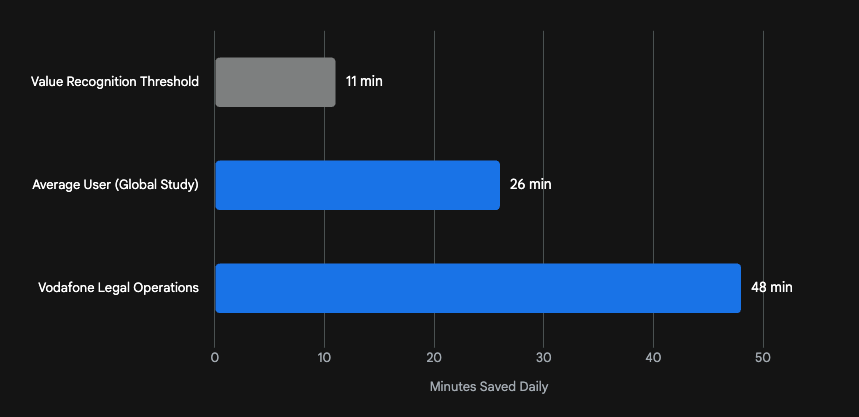
Data indicates that proper implementation of Microsoft task automation clears the 11-minute value threshold, with specialized teams saving nearly an hour daily.
Data sources: Data Studios, Microsoft, Vodafone
Recommendations for Personal Inbox Configuration
Configuring personal mailboxes requires navigating specific user interface paths. The process is straightforward but requires exact adherence to Microsoft settings to prevent initial sync failures. An office coordinator looking for quick wins must first verify that the feature is active. Users often assume the integration works by default, but the To Do application requires manual confirmation.
The Native Synchronization Mechanism
By design, Microsoft Outlook and Microsoft To Do are deeply connected through Exchange Online servers. When a user flags an email in Outlook, the system automatically creates a corresponding task in To Do. This bidirectional connection means that altering a category or clearing a flag in one application instantly updates the other. Updates occur every five seconds.
However, the feature requires specific account types. Only Microsoft Exchange or Office 365 accounts fully support flag synchronization. Standard IMAP or POP3 accounts will not synchronize tasks properly. Office coordinators must verify their account type before attempting any configuration steps.
User Interface Paths for Desktop and Web
To activate the synchronization on a desktop or web browser, the user must follow precise user interface paths.
Table 2 outlines the required sequence of clicks to establish bidirectional sync in a personal inbox.
| Step | User Interface Action | System Response |
|---|---|---|
| 1 | Open the Microsoft To Do application | The main task dashboard appears. |
| 2 | Tap the Settings gear icon in the top right | The settings menu opens. |
| 3 | Select To-Do Settings | Account configuration options display. |
| 4 | Scroll down to the Connected Apps section | Integration toggles become visible. |
| 5 | Locate the Flagged email option and toggle it to On | The system initializes the connection. |
| 6 | Select Sync now or restart the application | Existing flags populate the task list. |
If the setting is already on but failing, the user must toggle it off, wait a few moments, and turn it back on to reestablish the connection. Alternatively, the user can navigate to the list menu on the left side of the screen, select Flagged email, and tap Create to initialize the list.
Device Synchronization and Limitations
Mobile device synchronization adds another layer to the setup process. The Microsoft To Do mobile application will only sync flagged emails after the user has first enabled the Flagged email list on a desktop or web browser. This is a crucial sequence. If an office coordinator attempts to set up their smartphone first, the integration will fail silently.
Users must also understand the native limitations of the application. The system only synchronizes emails flagged within the last 30 days. Furthermore, the list will only display a maximum of 100 of the most recently flagged messages. Flagged calendar events do not convert into tasks. If a user assigns an Outlook category to an email without flagging it, that category will not synchronize to the To Do application.
These constraints dictate how an office coordinator should manage their workflow. They cannot use the flagged email list as a long-term storage vault. It must function as an active, rotating queue of immediate priorities. Tasks older than 30 days will drop off the list, potentially causing missed deadlines if the user relies solely on the automation without completing the work.
Recommendations for Shared Mailbox Configuration
While personal inbox synchronization is simple, shared mailboxes present a significant operational hazard for mid-sized teams. Many firms attempt to use shared mailboxes to manage departmental workloads. However, the native flagging architecture is entirely unsuitable for team delegation.
The Duplication Problem
When a team member flags an email inside a shared mailbox, that email appears as a task in the To Do lists of every user with full access to that mailbox. For example, in a shared mailbox with 70 members, a single flagged email generates 70 distinct tasks across the organization. Microsoft support confirms this behavior is by design to ensure consistency across the shared space.
This design leads to massive duplication of effort. Multiple employees may begin working on the same flagged email simultaneously. Furthermore, if one employee completes the task and clears the flag, the other team members are not necessarily notified of the completion, leading to communication breakdowns.
Attempting to drag and drop an email from a shared mailbox directly into a personal To Do list often results in an error where the task appears briefly and then disappears. This occurs because To Do tasks tie strictly to individual accounts, and the application cannot process the shared mailbox permission structure natively. Some teams attempt to use color-coded categories inside Outlook instead of flags. While categories remain visible to all users, they do not populate external task management applications, forcing employees to constantly monitor the shared inbox manually.
Automated Routing Prevents Shared Mailbox Duplication
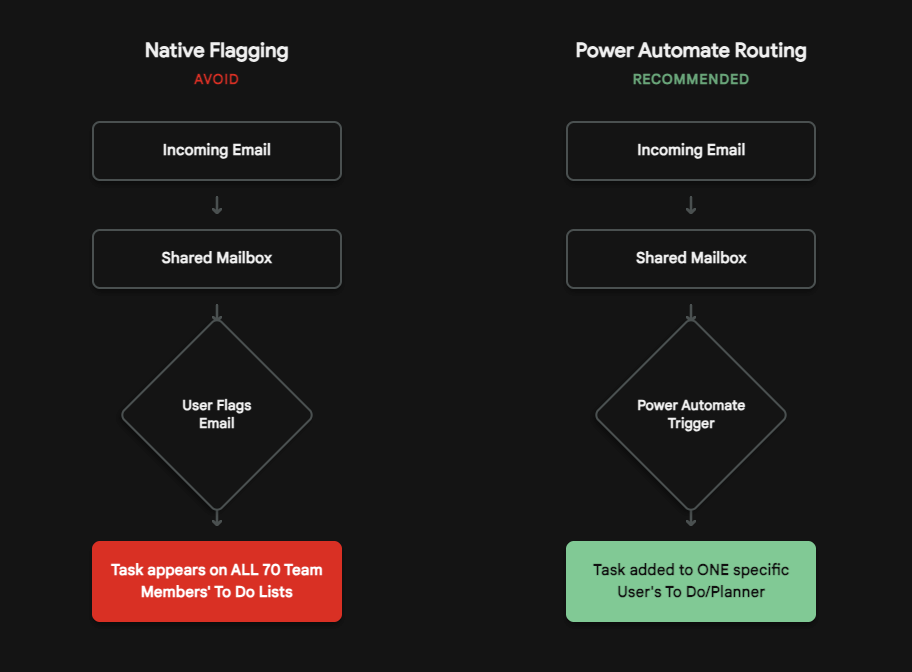
Native flagging broadcasts tasks to every member of a shared mailbox. Power Automate isolates the task and assigns it directly to a specific user's Microsoft Planner or To Do list.
Data sources: Microsoft Learn (Sync), Microsoft Learn (Shared Mailbox), Learn to Illuminate
To solve this duplication problem, project leads must utilize Microsoft Power Automate to construct explicit routing rules.
Building the Power Automate Workaround
To achieve proper bidirectional synchronization for non-IT users in a shared environment, project leads must configure specific cloud flows. Standard flow templates labeled "Create planner tasks for flagged emails in Office 365" only function on personal mailboxes. To capture shared emails, project leads must build a custom routing flow based on folder movement.
The system requires a trigger to initiate the task creation. Because Power Automate lacks a dedicated "When an email is flagged in a shared mailbox" trigger, the most reliable method is to trigger the flow based on moving an email into a designated folder.
Table 3 outlines the exact parameters required to build this automated routing logic.
| Workflow Stage | Action Required in Power Automate | Specific Parameter Settings |
|---|---|---|
| Pre-requisite | Create a subfolder in Outlook | Name it "Action Required" |
| Trigger | Add When a new email arrives in a shared mailbox (V2) | Specify mailbox address and select Action Required folder |
| Task Creation | Add Microsoft To Do - Add a to-do | Map Subject to Title, and Body Content to Notes |
| Bidirectional Completion | Add Send an HTTP request | Method: PATCH. Map to Message ID |
| Payload | Insert JSON code into Body field | {"flag": {"flagStatus":"complete"}} |
In the shared Outlook mailbox, the project lead creates a subfolder named Action Required. The user opens Power Automate and creates an automated cloud flow. The user selects the trigger titled "When a new email arrives in a shared mailbox (V2)". The user specifies the shared mailbox address. If the dropdown menu fails to populate the address, the user must manually type the exact email address of the shared mailbox. In the folder parameter, the user selects the Action Required subfolder.
When an office coordinator drags an email into the Action Required folder, the automation begins. Note that moving an existing, older email into the folder may not trigger the flow if the system does not recognize it as a new arrival. Users must ensure the flow targets unread or newly categorized items.
Once the email triggers the flow, the system must generate a task. The user clicks "+ New step" and selects "Add an action". The user searches for and selects "Microsoft To Do - Add a to-do". Alternatively, the user can select "Planner - Create a task" if the team uses Microsoft Planner for collective tracking. The user maps the dynamic content. The Subject field receives the email's subject line. The Body Content field receives the email body. Finally, the user specifies the target To Do list.
Establishing Bidirectional Completion
The most complex part of shared mailbox automation is achieving bidirectional status updates. When a user marks the task as Complete in Microsoft To Do, the original email in the shared mailbox should theoretically unflag or move to an archive folder. The standard "Flag Email" connector in Power Automate explicitly rejects shared email accounts.
To manipulate flags in a shared inbox, the project lead must use the Office 365 Users connector combined with an HTTP request. To configure the system to clear a flag or mark it complete, the user adds the "Send an HTTP request" action with precise parameters. The URI field must point to https://graph.microsoft.com/v1.0/users/<Shared Email Address>/messages/<Message Id>, replacing the placeholders with dynamic content. The Method must be set to PATCH, and the Content-Type must be application/json. The Body must contain exactly {"flag": {"flagStatus":"complete"}}.
This sequence mimics the native bidirectional sync. When the task finishes, the HTTP request forces the Microsoft Graph API to mark the shared email as complete, ensuring no other team member attempts to process the same message. This prevents the duplicated effort that plagues native shared mailboxes.
Troubleshooting Common Setup Failures
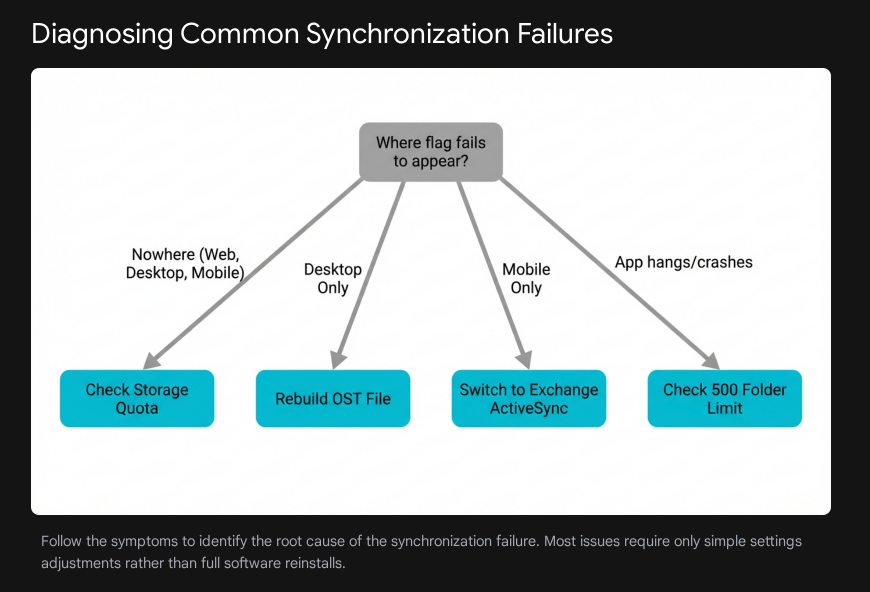
Despite the clear benefits of automation, initial rollouts frequently stall due to technical roadblocks. Office coordinators who attempt these setups often abandon them when they encounter silent failures. Project leads must prepare for a specific set of common issues. Microsoft Support documentation highlights several recurring problems that prevent Outlook from synchronizing with Microsoft To Do.
By utilizing structured troubleshooting checklists, non-IT personnel can resolve the vast majority of these failures without opening help desk tickets.
1. Mailbox Storage Limits Exceeded
The most common reason task synchronization fails silently is a full mailbox or cloud storage quota. Free Outlook accounts provide 15 GB of email storage, while Microsoft 365 subscriber accounts cap consumer limits at 100 GB. Furthermore, every Microsoft account shares a separate 5 GB unified cloud storage limit covering OneDrive files and email attachments.
If the 5 GB unified storage fills up with large attachments, the entire account freezes. Outlook completely stops sending and receiving emails, and bidirectional task synchronization halts, even if the primary 100 GB mailbox remains mostly empty. Deleting old emails will not solve the issue if the hidden OneDrive quota remains breached.
Table 4 provides the specific steps to resolve storage limit failures.
| Step | Action Required to Resolve Storage Errors |
|---|---|
| 1 | Tap the profile avatar in the top left corner of the Outlook application |
| 2 | Navigate to Settings, select the specific account, and tap Storage |
| 3 | Check for the specific error message "Microsoft Unified Storage is full" |
| 4 | Sweep the inbox to delete emails with large file attachments |
| 5 | Empty the Deleted Items and Junk folders |
| 6 | Delete large files stored in the connected OneDrive account |
| 7 | Wait up to two hours for Microsoft servers to refresh the quota and resume sync |
2. OST File Corruption and Caching Errors
When an office coordinator reports that flagged emails appear in Outlook on the web but fail to appear in the desktop To Do application, the local cache is likely corrupted. Outlook utilizes an Offline Folder file to store data locally. When this file corrupts, synchronization ceases.
Users will often see error messages stating that the set of folders cannot be opened or that the file is not an Outlook data file. Repairing this requires forcing Outlook to build a fresh connection to the Exchange server.
Table 5 outlines the progression of steps to repair corrupted caching files.
| Escalation Level | Action Required to Resolve OST Errors |
|---|---|
| Level 1 | Right-click the specific folder showing sync issues and select Properties |
| Level 1 | Tap Clear Offline Items and select OK |
| Level 1 | Navigate to the Send/Receive tab and click Update Folder |
| Level 2 | Close the Outlook application completely |
| Level 2 | Open File Explorer and navigate to C:\Users\<username>\AppData\Local\Microsoft\Outlook |
| Level 2 | Locate the file ending in .ost and rename the extension to .old |
| Level 2 | Restart Outlook to trigger the "Preparing for first use" sequence |
3. The 500 Shared Folder Limit
When mid-sized teams connect multiple shared mailboxes to a single Outlook profile, they often encounter severe performance degradation. Historically, Outlook struggled to process more than 500 shared folders simultaneously. When this limit is breached, the application hangs, deleted items reappear, and flags fail to synchronize.
The synchronization log will display error code 80040305-54A-4DE-1900 or Event ID 9646, stating that the session exceeded the maximum of 500 objects. To fix this, project leads must ensure the user's Outlook profile is running the latest updates. Microsoft recently released patches allowing modern Outlook versions to accommodate up to 5,000 shared folders. The user must verify that the Download shared folders option is enabled in the Advanced settings of the Exchange account to ensure local caching handles the heavy load.
4. ActiveSync Configuration on Mobile Devices
If tasks sync perfectly between a desktop computer and a web browser but fail to appear on a smartphone, the mobile mail client is likely misconfigured. Setting up an email account on a phone using standard IMAP or POP3 protocols only synchronizes basic email messages. It does not support calendar or task synchronization.
To fix this, the user must open the mobile Outlook application and remove the existing problematic account. They must tap Add Account and enter their credentials. Instead of selecting an automatic setup, the user must select Manual setup. Finally, they must select Exchange ActiveSync as the account type. This specific protocol handles the bidirectional data transfer required for tasks and flags to communicate with the mobile device.
5. API Permission Delays
During the initial setup of Power Automate flows, users often face connection errors despite having the correct permissions granted by their IT department. After permissions are granted for an account to access a shared mailbox, it can take up to two hours for those permissions to replicate across the Microsoft platform.
If a flow fails immediately after setup with an error stating the item ID does not belong to the current mailbox, the project lead should wait two hours before altering the code. Attempting to fix a replication delay by rebuilding the flow only causes further frustration. Additionally, the project lead must confirm that the Office 365 Outlook connector has not exceeded its limit of 300 API calls per 60 seconds. If a shared mailbox receives massive bursts of email, this limit will stall the automation.
The 90-Day Rollout Plan
Implementing new task management behaviors across a 200-person firm requires rigid structure. If users face immediate friction, they will revert to their old, inefficient habits. A 90-day rollout plan guarantees a smooth transition by isolating variables, securing quick wins, and scaling gradually.
The rollout divides into three distinct phases. Phase one focuses entirely on the personal inbox. Phase two introduces the shared mailbox automation to a pilot group. Phase three scales the successful systems to the entire organization while measuring the final impact.
Phase 1: Personal Inbox Testing (Days 1 to 30)
The first month focuses strictly on generating quick wins and building user confidence within personal mailboxes. Project leads should not touch shared mailboxes or complex Power Automate scripts during this phase. The goal is simple behavioral change.
Table 6 outlines the week-by-week actions for the initial phase.
| Timeline | Objective | Required Actions |
|---|---|---|
| Week 1 | Awareness and Baseline | Communicate upcoming changes. Users identify time spent manually tracking tasks. |
| Week 2 | Desktop Configuration | Users follow UI paths to turn on Flagged email in To Do settings. |
| Week 3 | The "My Day" Habit | Users practice reviewing To Do each morning to clear clutter. |
| Week 4 | Mobile Integration | Users switch smartphones to Exchange ActiveSync and verify mobile flagging. |
During Week 1, the project lead communicates the upcoming changes. Users identify how much time they currently spend switching between email and task lists to establish a baseline. During Week 2, users implement the user interface steps outlined earlier, turning on the Flagged email list within the To Do settings on their desktop computers.
Week 3 focuses on routine. Users practice reviewing their To Do application each morning. The My Day feature provides a blank slate every night, clearing out old clutter. Users learn to select specific flagged emails and add them to their My Day view to prioritize daily work. In Week 4, users verify that their smartphones connect via Exchange ActiveSync. They confirm that a flag placed on their mobile device instantly populates the desktop application.
Phase 2: Shared Mailbox Pilots (Days 31 to 60)
Once users trust the system for their personal tasks, the firm introduces shared mailbox automation. This phase requires technical configuration by the project lead and feedback from a select group of power users.
Table 7 outlines the progression of the shared mailbox pilot.
| Timeline | Objective | Required Actions |
|---|---|---|
| Week 5 | Workflow Design | Identify one high-traffic shared mailbox. Create "Action Required" subfolder. |
| Week 6 | Power Automate Deployment | Build the flow using the HTTP PATCH request for bidirectional completion. |
| Week 7 | Champion Testing | Power users test the flow by dragging emails and monitoring task creation. |
| Week 8 | Adjustments and Training | Review error logs. Verify API limits are not exceeded. |
During Week 5, the project lead identifies a single, high-traffic shared mailbox to act as the pilot. They create the required subfolders, such as Action Required. In Week 6, the project lead builds the Power Automate flow, ensuring they utilize the HTTP PATCH request method to guarantee bidirectional completion.
Week 7 relies on champion testing. A small group of power users tests the shared mailbox workflow. They deliberately trigger edge cases, dragging old emails into the action folder to test system responsiveness. In Week 8, the project lead reviews error logs in Power Automate. If emails fail to trigger tasks, they confirm that all API endpoints are approved and that the Office 365 Outlook connector has not exceeded its limits. They also monitor for permission replication delays.
Phase 3: Scaled Adoption and Measurement (Days 61 to 90)
The final month expands the successful pilot to the rest of the organization and measures the financial and operational impact.
Table 8 defines the closing actions of the rollout strategy.
| Timeline | Objective | Required Actions |
|---|---|---|
| Week 9 | Departmental Rollout | Apply the Power Automate template to all remaining shared mailboxes. |
| Week 10 | Multi-Device Audits | Verify 200 employees experience seamless sync across all devices. |
| Week 11 | Data Analysis | Measure outcomes against baseline. Confirm the 11-minute time savings threshold. |
| Week 12 | Final Documentation | Finalize internal wiki with exact JSON codes and UI troubleshooting paths. |
During Week 9, the firm applies the tested Power Automate template to all remaining shared mailboxes across the 200-person company. In Week 10, project leads conduct a final audit to ensure all employees experience seamless synchronization across web browsers, desktop applications, and mobile devices. They distribute the troubleshooting checklist for clearing OST files to anyone experiencing local delays.
Week 11 focuses entirely on data analysis. The firm measures the outcomes against the baseline established in Week 1. Project leads track whether employees are hitting the 11-minute minimum time savings threshold. Finally, in Week 12, the project lead finalizes the internal wiki, cementing the exact Power Automate JSON codes and user interface paths into the company's standard operating procedures.
The transition concludes, leaving the office coordinators with a quiet, predictable, and fully unified workflow. By adhering to precise settings, utilizing Power Automate for shared routing, and executing a measured 90-day rollout, mid-sized firms can permanently eliminate the chaos of duplicated emails and lost tasks. Systematic synchronization transforms the inbox from a chaotic storage bin into a streamlined engine for execution.