The spreadsheet ecosystem has undergone a massive structural shift. The methodologies taught in the original 2023 session were heavily rooted in mechanical efficiency. Users were required to memorize complex formula syntax and navigate highly manual interfaces.
As of April 2026, the environment is defined by agentic automation, contextual intelligence, and natural language processing. Microsoft has actively transformed the grid into a literate computation surface. This means the software now interprets intent rather than just executing rigid mathematical commands.
This comprehensive update bridges the gap between legacy techniques and modern capabilities. The analysis provided below translates historical demonstrations into their contemporary equivalents. The focus remains strictly on native features, modern dynamic arrays, and the deep integration of Microsoft 365 Copilot.
1. What's Changed Since This Session
The evolution of Microsoft Excel from a static calculation grid to an AI-assisted data environment renders many legacy workflows entirely obsolete. The core philosophy has shifted from manual data manipulation to automated orchestration. Users no longer need to build fragile data pipelines; instead, they command embedded agents to execute multi-step logic.
The integration of Work IQ context, introduced in the March 2026 update, allows the application to automatically surface relevant data from emails, Teams chats, and SharePoint files without manual referencing. Furthermore, the recent expansion of Agent Mode enables the querying of locally stored .xlsx and .xlsb files, eliminating previous cloud-storage restrictions.
The following table summarizes the technological shifts since the original training session.
| Technology (Circa 2023) | Status in April 2026 | What Replaced It |
|---|---|---|
| Right-Click Sheet Arrows | Legacy / Obsolete | Navigation Pane (Persistent structural search). |
| Manual Ctrl+Page Navigation | Active but Slow | Copilot Chat Navigation and Global Web Search. |
| Instruction / Change Log Sheets | Obsolete | Show Changes (Review tab) & Copilot Agent Mode. |
| Static PDF Cheat Sheets | Active but Rigid | In-App AI Shortcuts & Contextual Descriptive Error Cards. |
| Flash Fill | Legacy / Active | Clean Data AI button & Column From Examples (Power Query). |
| VLOOKUP / HLOOKUP | Obsolete / Dangerous | XLOOKUP, Natural Language Lookups, and =COPILOT(). |
| Manual Power Query Mapping | Active | Copilot ERD Modeling & Natural Language PQ processing. |
| Standard Pivot Tables | Active | GROUPBY and PIVOTBY dynamic array functions. |
| Nested Array Formulas | Obsolete | 14 New Text/Array Functions (e.g., TEXTSPLIT, VSTACK). |
2. How to Do This Today
This section deconstructs the original demonstrations and maps them directly to April 2026 capabilities. Every workflow is optimized for the modern Microsoft 365 environment.
Demo 1: Adjusting the Sheet Tab Scroll Area
Jennifer showed you: Dragging the horizontal scroll bar to increase sheet tab visibility. She also demonstrated right-clicking the navigation arrows in the bottom left corner to trigger a pop-up menu, allowing users to jump to a specific worksheet.
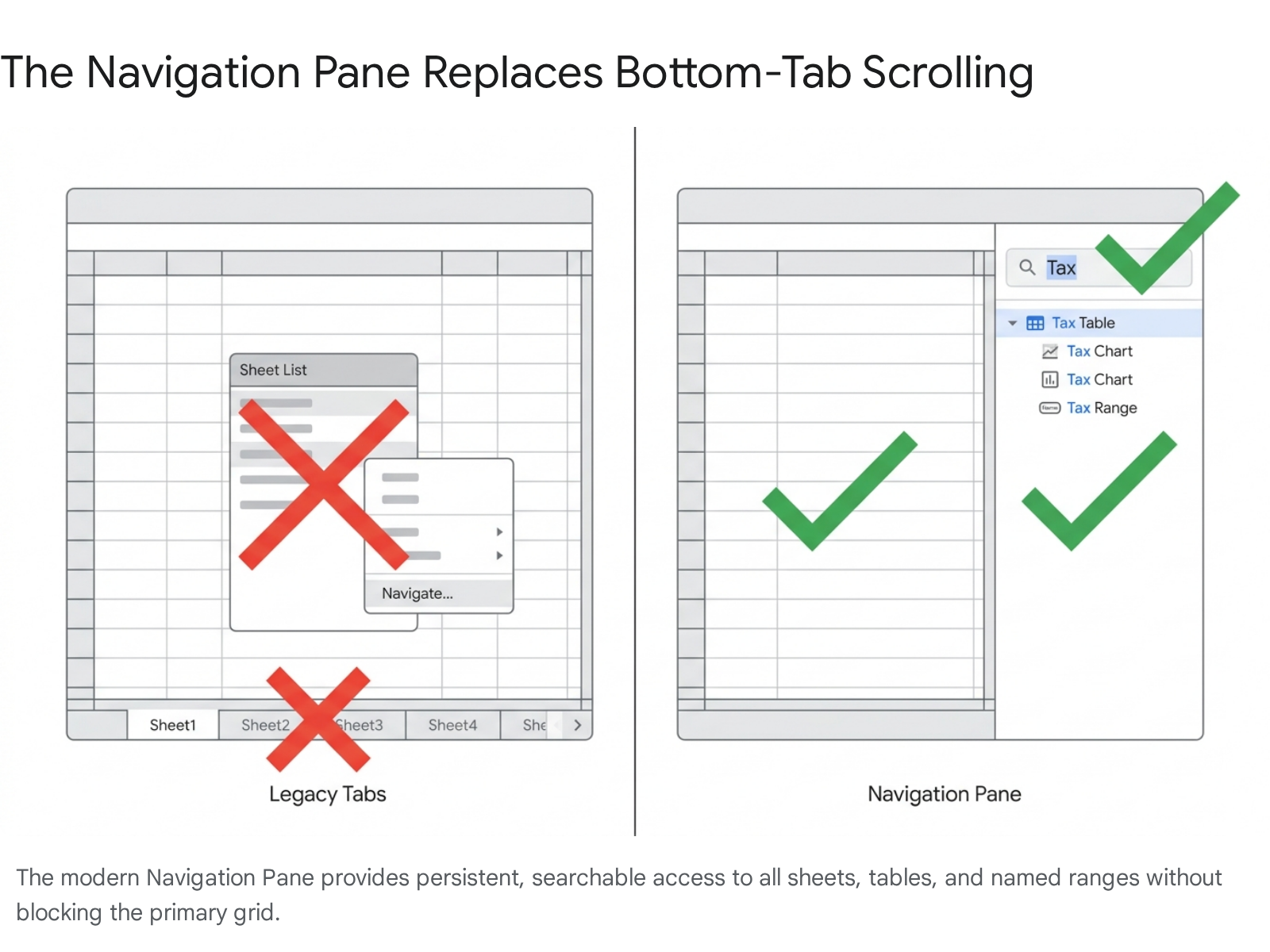
Today you'd do it like this: The right-click modal pop-up is a legacy workaround that disrupts productivity. It physically blocks the user interface and prevents the user from checking formulas or editing cells while the menu is open. Today, the optimal method is utilizing the persistent Navigation Pane.
The Navigation Pane acts as an interactive, real-time table of contents for the entire workbook. It remains seamlessly docked on the right side of the screen. This allows users to switch tabs instantly without interrupting their active workflow.
- Open the workbook in Microsoft Excel (Desktop or Web).
- Navigate to the View tab on the ribbon.
- Click the Navigation button.
- Alternatively, use the status bar: Right-click the bottom status bar, enable Sheet Number, and click the sheet count to open the pane.
The pane displays every worksheet in a clean vertical list. Expanding a sheet's section reveals all contained elements, including tables, named ranges, charts, and PivotTables. Clicking any element teleports the view directly to that object. This works seamlessly even if the target is located thousands of columns off-screen.
This feature is critical for locating "ghost objects." These are transparent text boxes or invisible images that bloat file sizes and cause systemic lag. Users can right-click and delete these orphaned objects directly from the pane, instantly cleaning the visual layer.
Quick Win: Use the keyboard shortcut Alt + W + K to instantly toggle the Navigation Pane. Use the search bar at the top of the pane to filter all sheets, tables, and objects simultaneously by typing just a few letters.
Demo 2: Keyboard Shortcuts for Navigating Sheets
Jennifer showed you: Using the keyboard combinations Ctrl + Page Up and Ctrl + Page Down to rapidly jump left and right between adjacent worksheets.
Today you'd do it like this: The underlying mechanical shortcuts remain perfectly valid and unchanged in 2026.6 However, relying solely on sequential keyboard mashing is highly inefficient. This is especially true for complex financial models or enterprise workbooks containing fifty or more tabs.
The modern approach utilizes a combination of structural search mechanisms and Copilot integration. When a user needs to jump across a massive workbook, manual scrolling is no longer the standard operation.
- Press Ctrl + Shift + I to instantly open the Copilot pane.
- Type a natural language command: "Take me to the Q3 Revenue sheet."
- Copilot will navigate the active window directly to the requested destination.
For rapid adjacent switching, Ctrl + Page Up and Ctrl + Page Down are still the tactical standard. Furthermore, users can employ Ctrl + G (or F5) to open the "Go To" dialog box. Typing a specific named range or cell reference (e.g., Summary!A1) teleports the user instantly.
Additionally, finding files has been optimized. The March 2026 update introduced a faster global search on the Excel web homepage. Typing a file name in the search bar now surfaces the exact workbook in a drop-down list immediately, bypassing standard directory navigation.
Quick Win: Memorize Ctrl + Arrow Keys to jump to the very edge of your data regions, and Ctrl + Home to instantly return to cell A1.8 This is exponentially faster than dragging the scroll wheel across vast datasets.
Demo 3: Instruction and Change Log Sheets
Jennifer showed you: Best practices for complex workbooks, which included manually adding an "Instructions" tab at the far left and a "Change Log" tab at the far right. Users were instructed to manually type what they altered and date it.
Today you'd do it like this: Manual change logs are a dangerous liability. They rely entirely on human compliance, which fails under pressure. In 2026, version control and instructional guidance are entirely automated by native features and artificial intelligence.
To track modifications, use the native Show Changes feature. This tool provides an immutable, automatic audit trail of every edit made by any collaborator.
- Navigate to the Review tab on the main ribbon.
- Click Show Changes.
- A pane opens on the right, detailing exactly who changed what, where, and when.
- It displays the previous value alongside the new value, allowing for rapid reversion.
- Users can filter this log by selecting a specific range, right-clicking, and choosing "Show Changes" to isolate the audit trail for just those cells.
The history is retained for 60 days across Desktop, Mac, and Web platforms automatically.
For the "Instructions" sheet, static text is obsolete. Organizations now deploy Agent Mode within Copilot Studio. An administrator can ground a specific Copilot Agent to the workbook's logic. Instead of reading a manual tab, a new user simply opens the file and asks the agent: "How do I update the tax rate assumptions in this model?" The agent provides exact instructions based on the embedded logic.
Quick Win: If a shared file is broken by an unknown user, do not hunt through cells manually. Open the Show Changes pane, click the Filter icon, and search by the specific user's name to isolate their exact keystrokes.
Demo 4: Printable Cheat Sheet of Shortcuts
Jennifer showed you: Providing a static, printable PDF document containing a list of favorite Excel keyboard shortcuts for users to pin to their monitors.
Today you'd do it like this: While physical cheat sheets exist, they are static and cannot adapt to user context. The 2026 approach relies heavily on in-app discovery and dynamic AI assistance.
If a user forgets a shortcut, they no longer need to check a PDF. They simply press Alt + I to trigger Copilot suggestions for the selected field. Alternatively, pressing the Alt key alone illuminates the ribbon with overlay letters, guiding the user to the correct sequential keystrokes.
For organizations that still require structured onboarding, here is the definitive 2026 critical shortcut matrix. These combinations provide the highest return on investment for daily operations:
| Task Category | Keyboard Shortcut | Primary Benefit |
|---|---|---|
| Instant Analytics | Alt + = | Instantly AutoSums the adjacent contiguous range. |
| Data Formatting | Ctrl + 1 | Opens the comprehensive Format Cells dialog box. |
| Mass Selection | Ctrl + Shift + Arrow | Extends selection to the exact edge of the data block. |
| Filter Toggle | Ctrl + Shift + L | Non-destructive multi-criteria filtering toggle. |
| Smart AI Launch | Ctrl + Shift + I | Directly opens the Copilot Chat pane. |
| Dynamic Array Fill | Ctrl + Shift + Enter | Legacy array trigger, now useful for forced spill containment. |
Furthermore, manual troubleshooting is being phased out. The 2026 update introduced Descriptive Error Cards for Windows users. Instead of staring at a #VALUE! error, Excel now generates a card explaining exactly why the formula failed and suggests an automated fix.
Quick Win: Stop reaching for the mouse to edit a cell. Navigate with the arrow keys and press F2 to enter edit mode, placing your cursor directly at the end of the data string.
Demo 5: Data Cleanup Using Flash Fill
Jennifer showed you: Using Flash Fill (Ctrl + E) to clean data by establishing a pattern. For example, typing a formatted name in one cell, and letting Excel guess the pattern to split or combine text down the rest of the column.
Today you'd do it like this: Flash Fill is highly fragile. It is a one-time guess that breaks silently if the source data updates or if the pattern changes midway through a 10,000-row dataset.
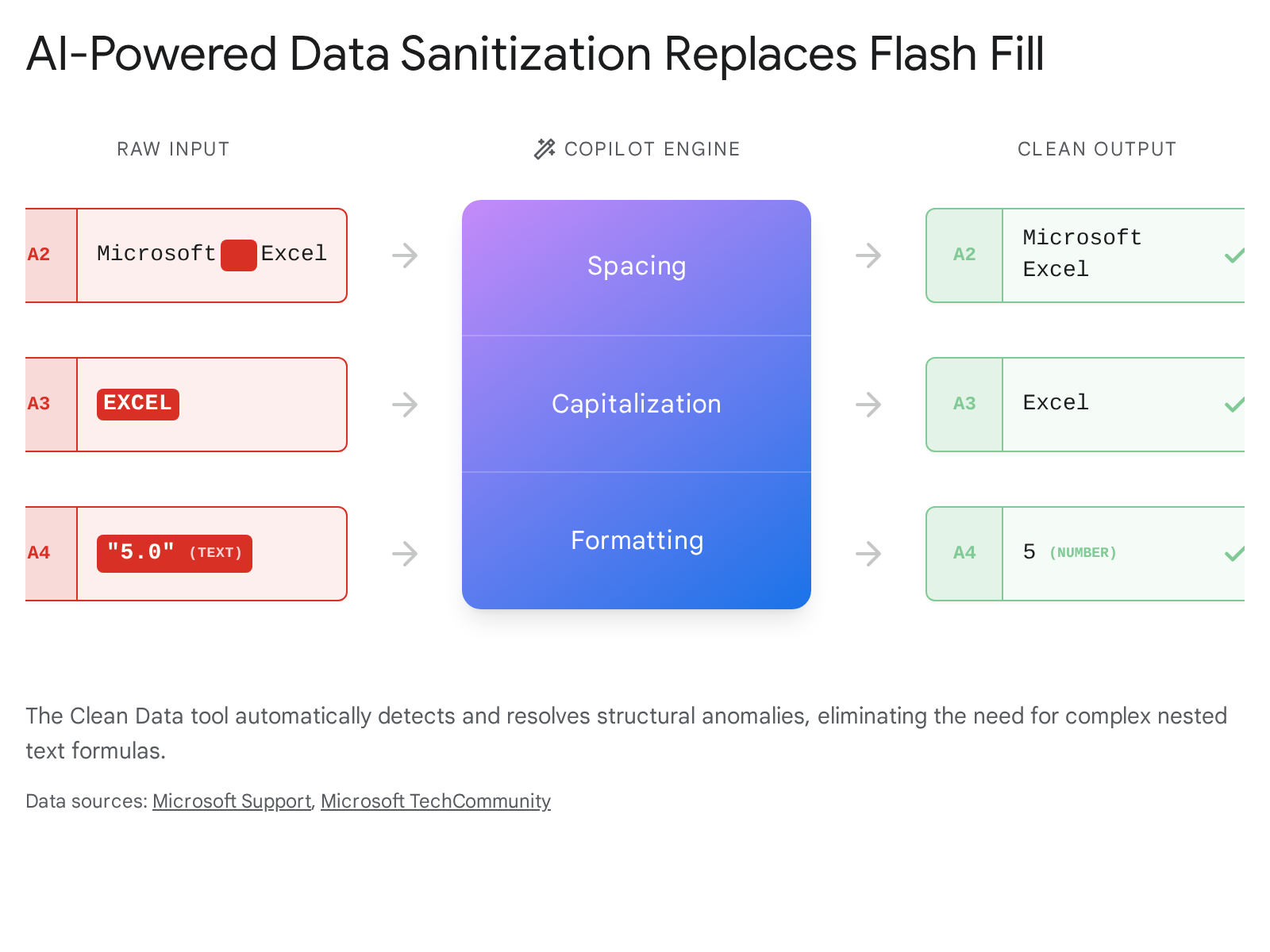
The 2026 standard for data sanitization is the AI-powered Clean Data button, deeply integrated into the Copilot ecosystem. This feature detects inconsistencies autonomously without requiring manual prompting or pattern establishment.
- Ensure your data is formatted as an Excel Table (Ctrl + T).
- Navigate to the Data tab on the ribbon.
- Click the Clean Data button.
- Copilot will automatically scan the table. A side pane will open, displaying all identified structural issues.
The AI engine specifically hunts for four critical data contamination types:
- Spacing anomalies: Removes extra leading, trailing, or double-spaces between words.
- Capitalization errors: Standardizes mixed cases (e.g., standardizing "EXCEL", "Excel", and "excel").
- Number formatting: Flags columns where text-formatted numbers mix with true integers.
- Spelling: Highlights probable typographical errors.
Users click Apply to accept the AI's automated fixes, or Ignore to retain the original string.
For highly complex, repeatable transformations, analysts now default to Power Query: Column From Examples. This operates similarly to Flash Fill, but instead of pasting static text, it writes robust M-code logic in the background. When new raw data is appended, clicking "Refresh" automatically applies the established logic, ensuring permanent structural integrity.
Quick Win: Do not use TRIM, PROPER, or SUBSTITUTE formulas for basic sanitization. Run the Clean Data tool first to eliminate 90% of structural errors before writing a single function.
Demo 6: Upgrading from VLOOKUP to XLOOKUP
Jennifer showed you: Abandoning the legacy VLOOKUP function in favor of XLOOKUP. She demonstrated how to use it to perform reliable lookups across datasets without worrying about column order breaking the formula.
Today you'd do it like this: VLOOKUP is definitively obsolete and considered a liability due to its inability to look left and its highly fragile column index numbers. While XLOOKUP remains the gold standard for manual formula construction, the 2026 paradigm shifts entirely toward Natural Language Lookups and the new =COPILOT() function.
If a user must write a manual formula, XLOOKUP is mandatory. The architecture is infinitely more robust than its predecessors. The syntax requires three core arguments: =XLOOKUP(lookup_value, lookup_array, return_array).
Unlike VLOOKUP, XLOOKUP defaults to an exact match. This prevents the catastrophic "approximate match" errors that plagued older financial models. It also includes built-in error handling via the optional [if_not_found] argument, effectively eliminating the need to wrap lookups in an IFERROR statement.
However, the modern 2026 workflow bypasses manual syntax entirely. Using native Excel Agent Mode, users perform lookups via natural language.
- Open the Copilot pane.
- Type the prompt: "Match the employee names from the Roster table to the sales figures in this sheet based on Employee ID."
- Copilot analyzes the schema, writes the optimal relational logic, and populates the target column autonomously.
Furthermore, the highly anticipated =COPILOT() formula allows users to pass natural language instructions directly into the grid as function arguments. For example: =COPILOT("Extract the region from this address", A2). This brings massive language model power down to the cell level.
Quick Win: When using XLOOKUP to find the most recent transaction in a ledger, use the search_mode argument and set it to -1 to search from the bottom up. This instantly retrieves the "latest win" or newest date.
(https://support.microsoft.com/en-us/office/xlookup-function-b7fd680e-6d10-43e6-84f9-88eae8bf5929)
Demo 7: Connecting Data Sources with Power Query
Jennifer showed you: Using Power Query to connect multiple data sources, clean them, and build relationships in the Excel Data Model to power complex PivotTables.
Today you'd do it like this: Power Query (PQ) remains the undisputed engine for data transformation, but its accessibility and capabilities have expanded drastically. As of January 2026, the full Power Query experience is completely available in Excel for the Web. This achieves true platform parity, allowing users on Chromebooks or Macs to utilize the import wizard and PQ Editor seamlessly.
Building relationships has also been automated. Users no longer need to manually drag connections in a confusing diagram window.
- Navigate to the Data tab and select Get Data.
- Import your sources (e.g., SQL server, CSV, SharePoint list).
- In the modern Power Platform ecosystem, utilize the Entity Relationship Diagram (ERD) view with Copilot.
- Enable Copilot features.
- Instead of manual mapping, type a natural language prompt: "Create a relationship between the Sales table and the Customer table using the Client ID." 26
Copilot automatically handles the tedious configuration of table metadata, populates sample data, and establishes the correct cardinality (one-to-many, many-to-one).
For advanced optimization, 2026 best practices dictate using Parameters within Power Query. Parameters meticulously separate logic from configuration. Rather than hard-coding a date range or file path, users create a parameter (Home > Manage Parameters > New Parameter). This allows a single query to switch dynamically between a "Test" database and a "Production" database with a single toggle, preventing data corruption during model testing.
Quick Win: Always disable the load for intermediate staging queries. If you are importing three tables just to merge them into a fourth final table, right-click the first three in the PQ Editor and uncheck "Enable Load".28 This drastically reduces file bloat and accelerates refresh times.
Demo 8: Table Formatting and Array Formulas
Jennifer showed you: Applying standard Table formatting (Ctrl + T) to lock down data regions, and using early dynamic array formulas to optimize spreadsheet calculations.
Today you'd do it like this: The array architecture in Excel has evolved into a fully programmatic environment. The recent engine updates introduced 14 new text and array functions that completely eliminate the need for nested, illegible formulas.
If you need to split text, do not use LEFT, RIGHT, and FIND. Use =TEXTSPLIT(text, delimiter). If you need to combine two massive tables, do not copy and paste. Use =VSTACK(array1, array2) to stack them vertically, or =HSTACK() to stack them side-by-side. If you need to extract specific columns, use =CHOOSECOLS(array, col_num).
The most profound shift, however, is the introduction of the GROUPBY and PIVOTBY functions. These formulas render traditional PivotTables obsolete for many reporting tasks. They allow users to group, aggregate, sort, and filter data using a single, lightweight formula.
- Ensure your source data is formatted as an Excel Table.
- To summarize sales by state, click into an empty cell.
- Type: =GROUPBY(Table1, Table1, SUM).
The function uses eta-reduced lambdas (like SUM, AVERAGE, PERCENTOF) to instantly calculate the aggregations. The array spills dynamically down the sheet. If the source data changes, the array recalculates instantly without requiring the user to right-click and hit "Refresh" as they would with a legacy PivotTable.
Quick Win: Need a quick two-dimensional cross-tab report? Use =PIVOTBY(row_fields, col_fields, values, function). It builds a fully formatted matrix instantly, completely bypassing the heavy PivotTable wizard.
(https://support.microsoft.com/en-us/office/pivotby-function-de86516a-90ad-4ced-8522-3a25fac389cf)
3. Licensing Quick Reference
The capabilities detailed in this report—specifically Agent Mode, advanced Copilot features, and Purview data controls—are heavily dependent on the organization's licensing tier.
Microsoft enacted significant pricing and packaging updates effective July , 2026, alongside the introduction of the highly anticipated Microsoft 365 E7 (Frontier Suite) in May 2026.32
The following table clarifies the exact licensing requirements necessary to unlock the modern Excel workflow.
| License Tier | Target Audience | Key Features Included | 2026 Status / Pricing Note |
|---|---|---|---|
| Microsoft 365 Business Standard / Premium | SMBs (<300 users) | Base Office apps, 1TB storage, basic security. | Copilot Chat (Basic) included. Full Copilot requires add-on. |
| Microsoft 365 E3 | Enterprise standard | Desktop apps, advanced data lifecycle management, eDiscovery. | Price increased by 8% to $39/mo (July 2026). |
| Microsoft 365 E5 | Enterprise advanced | Everything in E3 + Adaptive Protection, automated retention labels, advanced threat remediation. | Price increased by 5% to $60/mo (July 2026). |
| Microsoft 365 Copilot Add-On | Users requiring AI | Unlocks Agent Mode, Work IQ context, in-app Copilot (Word, Excel), and Copilot Studio. | Required for all full Excel AI features. Reduced threshold to 1,000 licenses for max discount. |
| Microsoft 365 E7 (Frontier Suite) | Ultimate Enterprise | Combines E5, Entra Suite, M365 Copilot, and Agent 365.32 | Transactable May , 2026. Centralized governance of all AI agents. |
Critical Callout on Copilot Access: Starting April , 2026, Microsoft officially restricted in-app Copilot functionality (the ability for Copilot to directly manipulate the Excel grid, write formulas, or format tables) exclusively to users possessing the dedicated Microsoft 365 Copilot license.
Users with standard E3 or E5 licenses who do not have the Copilot Add-on will be downgraded to Copilot Chat (Basic). This basic version provides secure AI web chat but cannot interface directly with the local Excel workbook environment. To perform automated data cleaning, utilize the =COPILOT() function, or command Agent Mode, the organization must procure the Copilot Add-on or upgrade to the Frontier Suite.
Source note
Briefing published by Collab365 Spaces. Cite as "Excel Efficiency Unleashed: The 2026 Companion Guide", Collab365 Spaces. 10 sources referenced.