Build a Weekly Status Hub in Microsoft Loop for Your Team
Create one shared Loop place that turns weekly workstream facts into the manager update.
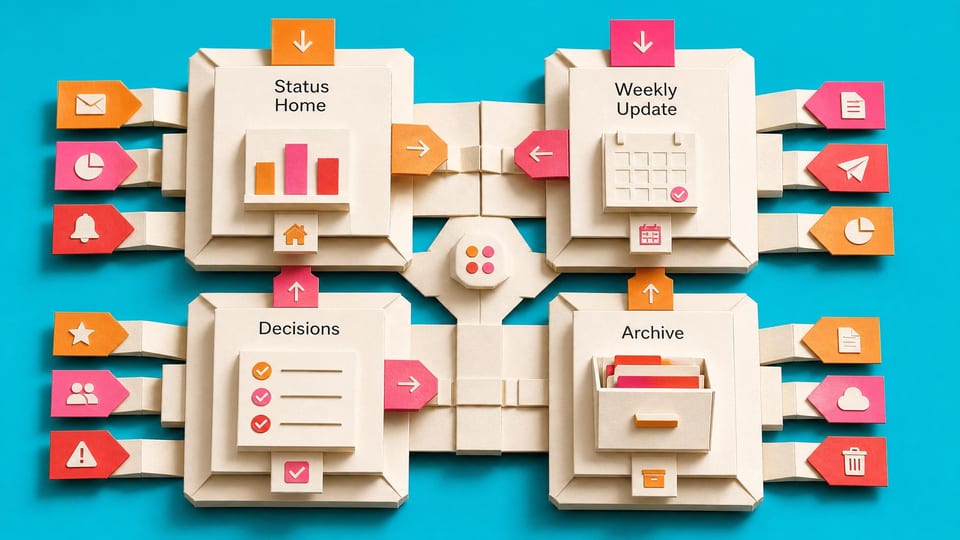
How does this Blueprint help you? A shared Microsoft Loop workspace named Weekly Status Hub, or a OneNote fallback, where the team updates a Status Home table and the coordinator prepares a Weekly Update page.
Why this exists
A short weekly update is hard to write when progress, risks, decisions, and next steps live in different tools. This setup gives the team one shared place for the current version before Friday.
Who will use it
A coordinator, project lead, or team administrator who writes a recurring weekly update and can create or edit shared Microsoft 365 content, but does not need to be a developer or Microsoft 365 administrator.
Blocker it removes
The weekly update is rebuilt from Teams chats, Planner cards, sent email, meeting notes, and memory because the team has no single shared status home.
V1 proof
The four pages exist, one team member updates a test row, one stakeholder access path is checked, and the coordinator produces a Weekly Update from the hub. After two weekly cycles, the coordinator records assembly time and the number of active rows older than seven days.
How this Blueprint becomes a working result.
A Blueprint is the plan for creating a named result. A Course teaches; a Briefing helps you decide.
This is a guided setup plan. Nothing is installed, connected, sent, or changed automatically.
If you can follow instructions, you can finish this. AI explains each step and answers your questions as you go.
You remain responsible for the result. You make and approve each change in the existing tool. AI coaches you through the setup.
AI is the guide, not the builder. AI can explain the next step, draft safe examples, and help check the result. It cannot see or control the tool.
Stuck on a question? Just ask. If anything in the guided session is unclear, tell the AI. It explains, gives examples, and helps you answer before moving on.
Before you begin
Access to the named tool, permission to change its setup, and sample or low-risk data. About 3 hours for the first version.
Start safely
Begin with a reversible change and sample data. Confirm the result before using live information or sharing it.
New to agentic AI tools?
A Blueprint runs inside an agentic AI tool such as Claude Cowork or Codex, where the AI reads the whole Blueprint and works through it with you. If you have never used one, our free plain-English guide gets you comfortable first.
Read the AI for Work guideMember access
Ready to put this Blueprint to work?
You can review the result, audience, proof, responsibilities, and safe starting boundary here. Unlock Microsoft 365 Productivity Workers to use the complete Blueprint.
The technical build sections and copyable implementation packet remain protected until access is unlocked.