You watched Jon Manderville’s session on working with data, and you understand the core philosophy: stop looping through data and start shaping it in bulk. The architectural principles he laid out remain the absolute gold standard for building enterprise-grade automations. However, the Microsoft Power Platform ecosystem has undergone a massive transformation since that recording.
The classic flow designer you saw in the session is gone. In its place is the AI-Powered Modern Designer, completely altering the click paths, menus, and configuration panes you use to build these patterns. Furthermore, Copilot is now deeply woven into the fabric of Power Automate, shifting the development paradigm from manual expression writing to natural language generation. We also have entirely new governance tools like the Automation Center to mathematically prove the performance gains Jon discussed.
This report is your practical, senior-level companion guide. It anchors tightly to Jon's specific demonstrations but translates them into the reality of March 2026. We will walk through exactly how to execute those same loopless, high-performance data operations today, utilizing the latest interface updates, visual expression editors, and AI simplifications.
What's Changed Since This Session
Before diving into the exact build steps, it is crucial to understand what has been deprecated, upgraded, or replaced since the original session. The table below outlines the current March 2026 status of the specific technologies Jon demonstrated.
| Technology / Feature | Status in 2026 | What Replaced It (if applicable) |
|---|---|---|
| Classic Flow Designer | Deprecated / Legacy | AI-Powered Modern Designer featuring left-hand configuration panes and persistent Copilot integration. |
| Apply to each loops | Active but Discouraged | Data Operations (Select, Filter Array) remain the optimal replacements for data shaping to avoid throttling. |
| Manual OData Query Building | Active | Copilot "Describe it to design it" and natural language expression generation. |
| Basic Expression Editor | Legacy | Visual Expression Editor (GA March 2026) allowing drag-and-drop logical operators. |
| Dynamic Content Popup | Legacy | Inline Slash Commands (/) typed directly inside action text fields. |
| SharePoint / Dataverse Connectors | Active | Upgraded with enhanced native OData $filter processing capabilities. |
| Standard Run History | Active | Automation Center offering enterprise-wide ROI dashboards, bottleneck detection, and process mining. |
How to Build This Today
The following sections take each of the core concepts from the session and rebuild them using the modern 2026 toolset. Focus heavily on the new click paths, as the interface behaves very differently than what you saw in the video.
Demo 1: Setting up OData filtering queries directly in connectors
The session showed setting up OData filtering queries directly in connectors like SharePoint, Dataverse, or SQL to retrieve only required records and avoid initial Apply to each loops. Here's how to build that same thing in March 2026.
You saw Jon explain the danger of retrieving thousands of records just to filter them later. Bringing massive payloads into the flow’s memory consumes unnecessary API calls, dramatically increases execution time, and risks hitting daily Power Platform Request (PPR) limits. The modern approach continues to enforce filtering at the data source using Open Data Protocol (OData) queries within actions like Get items (SharePoint) or List rows (Dataverse).
In the modern AI-powered designer, the configuration experience has shifted from a drop-down box within the action card itself to a dedicated, expansive left-hand properties pane.
Step-by-Step Build Instructions:
- Navigate to your flow canvas and click the + Add an action button.
- Search for and select the SharePoint - Get items action (or the Dataverse/SQL equivalent).
- Click the action card on the canvas. The modern configuration pane will slide out on the left side of your screen.
- Fill in the required Site Address and List Name fields using the dropdowns.
- In the left pane, click the Show advanced options button to expand the parameters and reveal the Filter Query field.
- Input your exact OData syntax here.
The syntax still requires the internal column name, an operator (like eq for equals, ne for not equals, gt for greater than), and the specific value. However, you must be meticulously careful with your data types. Different column types demand highly specific syntax rules in 2026.
- Single Line Text: You must wrap the value in single quotes. Expression:
Title eq 'Project X'. - Choice Columns: You must also use single quotes, matching the exact text of the choice. Expression:
Department eq 'Sales'. - Number Columns: Do not use quotes under any circumstances. Expression:
Amount gt 5000. - Date Columns: Use the ISO 8601 string format, wrapped in single quotes. Expression:
Created ge '2026-03-01T00:00:00Z'. - Lookup Columns: Target the ID or the expanded property using a forward slash. Expression:
DeptLookUp/Id eq 3orDeptLookUp/Title eq 'Marketing'.
If you input the wrong format—for instance, placing single quotes around a number—the modern designer will often flag the error during the Flow Checker phase, but sometimes it will only fail at runtime. You must verify your internal column names in SharePoint by navigating to the List Settings and clicking on the column; the internal name is located at the end of the URL.
Using Copilot to Generate the OData Query
You no longer need to memorize these syntax rules. In the 2026 designer, the Copilot pane sits persistently on the right side of the screen. You can use this AI assistant to write the OData queries for you.
- Open the Copilot pane by clicking the Copilot icon in the top command bar.
- Highlight your Get items action by clicking it.
- Enter a natural language prompt. Be highly specific about your column names and conditions.
- Prompt Example: "Generate an OData filter query for SharePoint where the Status choice column equals 'Active' and the DueDate is less than today."
- Copilot will output the exact string, formatting the dates and quotes perfectly.
- Copy this string and paste it directly into the Filter Query field in the left pane.
You can find official Microsoft documentation detailing every single OData operator available for Dataverse and SharePoint at https://learn.microsoft.com/en-us/power-apps/developer/data-platform/webapi/query/filter-rows.
Quick Win: Fastest start method. Do not build flows from scratch if you know your query parameters in advance. Navigate to the Power Automate Create page and select the Describe it to design it tile. Type: "Get SharePoint items from the Invoices list where Amount is greater than 1000 and send an HTML table." Copilot will instantly provision the trigger, the Get items action with the correct OData filter pre-populated, and the output formatting.
Demo 2: Using the Select action to map and transform array data
The session showed using the Select action to map, rename, and transform array data without iterating each item. Here's how to build that same thing in March 2026.
When you pull raw data from enterprise systems like Dataverse or SQL Server, the resulting JSON payload is enormous. It contains dozens of system-generated metadata columns (like @odata.etag, CreatedBy, ModifiedOn, and internal GUIDs) that completely bloat your dataset. If you pass this raw array directly into an HTML table or a CSV file, it becomes illegible to business users.
In the past, citizen developers would solve this by creating an empty Array Variable, using an Apply to each loop to iterate through the database records, and using the Append to array variable action to rebuild the data row-by-row. As Jon demonstrated, this is an architectural nightmare for performance.
The Select action is your high-performance data shaping tool. It acts like a SQL SELECT statement, isolating only the required columns and renaming them for downstream systems, entirely bypassing the sluggish loop.
Step-by-Step Build Instructions:
In the 2026 modern designer, configuring the Select action is heavily streamlined via the new inline slash (/) commands, eliminating the need to constantly click out to secondary popup menus.
- Click the + Add an action button on the canvas.
- Search for the term "Select" and choose the Data Operations - Select action.
- The action card will appear on your canvas, and the configuration settings will open in the left pane.
- Look at the From field. This requires an array input.
- Type a forward slash
/directly in the text box. A dynamic content menu will instantly pop up right where you are typing. - Select
value(orbody/value) from your preceding Get items or List rows action.
Now, you must move to the Map section located just below the From field. This is where you define your key-value pairs to reshape the JSON array.
- The Map section has two columns: Enter key and Enter value.
- In the Enter key column, type the clean, human-readable name you want for your new array. For example, type
Client Name. - In the Enter value column, you must map the raw data.
- Type
/again to open the dynamic content menu and select the corresponding raw field, such asTitle. - Repeat this process for the next row. Key:
Invoice Total, Value:/->Amount.
Applying Transformations During Mapping
The true power of the Select action lies in its ability to transform data in flight. You are not restricted to just passing raw values. You can apply complex expressions to clean up data without using loops.
If you have an invoice amount that needs to be formatted as currency, you can execute this directly inside the Select map.
- Click inside the Enter value field.
- Click the blue fx icon to open the Expression Assistant.
- Input an expression like
formatNumber(item()?['Amount'], 'C2'). Theitem()function is context-sensitive; inside a Select action, it automatically refers to the current record being processed in the array without requiring an explicit loop.
The Copilot Expression Assistant (Preview) can radically accelerate this step. If you are unsure of the correct syntax for a transformation, simply open the right-hand Copilot pane.
Prompt Copilot: "Give me the expression to format the Amount column as a US dollar currency inside a Select action." Copilot will generate the exact string. You can also ask it to generate dates: "Give me the expression to format the Created date as MM/dd/yyyy." It will return formatDateTime(item()?['Created'], 'MM/dd/yyyy').
You can find the official documentation detailing data operations at https://learn.microsoft.com/en-us/power-automate/data-operations.
Quick Win: Fastest start method. To rapidly map incredibly complex Dataverse or SQL payloads, do not guess the field names. Run the flow once to retrieve the raw data. Copy the raw JSON payload from the run history. Open the Copilot chat pane and paste the JSON alongside the prompt: "I have this JSON array. Give me the exact Key and Value expression mappings to use in a Select action to extract only the Employee ID and Due Date." Copilot will provide the exact dynamic content tags required.
Demo 3: Applying Filter Array actions to narrow down arrays
The session showed applying Filter Array actions to narrow down arrays based on conditions after data retrieval. Here's how to build that same thing in March 2026.
While OData is your primary, first-line defense against large datasets, secondary filtering in memory is frequently required. This scenario typically arises when you are dealing with APIs or custom connectors that simply lack native filtering support, or when you are comparing data across two entirely different systems. For example, you might need to filter a massive SharePoint list against a secondary array of Azure AD users to find discrepancies.
The Filter Array action is the tool for this job. It evaluates every object currently held in the flow's memory and returns a new, smaller array containing only the subset of records that match your logical criteria. Because this happens entirely in the cloud’s memory architecture, it executes infinitely faster than using a Condition action inside an Apply to each loop.
The March 2026 platform updates introduced the Visual Expression Editor, which fundamentally changes how you build complex Filter Array conditions.
Step-by-Step Build Instructions:
- On your canvas, click + Add an action and choose Data Operations - Filter Array.
- In the left configuration pane, set the From field to the array output of your previous step. Use the
/command to select the output of your Select action or thevaluefrom your Get items action. - The modern designer defaults to a Basic UI for the condition logic. It presents three boxes: Value, Operator, and Value.
- In the first box, use the
item()?['PropertyName']syntax to target the specific field being evaluated. - Choose your logical operator from the center dropdown (e.g.,
is greater than,is equal to). - Enter your comparison value in the final box.
Using the Visual Expression Editor
For true enterprise scenarios, the Basic UI is rarely sufficient. You will often need to construct nested logic, such as: Status equals Active AND (Region equals EMEA OR Region equals APAC). In the classic designer, writing this required chaining extremely complex string expressions by hand. Today, it is a visual process.
- Click the Use Advanced Expression button within the left configuration pane to open the newly launched Visual Expression Editor.
- This editor replaces the legacy text-based expression box with a structured, drag-and-drop interface. It allows you to visually stack
ANDandORlogical blocks on a mini-canvas. - Drag an
ANDblock onto the canvas. Inside the primary slot of this block, configure the condition forStatus eq Active. - Drag an
ORblock into the secondary slot of theANDblock. Inside thisORblock, add your two regional conditions. - The editor will automatically translate this visual tree into the complex string required by the backend:
@and(equals(item()?, 'Active'), or(equals(item()?, 'EMEA'), equals(item()?, 'APAC'))).
Navigating the Parse JSON Bug
You must be aware of a known quirk in the modern Basic UI that requires close attention. When you use a Filter Array action to evaluate the raw output of a Parse JSON action, the Basic UI occasionally misinterprets the expressions upon saving.
For example, if you set a rule stating Status is not equal to Closed, the system might replace the expression with an invalid syntax when the designer reloads. Always verify your raw formula by clicking "Edit in advanced mode" to ensure operators like notequals or equals are formatting correctly in the underlying code.
Quick Win: Fastest start method.
You can bypass the Basic UI and the Visual Expression Editor entirely by leveraging the Copilot pane. Highlight your Filter Array action on the canvas and instruct Copilot: "Configure this Filter Array to only keep items where the 'DueDate' is within the next 7 days." Copilot will automatically calculate the date logic, inject the complex ticks() and addDays() expressions, and apply it directly into the advanced mode for you.
Architectural Shift: Eliminating the Loop Bottleneck
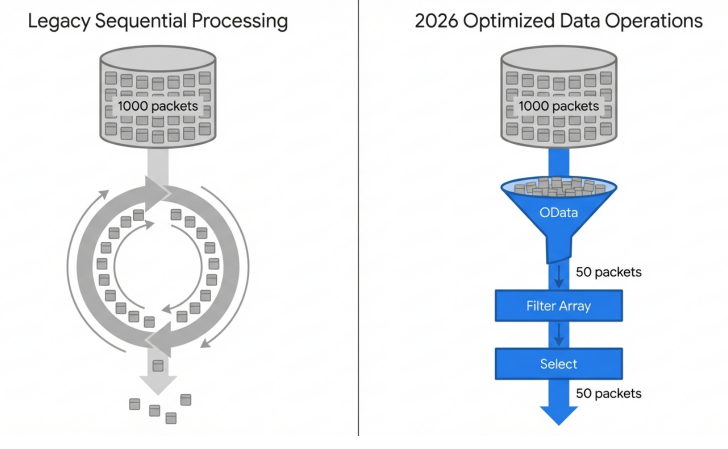
The legacy approach traps data in iterative, sequential loops, drastically slowing execution. The 2026 optimized architecture utilizes OData to minimize the initial payload, followed by in-memory Filter and Select actions to shape the entire array simultaneously.
Demo 4: Combining OData, Select, and Filter Array for end-to-end processing
The session showed combining OData, Select, and Filter Array for end-to-end processing of large datasets without loops. Here's how to build that same thing in March 2026.
Individual data operations are powerful, but chaining them together orchestrates a highly resilient, hyper-fast data pipeline. The ultimate objective is to extract a massive dataset, refine it, transform its structural shape, and output it to a new destination—such as an HTML email for executive review or a CSV file for long-term archiving—while keeping the total execution time under a few seconds.
To illustrate this end-to-end pipeline in the modern designer, consider an enterprise scenario where a finance department must report on all overdue invoices exceeding a specific value from a master database.
Step-by-Step Build Instructions:
- The Retrieval Phase (OData): Add a
Get itemsaction pointing to your master Invoices list. In the left configuration pane, navigate to advanced options and apply the OData query:IsPastDue eq 'Yes'. By executing this immediately at the data source, a 50,000-record master list is instantly restricted to only the 1,000 overdue items. This saves massive API payload capacity and prevents your flow from timing out. - The Refinement Phase (Filter Array): Next, add a
Filter Arrayaction to the canvas. Use the slash command to map thevaluearray from theGet itemsaction into the From field. Use the Visual Expression Editor to construct a secondary business rule whereInvoiceAmountis greater than500. The array held in memory instantly shrinks from 1,000 to perhaps 150 highly relevant records. - The Transformation Phase (Select): Add a
Selectaction. Map thebodyoutput from the precedingFilter Arrayaction into the From field. Map your new, clean keys: typeVendor Namein the key column and map it to theVendorNamedynamic content. TypeTotal Dueand map it toInvoiceAmount. All the messy system metadata is stripped away, leaving a pristine, lightweight JSON array of 150 items containing exactly two columns. - The Output Phase: Add a Create HTML table or Create CSV table action. Pass the clean output of the
Selectaction directly into it. Finally, pass the resulting HTML or CSV output into a Send an email (V2) action to deliver the report.
This entire architecture executes linearly in memory. There is not a single Apply to each action on the canvas.
The Fallback Strategy: Concurrency Control
In 2026, you will still occasionally encounter scenarios where you absolutely must use an Apply to each loop. This typically occurs due to hard limitations with specific connectors—for instance, if you need to write data back to a SQL database row-by-row, or if you must create individual SharePoint items from an array.
If a loop is unavoidable, performance can still be salvaged by enabling concurrency.
- Add your Apply to each action and highlight it.
- Navigate to the settings tab in the left configuration pane.
- Toggle Concurrency Control to 'On'.
- Set the degree of parallelism to a high number, such as 50.
This forces the Power Automate engine to process 50 threads simultaneously, rather than processing them sequentially one-by-one. This single toggle yields a 20X to 50X speedup over standard sequential processing, ensuring your flow remains highly performant even when loops are mandated.
Quick Win: Fastest start method.
The Copilot AI can automatically audit your existing, poorly performing flows. Open an old, legacy flow containing a massive Apply to each loop. In the Copilot chat, type: "Analyze this flow and replace the Apply to each loop with Data Operations (Select and Filter Array) to generate an HTML table." Copilot will automatically draft the new sequence of optimized actions directly onto your canvas.
Demo 5: Measuring performance via run history analytics
The session showed measuring performance via run history analytics to validate optimizations like 20X speedups. Here's how to build that same thing in March 2026.
Historically, validating your performance gains required a tedious process of clicking through individual flow runs, writing down timestamps, and manually comparing execution times. As of 2026, Microsoft has completely revolutionized telemetry by centralizing all execution logs, error tracking, and performance metrics into the Automation Center.
The Automation Center is a massive enterprise governance and ROI dashboard. It is accessible via the Power Platform Admin Center, but makers can also access it directly within the main Power Automate portal navigation menu. When you deploy the optimizations detailed in the previous demos (OData + Select + Filter Array), you must quantify the resulting 20X speedup to prove the return on investment (ROI) to your business stakeholders.
Step-by-Step Analytics Instructions:
- Navigate to the main Power Automate portal. On the left-hand navigation menu, select Automation Center.
- The interface is divided into two primary sections: Monitor and Value.
- Select the Runs page under the Monitor section. This provides a unified, cross-environment view of all cloud and desktop flow executions.
- Filter the view by your specific, newly optimized flow. The dashboard will display the average execution time over a rolling 30-day period. You will observe a stark, clear visual drop-off on the day the data operations were deployed—for example, a flow duration plummeting from 50 minutes down to just 5 minutes.
- For granular bottleneck detection, navigate to the Process map feature.
The Process Map tool utilizes native Process Mining to visually reconstruct your flow's execution path. It highlights precisely which action on your canvas consumes the most time. In your older, unoptimized flows, you will see the Apply to each action glowing red as the primary bottleneck. In your new architecture, the execution time will be evenly distributed and vastly reduced across the data operation actions.
Calculating Financial ROI
Beyond raw speed, the 2026 platform allows you to translate these technical speedups into hard financial metrics.
- Navigate to the Savings page under the Value section of the Automation Center.
- Ensure your flow is mapped via the Automation Project app integration.
- The system automatically calculates the time saved per run, multiplies it by the configured hourly cost of manual processing, and generates an automated ROI scorecard. You can clearly demonstrate how optimizing data queries directly saves the organization capital.
For enterprise developers requiring even deeper telemetry—such as tracking exact API call volumes or setting up failure alerts—the flow can be connected natively to Azure Application Insights. This allows for the programmatic querying of execution logs, custom alerting on performance degradation, and the establishment of strict SLA monitoring across your automation portfolio.
Quick Win: Fastest start method.
To instantly check if a specific flow is hitting API throttling limits due to inefficient data retrieval, open that flow’s details page. Inside the Process insights card, click Improve your flow. The generated report includes a # of Runs and Actions metric. If this number is exceptionally high, the flow is generating action bursts—a definitive sign that OData filtering must be implemented immediately.
Performance Validation: 20X Execution Speedup
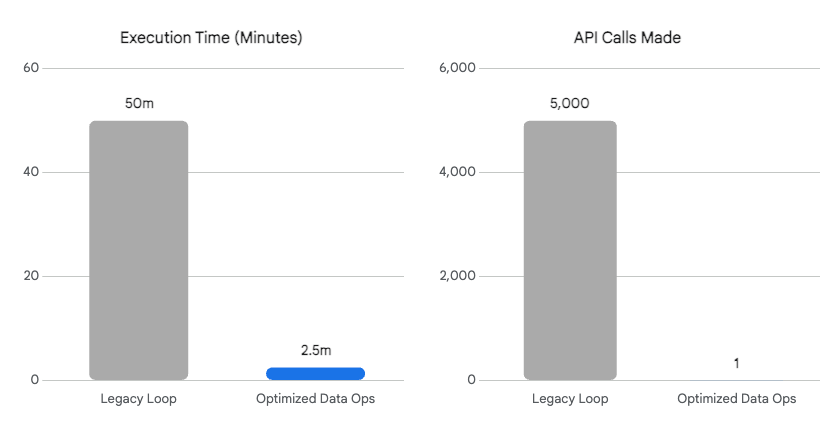
Telemetry extracted via the 2026 Automation Center reveals that replacing an 'Apply to each' loop with native OData filtering and in-memory Data Operations reduces execution time by over 90% and slashes API request volumes.
Data sources: Medium (Muhammad Yasir), Microsoft Learn, Matthew Devaney
Licensing Quick Reference
Deploying these best practices effectively requires a firm understanding of the current licensing landscape. While basic Microsoft 365 licenses include standard Power Automate capabilities (allowing for simple SharePoint and Outlook automations), connecting to robust, enterprise-grade databases like SQL Server or Dataverse fundamentally alters your licensing requirements.
The table below outlines the requisite licenses as of March 2026 for executing the advanced data operations detailed in this report, including the latest UK pricing metrics.
| License Type | UK Price (March 2026) | Optimal Use Case & Capabilities |
|---|---|---|
| Power Automate Free / M365 Included | Included with M365 | Personal productivity. Restricted to Standard Connectors only (e.g., SharePoint OData filtering). Cannot access Dataverse or SQL. |
| Power Automate Premium | £11.50 / user / month | Best for individual makers. Unlocks Premium Connectors (SQL, Dataverse), 250 MB Dataverse database storage, and full Process Mining access. |
| Power Automate Process | £115.30 / bot / month | Best for enterprise workloads. Licenses a single cloud flow (or unattended bot) for company-wide use by unlimited users, avoiding the need to license every individual interacting with the flow. |
| Power Automate Hosted Process | Contact Sales (Enterprise) | Advanced zero-infrastructure RPA and auto-scaling hosted machine groups for the highest tier of enterprise automation. |
Implementing Select and Filter Array actions themselves does not technically require a premium license, as they are classified as standard Data Operations. However, retrieving the massive datasets that necessitate these exact optimizations almost universally involves Premium databases.
Therefore, the Power Automate Premium license serves as the standard baseline for professional automation developers today. Organizations scaling these loopless solutions across multiple departments should actively monitor the new licensing capacity reporting dashboards inside the Power Platform admin center. This ensures licensing compliance and tracks exact consumption rates against your daily API limits.
Source note
Briefing published by Collab365 Spaces. Cite as "2026 Update: Power Automate Best Practices (Working With Data)", Collab365 Spaces. 6 sources referenced.