The transition from early generative AI experimentation to enterprise-scale, agentic workflows represents a paradigm shift for IT administrators. The governance strategies required to secure this environment have matured significantly. Organizations are no longer merely securing a single chatbot interface.
Instead, the modern workplace is characterized by a sprawling ecosystem of interconnected AI agents. Industry analysts predict the deployment of over 1.3 billion AI agents globally by 2028. To manage this scale securely without rebuilding foundational trusted systems, Microsoft has completely overhauled its management infrastructure.
The strategy relies on managing AI agents exactly as you would manage human employees. This requires assigning distinct identities, enforcing strict access controls, and applying comprehensive data lifecycle management. The fragmented administrative portals of the past have been unified.
Security and policy management are now consolidated entirely within the Microsoft 365 admin center, heavily supported by native Microsoft Purview integrations. This unified control plane eliminates administrative blind spots. It allows security, identity, and compliance teams to operate confidently within their existing environments.
This report serves as your definitive 2026 architectural update. It translates foundational deployment concepts into the exact configurations, menu paths, and architectures required today. Every recommendation is grounded in current platform capabilities, designed to accelerate deployment while strictly enforcing data security.
1. What's Changed Since The Original Session
The management tools previously utilized to secure generative AI have been streamlined, deprecated, or entirely replaced. To handle AI at an enterprise scale, Microsoft has centralized the control mechanisms. Below is a strict factual breakdown of the technological shifts affecting the platform as of March 2026.
| Technology Area | Status in March 2026 | What Replaced It |
|---|---|---|
| Copilot DLP Policies | Endpoint and Cloud App routing is legacy. | Replaced by a dedicated Microsoft 365 Copilot and Copilot Chat DLP location in Purview. |
| Retention for Prompts | Retaining via Teams chat policies is deprecated. | Replaced by dedicated Microsoft Copilot experiences and Enterprise AI apps retention locations. |
| Admin Readiness Tracking | Manual tracking via spreadsheets is obsolete. | Replaced by the native Copilot Readiness page in the MAC (Settings > Readiness). |
| Third-Party Agent Control | Fragmented blocking via Teams Admin Center. | Replaced by Microsoft Agent 365, acting as the single control plane for all agents. |
| Purview AI Integration | Required switching between Purview and MAC. | Replaced by native Purview integration directly within the MAC Copilot Security tab. |
| Licensing Bundles | A la carte E5, Copilot, and add-ons. | Replaced by the Microsoft 365 E7 (Frontier Suite) bundle launching May 1, 2026. |
| Auto-labeling Scope | Limited to core Microsoft 365 storage. | Expanded to 11 new Data Map sources including Snowflake and Databricks Unity Catalog. |
| Data Security Categorization | Single processing speed for all investigations. | Replaced with Standard and Advanced options to reduce Compute Unit usage. |
| Usage Reporting Analytics | Required a minimum of 50 Copilot licenses. | Replaced by an expanded requirement of only one (1) Microsoft 365 Copilot license. |
| Communication Compliance | Manual regex and keyword building for AI. | Replaced by the pre-built Detect Microsoft Copilot interactions policy template. |
2. How to Build This Today
The core intent of establishing robust data boundaries remains identical to early deployment strategies. However, the execution in 2026 relies on deeply integrated, AI-specific controls. The following sections detail exactly how to execute these critical administrative scenarios using the current toolset.
Scenario 1: Implementing data loss prevention (DLP) policies tailored for AI tools like Copilot in Microsoft 365, covering endpoint and cloud app controls for hybrid work.
The original session showed you Implementing data loss prevention (DLP) policies tailored for AI tools like Copilot in Microsoft 365, covering endpoint and cloud app controls for hybrid work. Here's how you'd build that same thing today in March 2026.
Attempting to govern generative AI using standard endpoint or cloud app DLP controls is fundamentally flawed in modern architectures. Those controls were too broad and often resulted in massive alert fatigue. Today, administrators utilize a dedicated location scope specifically designed to intercept prompts before they interact with the Large Language Model (LLM).
This real-time control mitigates data leakage instantly. It prevents Copilot from returning responses when prompts contain sensitive data. It also blocks the AI from utilizing that sensitive data for both internal and external web searches.
The coverage of this policy is extensive. It protects files that are actively open, files stored in SharePoint Online or OneDrive for Business, and emails sent on or after January 1, 2025. If a user attempts to bypass this by prompting Copilot with blocked sensitive information, they receive a direct, immediate notification stating the prompt cannot be completed.
Furthermore, this protection natively extends to prebuilt agents within Microsoft 365 Copilot and Copilot Chat. The rollout of these capabilities is currently active across GCC, GCC High, and DoD cloud instances.
Step-by-Step Configuration:
- Navigate to the official Microsoft Purview portal. Ensure you are signed in with an account holding the appropriate compliance administrator credentials.
- In the left-hand navigation pane, go to Data Loss Prevention > Policies.
- Select the Create policy button. Choose a regulatory template that aligns with your operational requirements, such as Financial or Medical data templates.
- Proceed to the Locations page. You must toggle OFF the legacy locations for this specific AI rule, including Exchange, SharePoint, and Teams.
- Toggle ON the dedicated Microsoft 365 Copilot and Copilot Chat location.
- Advance to the Conditions section. Set the primary rule to Content contains > Sensitive information types. Select the specific SITs (e.g., credit card numbers, passport identification) you wish to block.
- In the Actions section, select the exact parameter: Restrict Microsoft 365 Copilot from processing. Save and activate the policy.
Quick Win: Block Labeled Files in Summaries Microsoft recently released a feature to general availability that stops Copilot from summarizing highly sensitive files. Navigate back to your DLP policy conditions. Add Sensitivity labels as a secondary condition alongside your SITs. Copilot will immediately refuse to process, summarize, or extract data from any emails or files tagged with that specific sensitivity label.
Scenario 2: Data classification and automated labeling using sensitivity labels in Microsoft Purview to protect data before AI processing.
The session showed you Data classification and automated labeling using sensitivity labels in Microsoft Purview to protect data before AI processing. Here's how you'd build that same thing today in March 2026.
Organizations cannot rely entirely on users manually applying labels to their documents. To scale data protection rapidly ahead of widespread AI ingestion, administrators must implement service-side auto-labeling for data at rest. This operates natively within SharePoint and OneDrive.
Service-side labeling functions entirely independently of the user's specific Office application version. It labels files silently in the background, making it the only viable solution for labeling at enterprise scale. The service currently supports PDF documents and core Office files, including.docx,.pptx, and.xlsx formats.
There are strict operational limits you must account for during deployment. Service-side labeling evaluates and applies labels to a maximum of 100,000 files per day within a single tenant. Additionally, tenants are restricted to a maximum of 100 auto-labeling policies. Each policy can target up to 100 specific locations unless the global "All" location setting is utilized.
Before configuring these policies, you must ensure specific prerequisites are met. Microsoft 365 auditing must be globally enabled. Furthermore, administrators require the Data Classification Content Viewer role to inspect file contents during the mandatory policy review phases. When a label successfully applies encryption, the system automatically assigns the Rights Management issuer and owner to the account that last modified the file.
Step-by-Step Configuration:
- Navigate to the Microsoft Purview portal. Verify that your tenant has sensitivity labels enabled for Office files in SharePoint and OneDrive.
- In the navigation menu, select Information Protection > Auto-labeling. If this page is not visible, your tenant may lack the geographic Azure dependency availability.
- Select the Create auto-labeling policy button.
- Choose the specific information types you want the system to identify and protect.
- On the locations selection screen, specify SharePoint sites and OneDrive accounts.
- Select the specific sensitivity label (e.g., "Confidential - Internal Only") that the system should apply automatically when the conditions are met.
- Crucial Configuration Step: You must run the newly created policy in Simulation mode first. Auto-labeling policies do not support immediate "recommended labeling." Administrators are required to run policies in simulation to verify targeting accuracy before any actual labels are applied to production data.
Quick Win: Activate Default DSPM Configurations If you are building a classification taxonomy from scratch, bypass manual creation. Go to Data Security Posture Management for AI > Recommendations. Select the specific action Protect your data with sensitivity labels. This executes a setup task that deploys a pre-configured, optimized set of default labels and policies instantly.
Scenario 3: Setting up retention policies and communication compliance to manage AI-generated content lifecycles.
The session showed you Setting up retention policies and communication compliance to manage AI-generated content lifecycles. Here's how you'd build that same thing today in March 2026.
Historically, Microsoft 365 Copilot interactions were bundled directly into the "Teams chats" retention location. This caused massive regulatory compliance headaches for administrators attempting to separate human communications from AI-generated outputs. Microsoft has entirely resolved this by separating AI retention into dedicated, independent workloads.
Under the hood, the architecture handles ephemeral AI data through specialized hidden directories. User prompts and the corresponding AI responses are stored in a hidden folder within the Exchange mailbox of the specific user executing the application. This includes text, generated links, referenced materials, and threaded summaries.
An Exchange service timer job periodically evaluates these hidden items, typically running every 1 to 7 days. Once the administrative retention period expires, the items are seamlessly moved to the hidden SubstrateHolds folder. They remain in this holding directory for at least one day prior to permanent, unrecoverable deletion.
Simultaneously, managing the behavioral risk of AI interactions has been streamlined. Microsoft Purview Communication Compliance provides dedicated tools to detect regulatory compliance violations, such as SEC or FINRA infractions. It aggressively monitors for business conduct violations, including harassing language or the unauthorized sharing of highly confidential data. The solution is engineered with privacy by default; usernames are strictly pseudonymized, and role-based access controls are strictly enforced.
Step-by-Step Configuration for Data Retention:
- Navigate directly to the Microsoft Purview portal.
- Go to Data Lifecycle Management > Policies > Retention policies.
- Select the New retention policy command.
- On the targeted locations page, you will now see granular AI options. Select Microsoft Copilot experiences. This location covers Microsoft 365 Copilot, Security Copilot, Copilot in Fabric, and Copilot Studio.
- You must also select Enterprise AI apps. This crucial location covers interactions with Entra-registered AI apps, Microsoft Foundry, and ChatGPT Enterprise.
- Set your specific retention timeframe (e.g., "Retain for 1 year, then delete").
Step-by-Step Configuration for Communication Compliance:
- In the Microsoft Purview portal, navigate to the Communication Compliance solution. Note that PowerShell is strictly unsupported for creating these specific policies.
- Select Policies in the left navigation pane.
- Select Create policy. Do not build from scratch; instead, select the pre-built Detect Microsoft Copilot interactions template.
- Enter your designated policy name. Select the specific users and groups to apply the policy against.
- Assign the designated compliance reviewers for the policy.
Quick Win: Deploy the DSPM One-Click Policy You can bypass manual policy creation entirely using Data Security Posture Management. Navigate to DSPM for AI > Recommendations. Locate the recommendation titled Detect risky interactions in AI apps. Clicking this creates a comprehensive, one-click policy that instantly calculates user risk by detecting risky prompts across Microsoft 365 Copilot, custom agents, and connected generative AI applications.
Scenario 4: Configuring Microsoft 365 Copilot policies and security monitoring via auditing tools to enforce data protection.
The session showed you Configuring Microsoft 365 Copilot policies and security monitoring via auditing tools to enforce data protection. Here's how you'd build that same thing today in March 2026.
Administrators no longer have to bounce erratically between the Microsoft 365 admin center, the Teams Admin Center, and various Purview compliance portals to monitor their rollout. Microsoft has unified the architecture. Security, readiness, and policy enforcement are now handled through a centralized "Copilot Control System" located directly within the Microsoft 365 admin center (MAC).
The most significant architectural addition to this control system is Microsoft Agent 365. It serves as the definitive control plane for managing the explosive growth of custom AI agents. Agent 365 is designed to extend your existing human identity infrastructure directly to AI components.
It achieves this by giving every single AI agent its own dedicated Microsoft Entra Agent ID. This provides enterprise-grade controls for identity, authentication, compliance, and observability. IT leaders gain a comprehensive Agent Registry, acting as a single source of truth to track agent performance, speed, quality, and business impact. This registry ensures that agents behave securely and in strict compliance with enterprise standards.
Simultaneously, the Microsoft 365 admin center introduced a dedicated Copilot Readiness page. This dashboard organizes Microsoft-recommended settings into three distinct operational categories: deployment essentials, data security, and end-user experience. It serves as the primary tracking mechanism for configuration completion status and user coverage insights.
The 2026 Copilot Control System Architecture
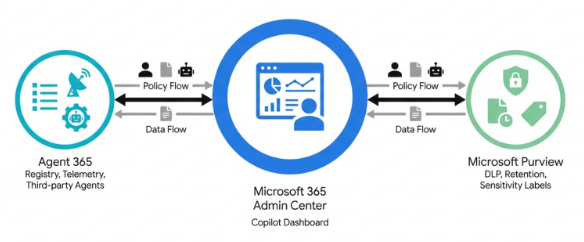
The Microsoft 365 Admin Center now serves as the unified control plane. It natively integrates Microsoft Purview for data compliance and the newly introduced Microsoft Agent 365 for managing third-party and custom AI agents.
Step-by-Step Configuration:
- Open your browser and log in directly to the Microsoft 365 admin center.
- Navigate to Settings > Readiness to access the new Copilot Readiness page.
- Review the personalized readiness assessments and follow the guided step-by-step contextual insights to complete any missing policy updates.
- To view native security monitoring, go to the Copilot menu > Security tab. Microsoft Purview is now fully embedded here. It surfaces oversharing risks and DLP telemetry natively, eliminating the need to switch portals.
- To explicitly configure agent access controls, navigate to Agents > Settings > User access.
- Define your Allowed agent types. You must explicitly specify which categories of AI agents are permitted for use, choosing between apps created by Microsoft, external publishers, or custom internal organization builds.
Quick Win: Eliminate Shadow AI via the Registry Go to the Agents menu in the left-hand pane of the MAC to view the Agent Registry. This provides an immediate, comprehensive inventory of every single agent currently operating within your tenant. It allows IT admins to instantly quarantine unauthorized or unsanctioned shadow agents with a single click.
Scenario 5: Building governance and adoption using the Copilot Success Kit, including training environments and rollout plans.
The session showed you Building governance and adoption using the Copilot Success Kit, including training environments and rollout plans. Here's how you'd build that same thing today in March 2026.
Treating AI governance as a one-time, check-the-box deployment exercise guarantees implementation failure. Organizations that successfully extract value from these tools establish a continuous, measurable community of practice. To facilitate this, the official "Copilot Success Kit" has been heavily updated.
It now includes specialized resources tailored specifically for Enterprise and Small and Medium Business (SMB) environments. The kit provides an extensive Scenario Library, User Enablement Guides, and a comprehensive Stakeholder Management worksheet. The rollout strategy is now strictly codified into an iterative, five-phase implementation framework: Plan, Implement, Adopt, Manage, and Improve.
A critical addition to the "Manage" phase is the formalization of Service Health Reviews (SHR). These are mandatory, periodic reviews involving organizational leadership, technical operations, and user enablement teams. They are designed to gain deep insight into AI transformation progress and highlight success stories. The core components evaluated during an SHR include platform performance metrics, feedback analysis, technical incident review, roadmap planning, and active risk mitigation strategies.
Furthermore, monitoring the adoption of these tools no longer requires massive licensing investments. Previously, tenants required a minimum of 50 Microsoft 365 Copilot licenses to access the Copilot Dashboard. Microsoft has officially lowered this tenant requirement to just one (1) single license.
Step-by-Step Configuration:
- Download the latest role-based resources from the (https://adoption.microsoft.com/en-us/copilot/essential-guide/plan/).
- Plan Phase: Open the provided Microsoft 365 Copilot adoption planning checklist (delivered as an interactive Excel download) to align your core stakeholders and establish key performance indicators (KPIs).
- Implement Phase: Do not enable Copilot globally immediately. Utilize the MAC to assign licenses to a highly targeted group of early adopters. Phase the rollout through strict departmental gates to build internal champions safely.
- Adopt Phase: Nurture your learning community. Deploy the official Copilot community template directly within Microsoft Viva Engage. Designate this hub to host internal training sessions, share approved corporate prompt libraries, and answer user queries.
- Manage Phase: Institute the recurring Service Health Reviews (SHR). Pair your technical policies with role-based training updates derived from Purview audit log insights.
Quick Win: Uncover Usage Trends Immediately With the licensing barrier removed, navigate immediately to the Copilot Dashboard (powered by Microsoft Viva). You can instantly track macro adoption trends, analyze user retention metrics, and view highly granular breakdowns of usage across specific applications. You can filter these metrics based on specific organizational attributes to pinpoint exactly where adoption is lagging.
3. Licensing Quick Reference
Microsoft has fundamentally overhauled its enterprise licensing structure to account for the operational realities of the AI era. Effective May 1, 2026, Microsoft is launching the Microsoft 365 E7 package. Officially branded as "The Frontier Suite," it is the first new enterprise edition introduced to the Microsoft 365 lineup since the launch of E5 in 2015.
If you attempt to construct the comprehensive security and governance architecture outlined in the scenarios above utilizing older E3 or E5 baseline licenses, you will encounter substantial licensing friction. You will be required to procure and manage multiple standalone add-on SKUs to achieve parity.
Furthermore, standard commercial pricing is shifting. Effective July 1, 2026, the cost of baseline suites will increase. Microsoft 365 E3 will rise to $39.00 per user per month, and Microsoft 365 E5 will rise to $60.00 per user per month.
The new M365 E7 suite is priced at $99.00 per user per month. This unified subscription natively bundles the baseline Microsoft 365 E5 suite, the Microsoft 365 Copilot add-on, the Entra Suite (for identity governance), and the newly introduced Agent 365 control plane.
Below is a precise breakdown of the licensing required to fully operationalize and secure Microsoft 365 Copilot and Agent 365. The table illustrates the component costs if purchased a la carte, based on the finalized July 2026 pricing structures.
| Feature / License Requirement | M365 E3 Profile | M365 E5 Profile | M365 E7 (New in 2026) |
|---|---|---|---|
| Base Price (Per user/month) | $39.00 (July 2026) | $60.00 (July 2026) | $99.00 |
| Microsoft 365 Copilot | Requires $30 Add-on | Requires $30 Add-on | Included Natively |
| Agent 365 Governance | Requires $15 Add-on | Requires $15 Add-on | Included Natively |
| Entra Suite (Identity Security) | Requires $12 Add-on | Requires $12 Add-on | Included Natively |
| Total Monthly Cost | $96.00 | $117.00 | $99.00 |
| Advanced Purview (Auto-labeling) | Partial / Requires Add-ons | Included | Included Natively |
The underlying economics heavily favor migrating to the M365 E7 suite if your organization is fully committing to securing custom agentic workflows at scale. Consolidating these components generates exactly $18.00 in per-user monthly savings, representing a 15% discount compared to the fragmented a la carte approach.
However, organizations must assess their immediate operational needs. If your deployment strategy only requires foundational Copilot capabilities—without the necessity of advanced Agent 365 governance or Entra Suite identity controls—maintaining an E5 baseline paired solely with the standard $30 Copilot add-on remains a viable transition path.
Source note
Briefing published by Collab365 Spaces. Cite as "2026 Update: Govern, Adopt, and Protect Your Microsoft 365 Workplace in an AI-Driven World", Collab365 Spaces. 27 sources referenced.