This guide refreshes Mark Stokes’ original 2023 session on building a global employee directory for Unilever. That presentation masterfully demonstrated how to capture requirements, build a Power App, and automate data updates for a 600-person digital marketing team.
The Power Platform ecosystem has undergone a radical transformation since that recording. The introduction of AI-native development environments, enterprise-grade identity governance, and Fluent 2 design controls has completely rewritten the app-building playbook.
This exhaustively detailed report serves as your definitive March 2026 update. As a senior consultant to a colleague, I will break down exactly how you must architect, build, automate, and govern that exact same employee directory solution today using current best practices.
What's Changed Since This Session
The technology stack Mark demonstrated relied heavily on manual canvas app configuration and traditional Power Automate synchronization flows. The current March 2026 landscape shifts the focus entirely toward AI-orchestrated planning, native modern user interface (UI) controls, and centralized identity lifecycle management.
The following table summarizes the foundational shifts in the Power Platform ecosystem between the original session and our current methodology.
| Technology / Approach (2023) | Status in March 2026 | The 2026 Replacement |
|---|---|---|
| Manual App Planning | Obsolete | Power Apps Plan Designer: Uses AI agents to generate requirements, user stories, and Dataverse schemas automatically. |
| Classic Canvas Controls | Legacy / Phasing Out | Modern Controls (Fluent 2): Native responsive controls, including a highly scalable Modern Combo Box. |
| Manual Data Syncs | Deprecated Best Practice | Entra ID Lifecycle Workflows: Automates Joiner/Mover/Leaver profile updates directly from HR systems. |
| Manual Troubleshooting | Inefficient | Copilot Formula Bar & Vibe Coding: Inline AI debugging, formula explanation, and code generation. |
| Per-App Licensing | End of Sale (Jan 2026) | Power Apps Premium / M365 E7: Shifted to per-user Premium models and the new Frontier Suite. |
The transition from manual drag-and-drop development to AI-assisted coding represents the most significant change in our daily workflow. Developers now dictate application logic and UI layouts using natural language, allowing the platform's AI agents to generate the underlying Power Fx code and Dataverse architecture.
Furthermore, the introduction of the Microsoft 365 E7 Frontier Suite has redefined enterprise licensing. Organizations are moving away from piecemeal add-ons toward unified suites that combine security, productivity, and AI governance into a single package.
Quick Win: Before building any custom directory application, evaluate the new Microsoft 365 People Agent. Releasing in general availability in early 2026, this native Copilot agent automatically surfaces organizational relationships, skills, and contact data across the tenant.For many organizations, this out-of-the-box agent entirely replaces the need for a custom-built Power App.
The Evolution of Power Apps Development
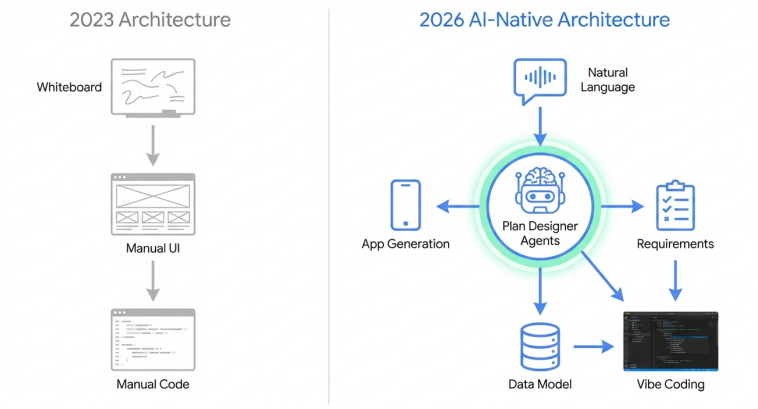
The transition from manual component assembly to AI-orchestrated solution generation reduces development time and ensures enterprise-grade architecture by default.
How to Build This Today: Project Management and Requirements
You saw Mark spend approximately 45 minutes upfront on manual whiteboarding to gather requirements for Unilever's 600-person directory. He heavily emphasized defining user personas and ensuring data remained current before any actual building commenced.
Today: That entire manual phase is accelerated and digitized using the Power Apps Plan Designer. Introduced in late 2024 and matured by 2026, this copilot-first development tool utilizes specialized AI agents to translate a business problem directly into a complete solution architecture.
Initiating the Plan Designer Workspace
The Plan Designer serves as the modern entry point for enterprise application development. It eliminates the need for separate external documentation tools by generating the architecture directly within the Power Platform environment.
To initiate the project, navigate to the Power Apps maker portal (make.powerapps.com). Ensure the selected environment has a Dataverse database provisioned, as the Plan Designer requires this infrastructure to function correctly.
From the Home screen, locate the primary navigation menu and select Start with a plan. Click the Create a plan button to open the AI prompt interface and begin the generative process.
For users who prefer a dedicated AI workspace, you can also access the standalone Power Apps Vibe experience. Navigate to https://vibe.powerapps.com and sign in to access the multi-agent design surface directly.
Drafting the Architectural Prompt
The quality of your generated architecture depends entirely on the natural language prompt provided to the system. Your prompt must clearly define the business problem, the target audience, and the desired technical outcomes.
Enter a prompt similar to the following: "Design an employee directory application for a 600-person global digital marketing team. Users need to search for colleagues by name, department, and skills. The system must display real-time profile data and photos using Microsoft 365 user profiles."
You can augment this text prompt by uploading images to provide additional context to the AI. Adding screenshots of legacy directory tools or hand-drawn process diagrams allows the system to understand your intended visual layout and workflow requirements.
Once your prompt and context materials are ready, click Generate to initiate the multi-agent orchestration process.
The Multi-Agent Orchestration Process
Once you submit the prompt, the Plan Designer activates a collaborative team of specialized AI agents. You will see these agents working in real-time through a "copresence" indicator in the UI, highlighting their parallel processing efforts.
The Requirement Agent analyzes your text to define distinct user roles, such as 'Standard Employee' and 'HR Administrator'. It then automatically generates agile user stories tailored to each specific persona.
Simultaneously, the Data Agent proposes a highly optimized Dataverse schema for any custom data requirements. It suggests the necessary tables, columns, data types, and relationships required to store specialized directory information, such as custom skills tracking or project assignments.
Finally, the Solution Agent evaluates the combined requirements and data model. It then generates the required application components, typically recommending a mix of responsive canvas apps for mobile access and model-driven apps for HR administration.
Reviewing and Refining the Architecture
Developers must critically observe and refine the outputs generated by these agents. The generated artifacts are presented in a unified dashboard for easy review.
First, review the proposed Dataverse entity-relationship diagram (ERD) within the Data Workspace view.Ensure that the suggested tables do not unnecessarily duplicate data already managed by Entra ID or the Office 365 Users connector.
If necessary, you can modify the generated user stories directly in the interface. The AI agents will automatically adjust the downstream data model and application recommendations based on your manual edits.
Once the architecture perfectly aligns with your business needs, click Save in the upper-right corner. This action commits the generated artifacts to a designated Power Platform Solution, preparing your environment for actual application development.
Leveraging Existing Solutions
In many enterprise environments, you may not need to start entirely from scratch. The Plan Designer now supports generating plans based on existing solutions deployed within your tenant.
If an older version of the directory exists, navigate to Solutions in Power Apps and select Create a plan. Choose the From this solution option to let the AI extract the current architecture.
The system will document the existing business problem, user roles, and data models. You can then use the AI agents to recommend architectural improvements or modernize the legacy app into a Fluent 2 standard.
Warning: AI-generated Dataverse schemas must always be reviewed by a qualified data architect. Relying blindly on generated models can lead to redundant storage consumption, which rapidly depletes your expensive Dataverse capacity limits.
How to Build This Today: Building the Core Power App
You saw Mark build a staff directory canvas app live, dragging and dropping classic controls onto a screen to connect with the Office 365 Users connector. His gallery layout required significant manual tweaking to display the 600-person team effectively.
Today: Developers utilize the updated Power Apps Studio relying exclusively on Fluent 2 Modern Controls. The process leverages responsive layout containers by default, ensuring the app scales perfectly across web, tablet, and mobile interfaces.
Setting Up the App and Enabling Modern Controls
To begin building the core directory interface, you must provision a new application shell. Navigate to the Power Apps maker portal at make.powerapps.com.
Select Create from the left navigation pane, and choose Start from blank. Select the Blank canvas app option and choose the responsive layout format to ensure multi-device compatibility.
Before adding any UI elements, you must ensure the modern design system is active. The legacy classic controls are currently being phased out by Microsoft and should be avoided for all new builds.
Navigate to the modern command bar at the top of the Studio.Click Settings, then select the Updates tab.
Toggle the Modern controls and themes option to the "On" position. This action refreshes the authoring menu, replacing outdated visual elements with accessible, highly performant Fluent 2 controls.
Connecting the Office 365 Users Data Source
Your application requires real-time access to organizational profile data. This is achieved using the standard Office 365 Users connector, which interfaces directly with Microsoft Graph.
In the left navigation pane, select the Data icon, represented by a cylinder shape. Click + Add data to open the connector search panel.
Type Office 365 Users into the search bar and select the connector from the list. If prompted, authenticate using your current Microsoft 365 corporate credentials.
The connector is now bound to your application and ready to process Power Fx queries. It is critical to remember that this connector relies on your organization's REST API being enabled for mailboxes.
While this remains a Standard connector, robust data loss prevention (DLP) policies must be configured in the Power Platform Admin Center. Proper DLP prevents makers from accidentally exfiltrating sensitive directory data to non-business connectors.
Designing the Responsive Layout
Modern Power Apps development mandates responsive design principles from the outset. Your application must adapt seamlessly across desktop monitors and mobile phone screens without requiring separate app versions.
From the top command bar, select New screen. Choose the Header and gallery prebuilt layout from the dropdown menu.
This specific template automatically inserts responsive layout containers onto your canvas. These containers manage the X and Y coordinates of child controls dynamically, entirely eliminating the need for complex mathematical positioning formulas.
The screen is logically divided into a HeaderContainer for your search bar and branding, and a MainContainer for your primary directory results. This structure provides a clean, enterprise-ready foundation.
Configuring the Modern Search Interface
A robust search functionality is the cornerstone of any directory, allowing users to locate colleagues efficiently. You will build this within the designated header area.
Select the HeaderContainer in your tree view. From the Insert menu on the command bar, select the modern Text input control.
Rename this newly inserted control to txtSearchUser for clear reference in your formulas. Ensure its Default property is left blank so users start with a clean search field.
In previous years, developers struggled with delegation warnings and strict item limits when querying large organizational directories. The March 2026 update to modern controls introduces a highly optimized architecture to mitigate these specific scaling challenges.
For massive enterprise directories, consider using the updated modern Combo Box control instead of a text input. The 2026 version of the Combo Box natively handles several thousand items and features a new SearchText output property enabling powerful server-side filtering.
However, for a targeted 600-person team like Unilever's, the standard modern text input paired with a vertical gallery remains the most flexible and customizable UI approach.
Implementing the Directory Gallery
The vertical gallery serves as the primary visual component, displaying the grid of employee profile cards based on the search input.
Select the MainContainer in your tree view. Insert a modern Vertical gallery control from the layout options.
You must bind this gallery to the Office 365 Users connector. Configure the Items property of the gallery in the Power Fx formula bar.
The most efficient and reliable function for directory lookups is SearchUserV2. Enter the exact following formula:
Office365Users.SearchUserV2({searchTerm: txtSearchUser.Value, top: 50}).value
This specific formula queries the Entra ID directory in real-time, dynamically filtering results based on the text entered into your txtSearchUser control. The top: 50 parameter is crucial; it limits the initial data payload to ensure rapid render times and prevent performance bottlenecks.
Styling the Employee Profile Cards
The individual cards within the gallery template must be meticulously configured to display employee details clearly and professionally.
Select the first item template within your vertical gallery. Insert a modern Image control to serve as the user's profile photo placeholder.
Set the Image property of this control to fetch the specific user's avatar:
Office365Users.UserPhotoV2(ThisItem.Id)
Not all users in an enterprise will have a profile photo uploaded to the system. To prevent your application from rendering ugly broken image icons, your formula must handle these potential missing assets gracefully.
Update the Image property using the IfError wrapper function:
IfError(Office365Users.UserPhotoV2(ThisItem.Id), SampleImage)
Next, insert modern Text label controls next to the image to display textual data. Map the Text properties of these labels to the relevant data points returned by the connector:
- Name Label:
ThisItem.DisplayName - Job Title Label:
ThisItem.JobTitle - Department Label:
ThisItem.Department - Email Label:
ThisItem.Mail
Finally, fine-tune the aesthetics using the Fluent 2 property pane. Adjust the BasePaletteColor and Font properties of these controls to align precisely with your corporate branding guidelines.
Modern App UI Architecture & Data Binding
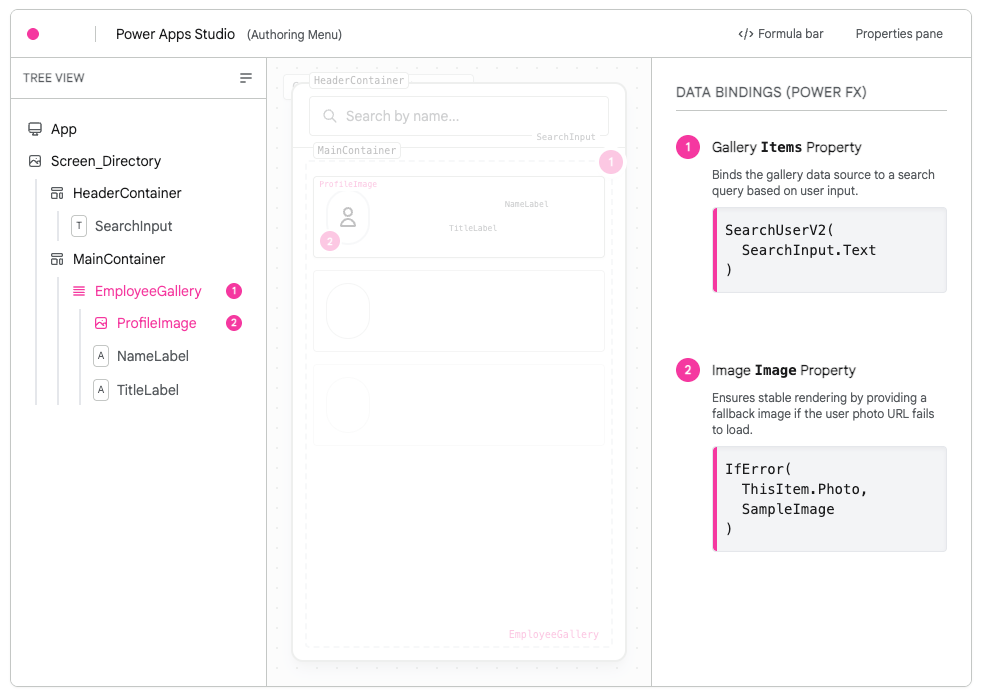
The modern responsive layout relies on nested containers. The SearchUserV2 function binds directly to the gallery, while IfError wrappers ensure stable image rendering.
Data sources: Microsoft Learn
How to Build This Today: Automating Data Updates
You saw Mark demonstrate strategies to automate and clean directory information using custom-built Power Automate flows. This approach prevented manual maintenance but placed a heavy ongoing operational burden on the app developers to monitor sync failures.
Today: Custom directory automation flows within Power Platform are largely considered an architectural anti-pattern. Best practice mandates that core employee data must be automated at the identity provider level, allowing the Power App to simply act as a lightweight presentation layer.
To ensure your directory is perfectly accurate without custom flows, organizations now rely on Microsoft Entra ID Lifecycle Workflows, a foundational component of the Microsoft Entra ID Governance suite.
Understanding Lifecycle Workflows
Lifecycle Workflows (LCW) automate the critical Joiner, Mover, and Leaver (JML) processes across the entire enterprise.
When an employee is hired, promoted, or terminated in your core Human Resources system (such as Workday or SAP SuccessFactors), those status changes synchronize directly to Entra ID. Lifecycle Workflows then trigger automatically based on these attribute changes.
This native process ensures all downstream systems and directory profiles are perfectly synchronized. It entirely eliminates the need for you to build and maintain fragile custom Power Automate sync flows.
Configuring HR-Driven Provisioning
The very first step in modernizing your data automation strategy is establishing the definitive connection between your HR system and Entra ID.
An administrator possessing the Global Administrator or Hybrid Identity Administrator role must navigate to the Microsoft Entra admin center.
Select Identity from the left navigation pane, then expand Applications and select Enterprise applications.
Here, you must configure an API-driven inbound provisioning app. This application establishes a highly secure pipeline that translates your raw HR data directly into standardized Entra ID attributes.
You must map the critical HR fields—such as Name, Title, Department, and Manager—to their corresponding Entra ID user profile attributes. Ensure that this synchronization runs on a frequent schedule to maintain real-time accuracy.
Setting Up the Lifecycle Workflows
Once the authoritative identity data is flowing cleanly into Entra ID, the Lifecycle Workflows must be configured to execute specific business logic. This includes actions like notifying managers or adjusting app access based on department moves.
In the Entra admin center, navigate to Identity Governance and select Lifecycle workflows.
The system provides robust, pre-configured templates for the most common enterprise scenarios.Select the Create a workflow option and choose a template, such as the "Mover" template designed specifically for department changes or promotions.
Leveraging Custom Attribute Triggers
A significant and highly anticipated update to Lifecycle Workflows in February 2026 massively expanded the capability of the Attribute Changes trigger.
Previously, workflows were limited to monitoring a strict, inflexible set of core attributes. With this recent update, the system now fully supports custom security attributes, directory extension attributes, and specific on-premises attributes (1-15).
In the workflow configuration screen, define the specific execution conditions for your directory. Set the trigger to activate immediately when the Department or JobTitle attributes change.
Configure the subsequent automated tasks required by your governance policies. For example, the workflow can automatically add the user to a new departmental Microsoft Teams channel, revoke access to their previous resources, and send an automated welcome email to their new manager.
By managing this data strictly at the Entra ID level, your Power App will natively display accurate, real-time information through the standard Office 365 Users connector without executing a single line of custom synchronization code.
Quick Win: For smaller organizations operating without massive enterprise HR systems like Workday, Microsoft Graph API scripts or specialized onboarding platforms like ezOnboard can be utilized to automate Entra ID updates seamlessly.
How to Build This Today: Live Development and Troubleshooting
You saw Mark perform unedited live building, which vividly highlighted the manual troubleshooting processes required when formulas failed or connectors returned unexpected data formats.
Today: The debugging and development experience is deeply integrated with generative AI. The introduction of Vibe Coding and the Copilot Formula Bar drastically reduces the time you spend hunting for syntax errors or deciphering complex nested logic.
Utilizing the Copilot Formula Bar
The Power Apps Studio formula bar now features powerful native Copilot assistance. This tool is absolutely invaluable when deciphering complex nested formulas or debugging persistent delegation warnings.
If you encounter a complicated Power Fx string left by a previous developer, select the control, highlight the code in the formula bar, and click the Copilot dropdown menu.
Select Explain this formula. The AI immediately generates a plain-language explanation of the code's logic, identifying the data source, the filtering parameters, and the expected technical output.
This specific feature supports formulas up to 5,000 characters in length. It allows developers to seamlessly insert the AI's explanation directly into the code as professional documentation comments.
Conversely, you can type natural language comments—such as // Filter the gallery to show only users in the IT department—and Copilot will automatically generate the corresponding, syntactically correct Power Fx code for you to review and accept.
Troubleshooting Connector Issues
While AI heavily assists with syntax generation, developers must still architect robust error-handling logic, especially when dealing with external API connectors that can experience latency.
In March 2026, a documented service degradation specifically affected the Office 365 Users connector within Power Apps, causing intermittent query failures across multiple tenants. Unpredictable events like this highlight the absolute necessity of defensive programming practices.
When a connector fails, an unhandled error can crash your entire application or present users with a confusing, blank, unresponsive screen.
To mitigate this operational risk, developers must heavily utilize the IfError function. Instead of directly binding your gallery to the volatile search query, wrap the query in a comprehensive error handler:
IfError(Office365Users.SearchUserV2({searchTerm: txtSearchUser.Value, top: 50}).value, Notify("The directory service is currently unavailable. Please try again later.", NotificationType.Error); Blank())
This code block attempts the query first. If the Office 365 Users connector times out or returns a 500-level error, the application safely intercepts the failure. It then displays a polite notification banner to the user and returns a blank table, actively preventing the gallery control from crashing.
Supervising Embedded AI Agents
If your development team opts to integrate custom Copilot Studio agents directly within the directory application, an entirely new layer of troubleshooting is required to maintain system integrity.
The early 2026 platform updates introduced the Agent Feed, a specialized workspace that allows makers to supervise autonomous agent activity in real-time.
If an embedded agent is failing to retrieve directory information accurately, developers can open the Agent Feed to view a detailed diagnostic log. This log displays the agent's reasoning process, the specific API calls it made, and the exact point of technical failure.
This high level of observability ensures that complex AI integrations remain predictable, governable, and secure within the strict enterprise environment.
Licensing Quick Reference
The licensing landscape for Microsoft 365 and the Power Platform undergoes regular and significant adjustments. The most notable recent shift was the complete end-of-sale for the legacy "Power Apps per app" plan in January 2026, pushing organizations firmly toward per-user models or unified enterprise suites.
The following table outlines the primary licensing pathways required to securely build, deploy, and govern the employee directory solution in March 2026.
| License Type | Estimated Cost (2026) | Relevant Entitlements & Capabilities |
|---|---|---|
| Microsoft 365 E3 / E5 | $39.00 / $60.00 per user/mo | Includes Power Apps Basic. Permits building canvas apps using Standard connectors (like Office 365 Users). Does not include Premium connectors or custom Dataverse tables. |
| Power Apps Premium | $20.00 per user/mo | Required for apps utilizing Premium connectors or complex Dataverse architectures. Includes 250 MB database and 2 GB file capacity per user. |
| Entra ID Governance | Add-on pricing varies | Required to execute Lifecycle Workflows for automated Joiner/Mover/Leaver HR syncs. Often bundled in broader security suites. |
| Microsoft 365 E7 | $99.00 per user/mo | The new "Frontier Suite" (May 2026). Includes M365 E5, Copilot, Agent 365 governance, and comprehensive AI and identity management tools. |
Utilizing Seeded Microsoft 365 Licenses
For organizations seeking to strictly minimize upfront costs, the core employee directory application detailed in this guide can be built entirely using the "seeded" capabilities included in standard Microsoft 365 E3 or E5 licenses.
Because the Office 365 Users connector remains classified as a Standard connector, any employee licensed for Microsoft 365 can access the application without requiring a standalone, dedicated Power Platform license.
This specific approach is highly cost-effective but inherently limits the application's future extensibility. If the organization decides to augment the directory by storing custom employee skills data in a standalone Dataverse table, or by connecting to an external HR REST API, the application immediately crosses the threshold into Premium territory.
The Power Apps Premium Threshold
If your application architecture requires Premium connectors or custom Dataverse entities, every single user accessing the application must be licensed accordingly to remain compliant.
With the permanent retirement of the affordable per-app plan, organizations must now purchase the full Power Apps Premium license at $20.00 per user/month. A discounted $12.00 rate is available for massive deployments exceeding 2,000 seats.
This premium license grants the user the unrestricted right to run unlimited custom applications. Crucially, it also provides pooled storage entitlements vital for scaling: 250 MB of Dataverse Database capacity and 2 GB of Dataverse File capacity per licensed user.
Strategic Shift to Microsoft 365 E7
For enterprise organizations moving beyond basic app development into widespread, governed AI deployment, Microsoft recently announced the Microsoft 365 E7 Frontier Suite, slated for general availability in May 2026.
Priced at a premium $99.00 per user/month, this unified SKU consolidates Microsoft 365 E5, Microsoft 365 Copilot, the Entra Suite (including the required Identity Governance for Lifecycle Workflows), and the new Agent 365 control plane.
For IT leaders architecting solutions today, the E7 suite represents the most comprehensive and strategic path forward. It provides the necessary low-code app development tools, the critical identity automation infrastructure, and the overarching governance control plane required to manage AI agents securely at global scale.
Official Microsoft Documentation References
For comprehensive technical specifications, API limits, and ongoing platform updates, refer directly to the following official Microsoft documentation repositories:
- Plan Designer Documentation:https://learn.microsoft.com/en-us/power-apps/maker/plan-designer/plan-designer
- Modern Controls Overview:https://learn.microsoft.com/en-us/power-apps/maker/canvas-apps/controls/modern-controls/overview-modern-controls
- Office 365 Users Connector Reference:https://learn.microsoft.com/en-us/connectors/office365users/
- Entra ID Lifecycle Workflows:https://learn.microsoft.com/en-us/entra/id-governance/what-are-lifecycle-workflows
- Power Platform Licensing Guide:https://learn.microsoft.com/en-us/power-platform/admin/pricing-billing-skus
Source note
Briefing published by Collab365 Spaces. Cite as "2026 Update: Create an Employee Directory", Collab365 Spaces. 41 sources referenced.