What's Changed Since This Session
| Technology / Feature | Status in March 2026 | What Replaced It |
|---|---|---|
| SharePoint Information Management Policies | Retiring April 2026 | Microsoft Purview Data Lifecycle Management |
| SharePoint In-Place Records Management | Retiring April 2026 | Microsoft Purview Records Management |
| Azure ACS-Based Authentication | Retiring April 2, 2026 | Microsoft Entra ID / Entra B2B Integration |
| Manual SharePoint List Creation | Legacy / Slower | SharePoint List Agent (Copilot) |
| SharePoint 2013 Workflows | Retiring April 2, 2026 | Power Automate / SharePoint Quick Steps |
| Manual Power Automate Flow Design | Legacy / Active | Copilot in Power Automate (New Designer) |
| Teams "Files" Tab | Renamed | "Shared" Tab |
| Complex JSON Formatting for SP Buttons | Legacy | SharePoint Quick Steps |
| Content Controls for Word Generation | Legacy / Active | Agent Mode in Word (Work IQ) |
How to Build This Today
1. Configuring Microsoft Forms to collect case submissions from external users without requiring guest accounts.
You saw James demonstrate configuring standard Microsoft Forms to capture case intake data from unauthenticated external parties seamlessly. Today, strict governance boundaries and security parameters necessitate a significantly modified approach to external data collection. Microsoft has permanently blocked external, anonymous users from uploading files directly through Microsoft Forms. Furthermore, if you attempt to use the integrated forms generated directly from SharePoint or Microsoft Lists, you will find they are restricted exclusively to internal organizational users. To execute this case intake scenario in March 2026, your architecture must utilize a standalone Microsoft Form paired with specific organizational-level sharing permissions.
Administrators must first authorize external sharing at the global tenant level before any user can collect external cases. You will need to navigate to the Microsoft 365 Admin Center and select Settings > Org settings. Under the Services tab, scroll down to select Microsoft Forms. You must check the box labeled Send a survey to people outside my organization (sometimes labeled "Allow external sharing") and click Save. Once this foundational setting is active, your makers can configure the specific intake form.
When designing the form itself, the creator must open the form and click Collect Responses. You must strictly choose the Anyone with the link can respond option from the permissions dropdown menu. You must completely avoid adding any "File Upload" questions to the canvas. Adding a file upload control will immediately break the external sharing capability, forcing the form back to internal-only access. You can then copy the link and share it via email, embed it on a public portal, or generate a QR code for intake.
If you are working within specialized government environments, you must be aware of strict co-authoring limitations. Co-authoring and sharing of Forms is now strictly fenced within the same cloud environment. For example, GCC High users can only co-author and share intake forms with other GCC High users, and DoD users are similarly isolated. Always verify your cloud instance before attempting cross-agency case collaboration.
Quick Win: Because the Forms file upload limitation cannot be overridden for external users, you should split the intake workflow. Use Microsoft Forms strictly for collecting text-based case details and initial questions. Then, trigger an automated email in the next step that provides the submitter with a secure, external-facing OneDrive file request link to securely upload their supporting case documents.
For comprehensive documentation on external form collaboration and specific environment limitations, refer to the official (https://support.microsoft.com/en-us/office/share-a-form-or-quiz-to-collaborate-d5bb5cf0-8401-4c15-bb8c-8e108cd7e69b) guide. Detailed administrative configurations can be found in the Administrator settings for Microsoft Forms documentation.
2. Building Power Automate flows to process form responses and create SharePoint list items for new cases.
In the session, James manually dragged and dropped triggers and actions onto the classic canvas to parse form responses into SharePoint. Today, the New Designer in Power Automate is heavily integrated with Microsoft 365 Copilot, effectively eliminating manual flow construction from scratch. The steps to build this intake pipeline are now conversational and highly automated.
To initiate this process, navigate to Power Automate and access the Copilot prompt interface at the top of the screen. Type a natural language command such as: "When a new MS Forms response is submitted, send an email to the submitter and create a SharePoint item". Copilot will immediately process the intent and return a suggested flow architecture that corresponds directly to your prompt. Click Next to review the necessary connector authentications for Forms, Outlook, and SharePoint, and then select Create flow to drop into the New Designer canvas.
Within the designer, Copilot will have auto-populated the When a new response is submitted trigger and the subsequent Get response details action. You must ensure the correct Form ID is selected in the dropdown for both of these initial steps. Next, locate the Create item SharePoint action that Copilot added. You will map the dynamic content tokens (like Client Name, Issue Description, and Order ID) from the Form directly into the corresponding SharePoint list columns you established for case tracking.
The March 2026 update introduces massive enhancements to administrative visibility over these automated processes. The Power Platform Admin Center now features Licensing Capacity Reporting fully available under Licensing > Power Automate > Usage. This provides a singular, consolidated dashboard for admins to monitor exactly which users are exceeding capacity and which specific flows are driving high automation usage across the tenant.
Furthermore, the New Usage Page is currently in public preview, providing modern dashboards that show adoption trends and resource-level analytics for Power Automate. This page already displays granular flow run data, allowing you to track execution patterns across your entire tenant to ensure your case intake flows are operating efficiently without hitting API throttling limits.
Quick Win: Utilize the newly introduced Object-Centric Process Mining (OCPM) feature to analyze your case resolution bottlenecks. Instead of traditionally tracking a single case ID, OCPM analyzes processes by following real interacting business objects (such as case submissions, invoices, and follow-up emails). This preserves dependencies between different object types, making it vastly easier to identify multi-object bottlenecks and verify end-to-end compliance for complex cases.
Review the (https://learn.microsoft.com/en-us/power-automate/forms/popular-scenarios) for official guidance on prompt-based generation. For tracking usage and deploying OCPM, consult the (https://www.microsoft.com/en-us/power-platform/blog/power-apps/whats-new-in-power-platform-march-2026-feature-update/).
3. Designing SharePoint lists for case tracking, status updates, and metadata management.
James spent a significant portion of his session manually creating columns, writing custom JSON formatting for status buttons, and applying legacy compliance policies to his SharePoint list. Today, SharePoint list design is drastically accelerated by AI agents, and custom JSON has been entirely replaced by native UI features. The foundational architecture of SharePoint lists has been modernized in preparation for deeper Copilot experiences.
The most significant change is the introduction of the SharePoint List Agent, which reached General Availability in late February 2026. Instead of manually configuring columns and data types, users now simply describe the required case management structure in natural language. You can open Copilot in SharePoint, Teams, or Word, and prompt the agent to "Create a case tracking list with columns for Case ID, Client Name, Status, and Priority." The agent instantly recognizes the intent, extracts the necessary structure, and generates the fully formatted list with a single click. The agent can even parse structured content like tables of historical cases or invoices and instantly convert them into a functioning list.
To handle status updates without writing code, the 2026 architecture leverages Quick Steps. This feature replaces complex JSON button coding, offering lightweight automation directly within the list's grid view. Navigate to the command bar, click the ellipsis (...), select Integrate > Quick steps, and click Create a quick step. You can select an action like Set value to create a one-click button that automatically updates a case status from "Open" to "In Progress" without a flow panel popping up. Quick Steps can also be configured to execute Power Automate flows, draft emails, or start Teams chats based on the selected case item.
For case metadata governance, built-in Approvals have been significantly enhanced directly within the library. Organizations no longer need to build custom Power Automate approval flows for routine sign-offs. Navigate to Automate > Configure Approvals to toggle native approvals on. The new Default Approvers feature allows administrators to define reviewers upfront, removing the requirement for users to select approvers manually every time a status change is initiated. This supports ordered, multi-stage approval processes with clear sequencing directly within the list context.
Modern SharePoint Case Management Architecture
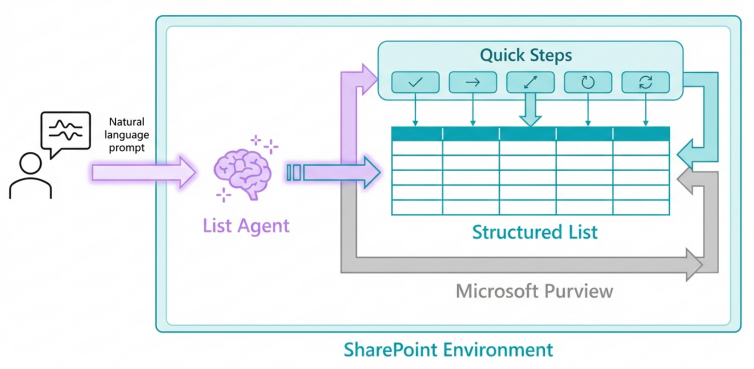
The 2026 architecture shifts from manual configuration to AI-driven list generation, native 1-click Quick Steps for process execution, and Purview for overarching lifecycle governance.
Warning: Legacy SharePoint Information Management Policies, In-Place Records Management, and Deletion-Only Document Policies are strictly retiring in April 2026. If your organization relies on these for case retention periods, audit logging, or vault abilities, they will simply stop functioning. Any existing retention rules must be manually re-architected and migrated to Microsoft Purview Data Lifecycle Management and Records Management to maintain compliance.
For configuration details on 1-click actions, view the Create a quick step for your list or library official documentation. For compliance transition strategies, see the (https://learn.microsoft.com/en-us/sharepoint/use-microsoft-purview-risk-and-compliance-solutions) guide. For native approval setup, consult the (https://support.microsoft.com/en-us/office/approvals-in-lists-document-libraries-2bd0954d-5797-4be3-b78a-846f26338e17) documentation.
4. Integrating Teams channels with SharePoint for team notifications and discussions on active cases.
James showed basic tab integrations and manually linking SharePoint lists to the standard Teams 'Files' tab. Today, the integration model is defined by interactive, context-aware AI agents embedded directly into the communication flow. Furthermore, foundational UI elements have shifted to better support historical asset tracking.
The primary mechanism for this deep integration in 2026 is the deployment of SharePoint Agents. These agents securely index specific case management sites and allow teams to query massive amounts of case data using natural language directly within a Teams chat. Ready-made agents come automatically with every SharePoint site and understand the site's default content. However, for case management, you will want to build a custom agent. To configure this, navigate to the source SharePoint case site and click + New -> Agent to launch the creation wizard. You customize the agent with a specific name (e.g., "Case Query Bot"), restrict its sources to specific libraries, and provide custom behavioral instructions.
Once the custom agent is created, click the ellipsis (...) next to the agent's name and select Copy link for Teams. Paste this link into the target Teams channel dedicated to case discussions. You will see a prompt to add the agent to the conversation. The agent will introduce itself, allowing any team member to @mention it to retrieve case summaries, check document statuses, or verify internal HR policies. Crucially, the agent rigorously respects existing SharePoint security permissions, ensuring users only retrieve data they are explicitly authorized to view.
Note that the traditional interface has also been updated to improve asset discovery. The traditional "Files" tab within Teams channels has been officially renamed to the Shared tab. In addition to showing current files, the Shared tab now aggregates previously shared files and links that were posted in channel conversations, making it much easier to find historical case evidence without scrolling through months of chat logs.
Quick Win: Coming in April 2026, the platform introduces support for one-on-one chats with custom SharePoint Agents in Teams. Users handling highly sensitive or confidential cases will no longer have to navigate back to SharePoint or use a public channel. They can message the agent privately to query sensitive case facts securely. Additionally, utilize the new SharePoint agent analytics on Viva Insights feature to explore how your employees are interacting with these agents and measure the ROI of your deployments.
For further implementation details regarding agent deployment in communication hubs, refer to the (https://unifiedcommunications.com/powerful-microsoft-teams-features-coming-in-april-2026/) overview. For details on the tab updates, consult the (https://techcommunity.microsoft.com/blog/microsoftteamsblog/what%E2%80%99s-new-in-microsoft-teams--january-2026-%E2%80%93-ise-edition/4486458) release notes.
5. Setting up secure external sharing of SharePoint sites and lists for third-party collaboration outside your tenant.
You saw James configure external sharing using legacy authentication methods and older SharePoint provisioning logic. Today, securing third-party access relies exclusively on modernized identity protocols, as older frameworks are actively being decommissioned by Microsoft to enforce Zero Trust security models.
Specifically, Azure ACS-based authentication for SharePoint Online will be fully retired on April 2, 2026. After this date, any ACS-based client IDs will simply stop working, even if their client secrets are valid beyond that point. This impacts all solutions relying on ACS, including app-only principals and provider-hosted add-ins. All secure external collaboration must now be routed exclusively through Microsoft Entra B2B integration. This modern framework ensures that external guest invites, authentication, and collaboration restrictions are governed centrally by Entra ID policies, providing superior auditability and conditional access controls.
To configure this for a new case management site, a SharePoint Administrator must navigate to the SharePoint admin center and access Active sites. Select the specific case management site, navigate to the Settings tab, and click More sharing settings. Select the appropriate external sharing option from the list. You should heavily favor the Authenticated: new and existing guests option. This allows external sharing with anyone, but mandates that they authenticate and are added to your Azure AD directory before accessing the shared case content.
Administrators must also utilize the Limit sharing by domain checkbox under the Advanced settings for external sharing. Expand this section and add the specific domains you want to allow. This restricts case data sharing exclusively to authorized partner organizations or vendor domains, fundamentally preventing accidental data leakage to public email providers like Gmail or Yahoo.
Quick Win: Implement automated expiration policies to reduce lingering access risks. In the tenant-wide sharing settings, configure the option dictating that Guest access to a site or OneDrive will expire automatically after [X] days. This automatically revokes third-party access when a standard case lifecycle is typically expected to close, preventing forgotten guest accounts from accumulating access rights.
For global tenant-level configurations, consult the official guide to (https://learn.microsoft.com/en-us/sharepoint/turn-external-sharing-on-or-off). For granular, site-specific security adjustments, refer to the (https://learn.microsoft.com/en-us/sharepoint/change-external-sharing-site) documentation.
6. Automating customer feedback loops using Power Automate, additional Forms, and email notifications.
James built classic, highly rigid sequential flows to dispatch feedback forms upon case closure. Today, the introduction of Agentic Apps transforms static feedback loops into dynamic, highly context-aware interactions that drive significantly better engagement. We are moving away from robotic, one-size-fits-all email dispatches.
Instead of merely sending a static Forms link via a standard Outlook connector, organizations can now embed Microsoft 365 Copilot directly into the model-driven Power Apps used for managing the case lifecycle. When a case status is officially changed to "Resolved," agents can utilize the Copilot side pane to instantly summarize the entire case history. By typing a command in the pane like @Analyst draft a personalized feedback request based on this resolution, the built-in organizational agent actively analyzes the specific nuances of the case data.
This ensures the outreach is highly tailored to the client's actual experience rather than a generic template. The agent can then automatically schedule a follow-up meeting or generate the necessary communication across Microsoft 365 services directly from the app context, utilizing code interpreters to generate visualizations of case metrics if necessary.
For scenarios requiring automated, high-volume scale, the New Usage Page in the Power Platform admin center (currently in public preview) provides critical oversight. Administrators can monitor adoption trends and resource-level analytics for these automated feedback flows. The page shows granular flow run data so you can track execution patterns across your tenant, ensuring your high-volume outbound automations do not exceed tenant API limits or violate anti-spam policies.
Quick Win: Utilize the newly released Power Platform inventory view to gain a unified perspective of all active cloud flows, Copilot Studio agent flows, and Workflows agent workflows across your environment. This unified view makes it incredibly easy to spot your most active automations, enforce compliance on outbound feedback communications, and instantly prevent orphaned resources from continuing to send legacy surveys.
Detailed insights into AI-driven data actions within model-driven applications can be found in the (https://www.microsoft.com/en-us/power-platform/blog/power-apps/whats-new-in-power-platform-march-2026-feature-update/).
7. Creating and populating Word document templates from case data via Power Automate for reports and closures.
James demonstrated using the traditional Word Online (Business) connector to populate formal case closure reports. While this method remains viable in the platform, the 2026 ecosystem introduces native, AI-driven document generation directly within the Word interface, bypassing complex data mapping and flow configurations entirely.
If you are mandated to utilize the traditional Power Automate method for strict regulatory templates, you must first enable the Developer tab in Word Desktop. You add Plain Text or Image Content Controls to your document, give them friendly properties, and save the template to a supported Microsoft Graph location like SharePoint. You then build a flow using the Populate a Microsoft Word template action in the New Designer. However, practitioners must be aware of strict limitations: the connector enforces a strict 10MB file size limit, it absolutely does not support nested image content controllers, and it struggles significantly with rich text fields or complex formatting.
The modern 2026 approach relies on Agent Mode in Word (Edit with Copilot), powered by the Work IQ intelligence engine. This approach eliminates the need for strict template mapping and content controls. Users simply open a blank Word document, navigate to the Copilot prompt box in the Home tab, and select Tools > Edit with Copilot.
A user can instruct the agent natively using plain language: "Draft a final case closure report using the structured data from the 'Active Cases' SharePoint list, and summarize the key actions taken based on the attached email thread." Copilot securely retrieves the enterprise data via Work IQ, strictly maintaining all existing sensitivity labels and access permissions, and generates the formatted document in place using Word's built-in styles. Using these official endpoints prevents unsafe elements like macros while leveraging decades of Word engineering for reliability.
Document Generation: Legacy v's Modern Workflow
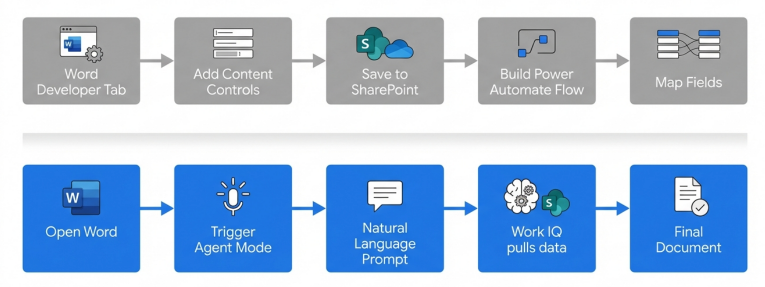
Agent mode in Word utilizes Work IQ to pull context directly from SharePoint, eliminating the need for rigid content controls and complex Power Automate data mapping.
Quick Win: For long-running, highly complex case reports that require synthesizing multiple data sources, utilize the new Copilot Cowork capability, now available through the Frontier program. Cowork brings multi-step work into Copilot, moving beyond single prompts. It breaks down complex drafting requests into steps, reasons across tools and files, and operates for minutes or hours to coordinate actions. This transforms Copilot from a single-shot text generator into an active, delegated drafting assistant.
For detailed configuration of traditional document templates, review the (https://learn.microsoft.com/en-us/connectors/wordonlinebusiness/). For mastering prompt-based drafting and Work IQ utilization, consult the official guide to (https://support.microsoft.com/en-us/office/edit-with-copilot-in-word-647d5d14-eaec-4e8a-a574-7cefffa7f8f0).
Licensing Quick Reference
James's original session didn't have to contend with the latest commercial suite updates. To effectively build and utilize the modern 2026 case management architecture outlined above, organizations must provision the correct licensing tiers. Note that effective July 1, 2026, Microsoft has instituted global price and packaging updates for foundational commercial suites.
| License Required | Key Capabilities Enabled | Notes / 2026 Pricing Context |
|---|---|---|
| Microsoft 365 E3 or E5 | Base SharePoint, Microsoft Forms, Entra ID (P1/P2), Purview Compliance tools. | Required base. E3 increased to $39.00/mo; E5 increased to $60.00/mo (July 2026). |
| Power Automate Premium | Process Mining (OCPM), Custom API integrations, Premium Connectors. | Required if integrating non-M365 external systems or utilizing advanced Process Intelligence. |
| Microsoft 365 Copilot USL | SharePoint List Agent, Agent Mode in Word, Copilot Cowork, Copilot Studio. | $30.00 user/month add-on. Required for all natural language generation and agentic features. |
For a comprehensive breakdown of power platform entitlements and capacity limits, review the(https://learn.microsoft.com/en-us/power-platform/admin/pricing-billing-skus). For the latest enterprise pricing models and rollout timelines, refer to the 2026 M365 Packaging and Pricing Updates.
Source note
Briefing published by Collab365 Spaces. Cite as "2026 Update: Case Management Using M365 (Companion Guide)", Collab365 Spaces. 9 sources referenced.