
If you watched Paul Stork's original session on Microsoft Power Automate Copilot, or you have only just found it while learning how to build a flow, some of the screens and options may no longer match what you see in Power Automate. That is not you missing a step. The cloud flow designer has changed, several Copilot features have moved or remained in preview, and AI-assisted desktop automation now reaches into Copilot Studio as well as Power Automate Desktop.
The useful ideas from Paul's session still hold: describe the flow you need, refine it with Copilot, ask Copilot to explain an existing flow, and explore AI help for desktop automation. What has changed is where those capabilities live, what they are called, and what licence or setup they may require.
Start with Paul's session for the original four demonstrations, then use the sections below to match each demonstration to the 2026 experience. You will see what still works, what now uses a different route, and what to check before building the same flow today.
1. What's Changed Since This Session
The table below provides an orientation on what has shifted since the original session.
| Technology / Feature (2024) | Current status (August 2026) | Current route |
|---|---|---|
| "Record with Copilot" (PAD) | Deprecated and unavailable | Describe a desktop flow with Copilot and use the standard recorder, or use Copilot Studio "Computer Use" (GA since May 2026) |
| Classic Cloud Flow Designer | Phased out as default | The "New Designer" (AI-powered UI) |
| Inline Action Configuration | Replaced | Left-Mounted Configuration Pane |
| Strict UI Selectors (Desktop) | Enhanced | AI Self-Healing Selectors (preview) |
| Per Flow Licensing ($500/mo) | Restructured | Power Automate Process Licence ($150/bot/mo) |
| Manual Error Troubleshooting | Enhanced | "Troubleshoot in Copilot" Pane |
Important note on "Record with Copilot": Microsoft Learn now marks "Record with Copilot" (also known as the AI Recorder) as deprecated and unavailable in Power Automate for desktop. Microsoft lists two alternatives: describe the desktop flow with Copilot and use the standard recorder where needed, or create a Copilot Studio agent with Computer Use. This replaces the earlier US-only preview guidance.
The New Designer is now the standard for cloud flows, replacing the classic designer as the default experience. The licensing model has also been restructured: the legacy "Per Flow" model charged $500 per month for a minimum of five flows. That model has been replaced by capacity-based licensing tied to how flows are used.
Quick Win: For new desktop automation projects, evaluate Copilot Studio Computer Use before deciding whether to extend an existing Power Automate Desktop flow. Computer Use has been generally available since May 2026 and is designed to adapt to interface changes. Test it carefully, because AI-driven interaction can still take an unintended action. Traditional PAD flows remain appropriate for predictable legacy applications, with self-healing available as a preview option for supported actions.
2. How to Build This Today
This section breaks down how to execute the same four scenarios from Paul's session using the current August 2026 toolset.
Demo 1: Creating a Complete Cloud Flow from a Natural Language Description
The session showed Paul Stork describing a scenario in plain English to generate a flow, with Copilot auto-setting connections and parameters. Here is how you build that same thing today.
The fundamental concept remains the same. The interface has been updated and the underlying models improved, but the generation approach works the same way.
Initiate the "Describe it to design it" Interface
Start by signing into the main Power Automate portal at make.powerautomate.com. Select Home on the left-hand navigation menu.
Look for the prominent text field labelled Create your automation with Copilot located centrally on the screen. This is your starting point for all generative builds.
Engineer the Prompt
Structure your prompt using the specific "When X happens, do Y" format. Be specific about your data sources.
Instead of typing "Make an approval flow for SharePoint," type: "When a new item is created in the 'Contoso Hardware' SharePoint list, send an approval email to the line manager, and post the outcome to the 'Operations' Teams channel". Explicitly naming the connectors (SharePoint, Teams, Approvals) improves the initial structural output.
The Iterative Prompting Loop
Review the initial structure presented by the AI immediately after you click Generate. If the logic looks flawed, enter clarifying instructions into the Add more details for Copilot to work with box and hit the right arrow to regenerate. Repeat until the logic is accurate, then select Keep it and continue.
The Connection Verification Gateway
Before you hit the canvas, you face the connection verification screen. Review the connected apps listed on your screen. A green checkmark means the connection is ready. A red exclamation mark means you must click the connection and authenticate before proceeding.
Enter the Designer and Save
Once your connections are verified, select Create flow. You immediately enter the New Designer interface, which is the 2026 standard.
The New Designer includes a browser-storage recovery aid. It can keep a recoverable copy after a failed save and in certain exit scenarios, then offer that copy when you return. Treat this as a recovery option rather than guaranteed autosave after every browser crash, and do not clear the browser cache while relying on it.
Always manually save your work using the Save button. Use the Save draft button when building complex solution-aware flows to save progress even if the flow contains logic errors.
Understanding Unsupported Triggers
Some specialised triggers cannot be generated or edited within the New Designer as of early 2026. If your flow relies on Business process flows within Dataverse, Microsoft 365 Compliance triggers, or Power Pages calls, you must build these automations manually using the classic interface.
Flows that use direct connections instead of solution-aware connection references must be exported and re-imported before Copilot can effectively edit them.
Demo 2: Editing an Existing Flow
The session showed Paul Stork using natural language to add actions, replace actions, remove actions, or update parameters in the flow. Here is how you build that same thing today.
The editing experience has been overhauled. You are now working within the New Designer, which relies on a right-hand Copilot pane and a left-hand Configuration pane.
Navigating the New Canvas
When you open an existing flow, action cards on the canvas are more compact. Blue dashed lines between actions are AI-Powered Drop Zones where you can drag and drop new actions without breaking the flow logic.
For navigation, use the Minimap in the bottom-left corner for bird's-eye navigation of large flows, alongside zoom and fit-to-view controls. An integrated search feature helps you find specific operations hidden within nested conditions.
The 2026 "New Designer" UI Architecture
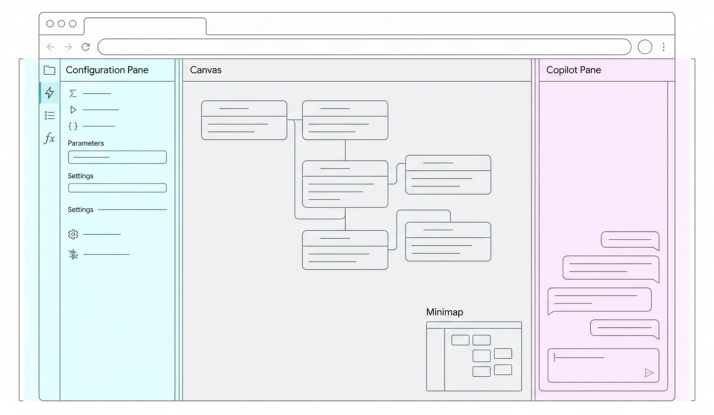
The modern interface compartmentalises tasks: configuration lives on the left, the visual canvas in the center, and the AI assistant on the right.
Using the Right-Side Copilot Pane
To edit via natural language, use the Copilot pane pinned to the right side of your screen. You can issue direct commands: "Delete the 'Get items' action" or "Instead of sending an email, post a message to the Teams channel". Copilot will swap the connectors on the canvas and attempt to carry over the existing dynamic content into the new action.
Mastering the Left-Side Configuration Pane
When you click on any action card, the Configuration Pane slides out from the left. It is divided into four tabs.
The Parameters tab is where you map incoming data. Use the lightning bolt icon to insert dynamic content from previous steps, and the fx icon to insert complex expressions.
The Settings tab handles execution logic. Here you configure Action Timeouts, Retry Policies, and Run After conditions. You also configure secure inputs and outputs to hide sensitive data from run history logs.
The Code View tab shows the raw JSON code behind a specific action card.
The Testing tab houses the Enable Static Result feature, which lets you mock a success or failure state for testing without firing the action or altering production data.
Side-by-Side Comparison with Pinning
Right-click any action card on the canvas and select Pin action. Its configuration pane locks permanently to the left side of your screen. Now click a second action. A second configuration pane opens to the right of the pinned one. You can compare parameters side-by-side or copy and paste values between them. Right-click the canvas card again and select Unpin action to release.
Updating Parameters and Expressions
Use the multi-line expression editor within the Parameters tab, which now includes a gripper tool to expand it to a full-page view for complex logic.
You can use the specialised workflow() function to retrieve dynamic environment tags. For example, workflow()['tags']['environmentName'] returns the current environment name and can be used when building a dynamic link back to a flow. When an expression is embedded inside text, Power Automate uses the @{...} inline form.
To duplicate an action in the New Designer, right-click it and select Copy action, then right-click the destination + and select Paste an action. Microsoft documents copying individual actions as well as conditions and scopes; triggers cannot be copied.
Quick Win: Use the Back arrow in the top-left of the Power Automate title bar when you want to return to the previous page.
Demo 3: Summarising and Explaining Flows/Actions
The session showed Paul Stork asking Copilot to describe what an individual action or the entire flow does. Here is how you build that same thing today.
Generating Human-Readable Summaries
To understand a large legacy flow, open the flow in the New Designer. In the right-hand Copilot pane, type the direct prompt: "What does my flow do?"
Copilot analyses the triggers, actions, and underlying JSON architecture. It returns a bulleted summary of the flow's business purpose, data routing, and conditional logic. You can copy this output directly into your internal wiki or handover notes.
You can also ask Copilot to draft a standardised flow description when editing the flow's details on the main properties page.
The "Troubleshoot in Copilot" Feature
If a flow fails in production, navigate to the 28-day run history panel on the flow details page and open the failed run. Troubleshoot in Copilot can provide a plain-English summary and may suggest a possible solution. Microsoft notes that it does not work in every scenario, so check its suggestion against the failed action's inputs, outputs and error details before making a change.
Warning: If you change an underlying data-source schema, such as adding a new SharePoint column, an existing action can retain the older schema. Delete and re-add the relevant action when you need the designer to retrieve the updated fields.
Process Mining Insights
If you use the Process Mining capabilities, Copilot can analyse your entire operational workflow and generate process insights through natural language. It will highlight bottlenecks and suggest where new automated flows should be deployed.
Demo 4: Overview of Copilot Support in Power Automate Desktop
The session provided an overview of Copilot support in Power Automate Desktop (PAD), specifically focusing on natural language desktop recording. Here is how you approach that same area today.
This is the area where the most significant change has occurred. "Record with Copilot" is now deprecated and unavailable in Power Automate for desktop. Microsoft points makers either to natural-language desktop-flow creation with the standard recorder, or to Copilot Studio Computer Use when an AI agent needs to operate a website or desktop application.
When Computer Use Is the Better Fit
Traditional desktop flows use defined UI actions and selectors, which can fail when an application's underlying element identifiers change. Copilot Studio Computer Use takes a different approach: it uses vision and reasoning to operate the interface and is designed to adapt when buttons or screens change. That flexibility also introduces risk, so use clear instructions, restrict what the agent can act on and test the task before production use.
Deploying a "Computer Use" Agent
Computer Use became generally available in Copilot Studio in May 2026. To deploy a Computer Use agent:
- Navigate to Microsoft Copilot Studio and ensure your environment region supports the feature.
- Navigate to the Tools section of your agent and select Add tool.
- Choose New tool, then select Computer use.
- Draft your instructions in natural language describing the task. For example: "Open the internal HR app, navigate to 'Pending Leave', and extract all rows into a structured JSON array."
- Configure the target machine: choose between a Hosted Browser (Microsoft-managed, for quick testing -- not recommended for production) or a Bring-Your-Own-Machine (BYOM) model where you register your own managed Windows machines.
- For BYOM: install Power Automate for desktop version 2.61.132.25266 or later, install the Power Automate web extensions, and in the machine settings toggle Enable for computer use.
Store machine credentials in encrypted Power Platform storage or Azure Key Vault rather than putting passwords into instructions or other plain text.
You can restrict the websites (such as *.contoso.com) and desktop applications on which the agent is allowed to act. This limits its actions; it does not necessarily prevent an outside website from being opened or displayed.
The Fallback: AI Self-Healing Selectors in PAD
If your organisation maintains traditional step-based Power Automate Desktop flows, the Self-healing (preview) capability can help with certain UI and browser actions. When a supported element cannot be found, it can attempt to identify an alternative element at runtime and continue the flow. It can still fail or choose an unintended target, so test the recovered route and keep appropriate error handling in place.
Self-healing currently requires Power Automate for desktop version 2.66 or later and is limited by account type, region and supported action. To enable it for an eligible action, open Error handling and turn on Self-healing (Preview).
The Evolution of Desktop Automation: 2024 vs. 2026
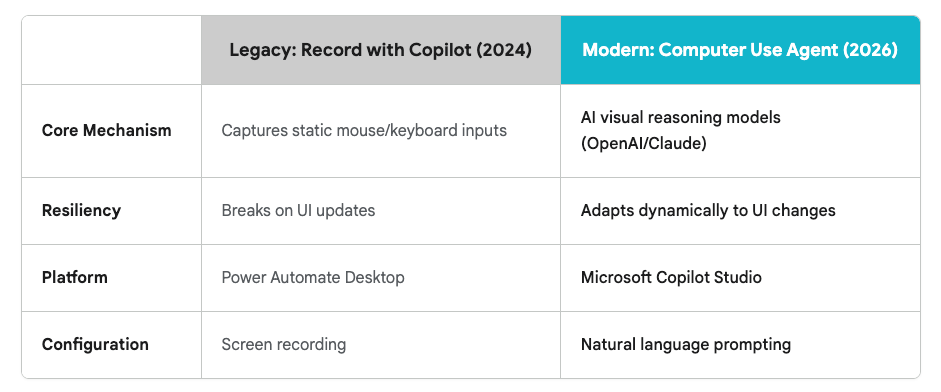
Microsoft has invested in visually-aware AI agents (Computer Use, GA May 2026) as a more resilient alternative to screen recording for complex, variable UIs.
Data sources: Microsoft Docs (Record with Copilot), Microsoft Docs (Computer Use), Microsoft Docs (Configure Computer Use Runs), Microsoft Docs (Self-Healing)
Before You Put This Flow Into Use
A flow that works once in the designer is not ready for colleagues yet. Complete these checks before you turn it on for a live process.
- Test with realistic data. Run the normal route, then try blank or missing fields, duplicate submissions, an approval rejection, and an unexpected value or file format. Use test records and restricted recipients so a mistake does not update live data or message the wrong people.
- Check permissions and connections. Confirm that every connection can reach the mailbox, SharePoint list, Teams channel, app, or machine it needs. Check which account each connection uses and give it only the access required for the flow.
- Send failure alerts somewhere visible. Make sure a named person receives an email or Teams alert when the flow fails, including enough detail to find the failed run. Do not rely on someone remembering to inspect run history.
- Choose retries deliberately. Retries can help with temporary connector failures, but repeating an action can also create duplicate records, messages, or approval requests. Review the retry setting for important actions and add a duplicate check where a repeated action would cause damage.
- Name an owner and a backup. Record who is responsible for the business process, who maintains the flow, and who can step in when the main maker is unavailable. Add an appropriate co-owner and avoid leaving critical connections dependent on one person's account.
- Confirm the licence before launch. Check whether every connector is Standard or Premium, whether desktop or unattended automation needs additional licensing, and whether Copilot Studio activity will consume paid capacity. Ask your Power Platform or Microsoft 365 admin to confirm the final setup.
- Prepare the handover. Save a short record of the flow's purpose, trigger, actions, connections, owners, licensing decision, test results, failure route, and how to pause or recover it. Store that record somewhere the backup owner can find without needing your memory or browser history.
If any box still depends on “I will remember to check it,” the flow is not ready to become part of someone else's working day.
3. Licensing Quick Reference
The licensing structure now separates user licences from capacity licences. The legacy Per Flow plan was sold at $100 per flow per month with a minimum purchase of five licences, creating a $500 monthly minimum. Microsoft replaced it with the following current offers.
| Licence Type | Current USD list price | Best Use Case | Key Features Included |
|---|---|---|---|
| Power Automate Free | No additional charge | Basic personal automation. | Standard connectors only; no premium or custom connectors; 6,000-action daily limit. |
| Microsoft 365 seeded entitlement | Included with qualifying Microsoft 365 plans | Automation within the Microsoft 365 licence context. | Standard connectors only; 6,000-action daily limit. |
| Power Automate Premium | $15 / user / month | A named maker or user who needs premium automation. | Standard, premium and custom connectors; one attended RPA bot; 5,000 AI Builder credits per month; 40,000-action daily limit. |
| Power Automate Process | $150 / bot / month | A core business process, high-volume flow or unattended automation. | Premium connectors; one unattended bot; 5,000 AI Builder credits per month; 250,000 actions per day for each Process licence assigned. |
| Hosted Process | $215 / bot / month | Unattended automation that needs Microsoft-hosted machine capacity. | Process entitlements plus one hosted bot and Microsoft-hosted machine capacity; 250,000-action daily limit. |
Important Considerations for 2026 Deployments:
Connector tier, not publisher, controls licensing: Salesforce, SAP, ServiceNow and SQL Server are currently Premium connectors, but a connector does not become Premium merely because it connects to a non-Microsoft service. Microsoft also lists non-Microsoft Standard connectors. Check the individual connector's tier before deciding which licence is required; custom connectors require premium rights.
The Process Licence: A company-wide flow does not automatically require Process licensing. Automated and scheduled flows normally use the owner's licence context, while instant flows use the invoking user's context. If a premium flow is invoked by multiple users, either the relevant users need Premium licences or the flow needs a Process licence. Using a shared service account to reduce the number of licences can breach Microsoft's multiplexing rules, although legitimate service-account patterns are possible when the service account and relevant users are properly licensed.
Computer Use Billing and Copilot Credits: Computer Use consumes Copilot Credits by step rather than traditional flow runs. Each step costs 5 Copilot Credits with a standard model or 15 with a premium model. A step can include one or more low-level actions such as clicking, typing or navigating, so estimate capacity from tested runs before deploying at scale.
Dataverse and daily action limits: A Power Automate Premium licence grants 250 MB of Dataverse database storage and a 40,000-action daily limit. A Process licence provides 50 MB of Dataverse database storage and 250,000 actions per day for each Process licence assigned.
Evidence Notes
Microsoft Learn now marks "Record with Copilot" (AI Recorder) as deprecated and unavailable in Power Automate for desktop. The page was updated on 4 August 2026 and lists natural-language desktop-flow creation with the standard recorder and Copilot Studio Computer Use as alternatives.
Microsoft's current Copilot Studio release notes confirm that Computer Use became generally available in May 2026. The live documentation does not substantiate the previously stated date of 7 May, so this briefing uses the month only.
Self-healing remains a preview feature. The current prerequisites specify Power Automate for desktop version 2.66 or later, eligible organisation accounts and supported regions and actions.
The current US list prices are $15 per user per month for Premium, $150 per bot per month for Process and $215 per bot per month for Hosted Process. Current daily action limits are 6,000 for Free and Microsoft 365 contexts, 40,000 for Premium and 250,000 for each Process or Hosted Process licence.
Computer Use steps consume 5 Copilot Credits with a standard model or 15 with a premium model. Connector licensing is determined by the connector's Standard or Premium classification rather than whether its publisher is Microsoft.
Microsoft's AI Builder documentation states that seeded AI Builder credits are removed on 1 November 2026.
Source note
Briefing published by Collab365 Spaces, reviewed by Helen Jones on . Cite as "Power Automate Copilot in 2026: What's changed for a Citizen Maker", Collab365 Spaces. 12 sources referenced.