The spreadsheet is becoming the system
Rows get overwritten, nobody knows which version is current, and each new request creates another workaround. You want a proper app, but Power Apps still feels like a blank canvas.
Three builds. One path. An app that survives real users.
Publish a SharePoint-connected clock-in app, build a multi-screen records app, and finish with a reusable header, side navigation and color picker.
What you build3 pieces of finished work across 3 core steps
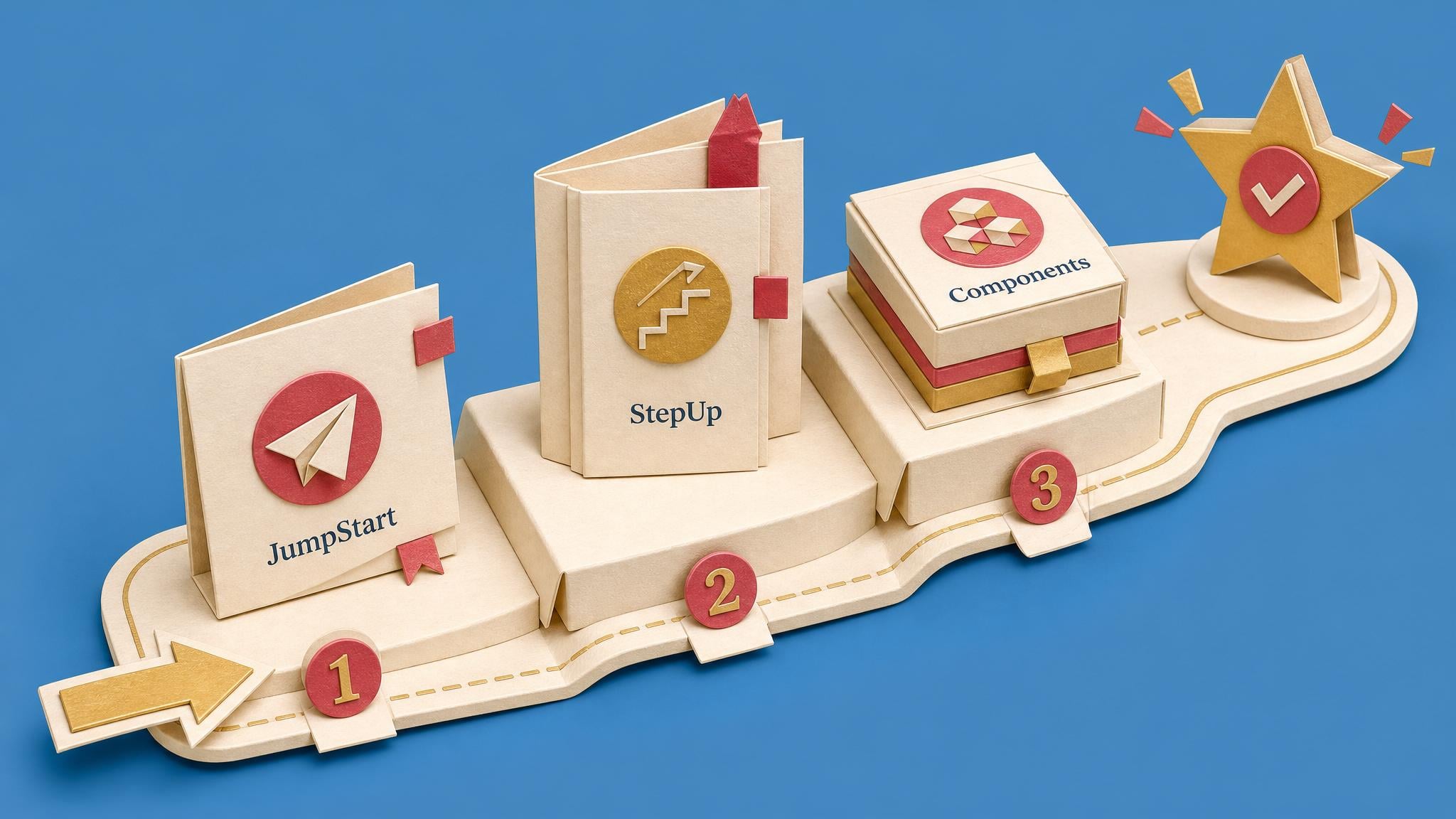
What you will finish
Excellent on Trustpilot
4.5/5 from 14 reviews
Collab365 brand reviews, not a claim about results from this Board.
Read the reviewsDoes this sound familiar?
Maybe the shared spreadsheet is becoming the system. Or perhaps your first Power App works until someone else uses it: navigation breaks, forms misbehave, and every screen needs the same fix. The problem is no longer finding another tutorial. It is knowing what to build next, in the right order.
Rows get overwritten, nobody knows which version is current, and each new request creates another workaround. You want a proper app, but Power Apps still feels like a blank canvas.
Navigation breaks, forms do not save properly, or a gallery shows the wrong person's records. You can build the pieces, but they are not yet working together as one reliable app.
Headers, menus and buttons have been copied across several screens. A color or label change becomes repetitive work, and the screens slowly drift apart.
What done looks like
Start here
JumpStart ends with a real app published and shared: a colleague clocks in, the record lands in the List, and it still works when they open it again tomorrow.
How you’ll know you’re finished
Finish with three working outputs: a published SharePoint-connected clock-in app, a multi-screen clock-in and records app, and a component library containing a configurable header, side navigation and color picker.
How you get there
JumpStart gets live SharePoint data moving through a practical clock-in app. StepUp assembles a multi-screen records app with forms, a filtered gallery, consistent navigation and a reusable header. PathFinder turns the repeated interface patterns into configurable components and a library. Every stage ends published and tested, because an app that survives real users is the only kind worth building.
Suggested pace: 3 focused sessions or 2-3 weeks
Build a practical clock-in canvas app against a Microsoft List. You will create and update records with Patch, add time and break logic, then publish and share the app with the right data permissions.
Inside Power Apps Builders
Build a multi-screen clock-in and records app around one Microsoft List, with a submission form, user defaults, a filtered and sorted records gallery, consistent navigation and a reusable header component.
Inside Power Apps Builders
Turn repeated interface patterns into configurable components. Build a header, side navigation and color picker, then publish them in a component library for controlled reuse across apps.
Inside Power Apps Builders
Built for
Power Apps beginners and improving makers who want a guided path from first canvas app to more confident intermediate builds.
Level
Beginner to Intermediate
Access period
90-day Learning Pass. Afterwards, your progress, private notes and saved work remain; protected steps require Space access.
Before you start
No hidden setup is added by the Board. Check each step for any product-specific prerequisites.
A complete Space, included
Use the Power Apps Success Path Board as your focused route to a working result. Your pass also gives you 229 additional resources from the complete Space library, including guided builds, briefings, Blueprints and product updates, plus community discussions when you need help. No separate course purchases. No searching the web for the missing step.
What you get

Learning Pass includes
Power Apps Builders
Your complete Space bonus
229
extra resources included for your chosen 90-day period, plus community
Your work stays saved.
Full supporting-Space access lasts for your chosen 90-day period. Afterwards, protected steps require continuing Space access.
Browse everything included
Choose a category and browse every included item. Use the arrows to move through the complete list. Nothing is hidden behind hand-picked examples.
All 13 guided build courses
Step-by-step help when a learning-path step needs more explanation or hands-on practice.
Showing 1–6 of 13
Loading the complete page…
Before you decide
Your progress, private notes and saved work remain on your account. Full access to protected content in Power Apps Builders lasts for the period you choose; afterwards, protected steps require an active plan, permanent Space ownership or Team access.
Your 90-day Learning Pass starts when payment is confirmed, not when you first open a lesson or Board item.
The page checks your account and Team access before checkout. It keeps your existing Board and progress, avoids duplicate charges, and shows the right ongoing option if the one-off offer no longer applies.
AI can answer individual questions. This Board adds the chosen sequence, named outputs, progress tracking and related Space material for the context and edge cases you would otherwise have to assemble yourself.
The current estimate is 3 hours 39 minutes, completed at your own pace over 3 focused sessions or 2-3 weeks. The complete learning path is visible on this page before you start.
No. The Board gives you a practical learning path and supporting material, but you still make the decisions and do the work. It is a product, not a done-for-you consulting service.
No. JumpStart begins with the Power Apps Studio interface and teaches the low-code formulas as you build. StepUp and PathFinder then build on those foundations, taking the same route from beginner to intermediate.
You will work towards three practical outputs: a published SharePoint-connected clock-in app, a multi-screen clock-in and records app, and configurable header, side-navigation and color-picker components organised in a component library.
You need a work or school Microsoft 365 account with Power Apps enabled and permission to create a SharePoint or Microsoft List. Your organisation's licensing and administrator policies still apply.
The three courses contain 48 lessons with 3 hours 39 minutes of lesson runtime. Allow additional time to pause, build and test in your own environment. You can complete them in three focused build sessions or spread them over two to three weeks.
Yes. JumpStart can refresh the foundations. StepUp is designed for makers who can already connect a data source and use a basic gallery or form. PathFinder then moves into reusable components and component libraries.
The page checks the access already on your account and shows the available route, such as existing access, a qualifying individual or Team plan, or a one-off Board option where configured.
Your next useful action
JumpStart ends with a real app published and shared: a colleague clocks in, the record lands in the List, and it still works when they open it again tomorrow.
The one-off option includes a 90-day Learning Pass for required Spaces. Afterwards, your progress, private notes and saved work remain; protected steps require continuing Space access.